Setting up an emulation handheld means choosing a frontend, installing the right emulators, placing BIOS files in exact folders, loading games you have the right to use, and mapping the controls. Done by hand, it takes an evening or more. Done on a pre-configured device, it takes the time to charge the battery. This guide walks through both so you can decide which one fits you.
TL;DR
- A manual setup has five parts: frontend, emulators (cores), BIOS files, game files, and controls. Each one has its own ways to go wrong.
- BIOS files are the usual stumbling block: they must have exact names and sit in exact folders.
- In the U.S., emulators are legal, but downloading ROMs from the internet is not authorized by the Copyright Act, even for games you own.
- If you want to play tonight rather than tinker, a pre-loaded handheld such as the Retro Pulse skips most of this work.
Table of Contents
- What “setup” really means on an emulation handheld
- Step 1: Pick the hardware and know its limits
- Step 2: Choose a frontend
- Step 3: Install the cores and emulators
- Step 4: Get the BIOS files right
- Step 5: Games, ROMs and the law
- Step 6: Organize folders and make the library browsable
- Step 7: Map the controls and protect your saves
- Where manual setups go wrong
- Our view: setup is the real barrier
- Manual setup or ready to play: which suits you
- What you get with the Retro Pulse
- If you still want to tinker
- FAQ
- Sources
What “setup” really means on an emulation handheld
An emulator is software that imitates a game console so its games can run on other hardware. A handheld only becomes a retro machine once four things are in place: the emulator, the console’s system files, the games, and a front end that lets you browse them without digging through folders.
Android Authority’s reviewer described the problem well in a piece on wanting a pre-configured handheld: every new device that arrives for review means hours of installing emulators and fixing folder structures before the fun starts. If a professional reviewer finds that tedious, a first-timer should plan for a slow first evening.
That is not a reason to avoid it. Manual setup gives you total control, and many enthusiasts enjoy it. It just helps to know what you are signing up for.
Step 1: Pick the hardware and know its limits
The machine decides what you can emulate. Four things matter most:
- Which systems you want. NES, SNES, Game Boy and Genesis are undemanding. PS1 and N64 ask more. Anything beyond that needs a much stronger chip and more tuning.
- Screen size and aspect ratio. Most 8-bit and 16-bit games were designed for a 4:3 picture, so a very wide screen leaves black bars or stretched pixels.
- Controls. A real D-pad matters for platformers and fighters. Analog sticks and shoulder triggers matter for N64 and PS1 titles. If you want to see how the two compare in practice, we tested it in D-pad vs analog stick on one handheld.
- Battery and storage. Check whether the battery can be swapped and how you add games, usually through a microSD card.
A phone with a clip-on controller is another route, and we compare it with a dedicated device in phone emulation vs handheld.
Step 2: Choose a frontend
A frontend is the menu you actually see. It lists your games, shows box art, and launches the right emulator for each file.
RetroArch is the best-known option. It acts as one app that bundles dozens of emulators, called cores, and covers systems from DOS to PS2, according to Android Central’s emulation coverage. It is also not a universal answer: the same source notes that some people end up adding standalone emulators, such as DuckStation for PS1 or Dolphin for GameCube, because those can offer better compatibility or performance on demanding systems.
A practical rule for beginners:
- Start with one frontend and its cores for your lighter systems.
- Add a standalone emulator only when a specific game runs badly or a feature is missing.
- Resist installing five frontends at once. Troubleshooting gets much harder.
For a detailed walkthrough of menus and options, Android Central’s guide to turning a phone into a gaming handheld covers choosing emulators on Android.
Step 3: Install the cores and emulators
In RetroArch, each console you care about needs a core. You download the core inside the app, then the app pairs it with game files by extension. Two habits save time:
- Read each core’s information page. It tells you which file types it accepts and which BIOS files it requires.
- Pick one core per system first. Different cores for the same console can behave differently with saves and settings. Switching later is fine, but do it deliberately.
Step 4: Get the BIOS files right
This is where most first attempts stall. Some systems, including PS1 and several others, need a BIOS file from the original console to run. Newcomers tend to underestimate how exact this is.
The libretro documentation on BIOS files says the file must be in the right location, which is usually the system folder, and that the core information page tells you exactly where. Names are often case-sensitive, and some systems want a specific subfolder inside the BIOS directory. Putting everything in one generic folder is a common mistake.
If you use EmuDeck instead, its cheat sheet takes the opposite approach: BIOS files go directly into the Emulation/bios folder, with no extra folders unless a chart says so. The lesson is that every tool has its own convention. Follow the one for the tool you chose, not a general rule from a forum post.
A checklist for BIOS trouble:
- Open the core’s information page and note the exact file names it lists.
- Compare your file names character by character, including capital letters.
- Confirm the folder path in the frontend’s settings, not from memory.
- Restart the app after moving files.
Step 5: Games, ROMs and the law
This part deserves care. Here is what the U.S. Copyright Office says, and how legal scholars read it.
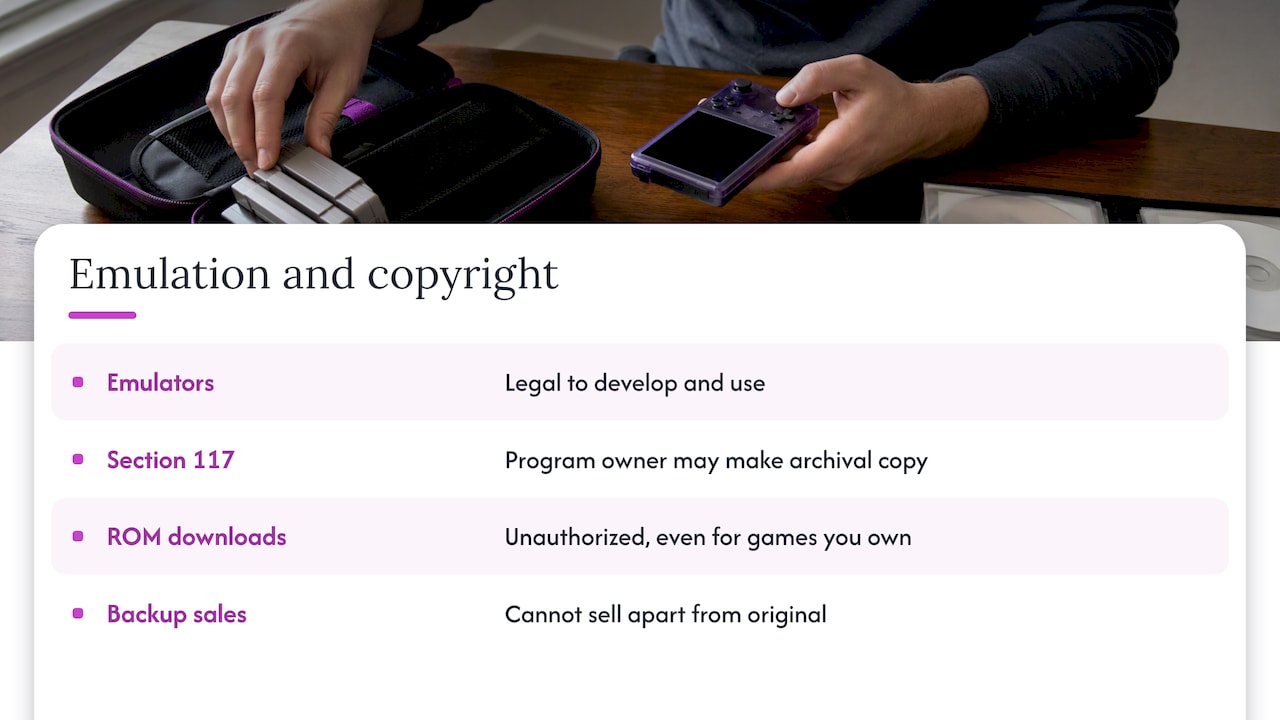
Emulators themselves are legal to develop and use, a position tied to court cases such as those involving Connectix and Bleem. Game files are different. The U.S. Copyright Office’s FAQ on digital files explains that Section 117 lets the owner of a computer program make an archival copy, but it does not authorize downloading copies from third parties, and backups cannot be sold separately from the original. Downloading ROMs from the internet, even for games you own, is not authorized by the Copyright Act. For a longer academic discussion, see the University of Cincinnati journal’s article on emulation and the law.
If you have a specific legal question, such as whether your own backups are covered, ask an intellectual property attorney. We are a retailer, not a law firm, and this is general information.
What this means in practice: a manual setup leaves you to source game files on your own and to take responsibility for that choice. It is one reason some buyers prefer a device that arrives with a curated library.
Step 6: Organize folders and make the library browsable
Once games are in place, organization decides whether the device feels good to use.
- One folder per system, named consistently.
- Clean file names, so artwork and descriptions can be matched automatically.
- Scraping: most frontends can pull in box art and descriptions, which turns a list of file names into something you want to browse.
- Favorites and collections, so a library of thousands doesn’t bury the five games you actually play.
A blank game list is a common first-run complaint, usually because the frontend is looking in a different folder from the one you filled. Our guide on adding games to a retro handheld without a blank list covers that problem directly.
Step 7: Map the controls and protect your saves
Default mappings are rarely perfect. Check these before you play seriously:
- Confirm face buttons match the original layout, since some systems swap A and B positions.
- Assign a hotkey for the menu, so you can leave a game without hunting for a button.
- Decide how you will save. Save states are convenient but tied to a specific core version, while in-game saves are the safer record of progress. We explain why in retro handheld save backups.
- Copy your save folder to a computer or card occasionally.
For analog-heavy systems, our look at dual analog handhelds shows what N64 and PSP-era titles need from the hardware.
Where manual setups go wrong
The same few problems show up again and again:
| Problem | Typical cause | Fix |
|---|---|---|
| Game won’t start | Missing or misnamed BIOS | Check the core info page for exact names |
| Blank game list | Wrong folder or unsupported extension | Point the frontend at the right directory |
| Stutter or slow sound | Core too demanding for the chip | Try a lighter core or lower the settings |
| Saves vanish after update | Save states tied to old core | Use in-game saves and back them up |
| Wrong colors or stretched picture | Aspect ratio or shader settings | Reset video options to defaults |
None of these is hard to solve once you know it exists. Finding it out at 11 p.m. with a controller in hand is what makes people give up.
Our view: setup is the real barrier
We sell handhelds, so we hear the same story from buyers. They want to play a childhood game, not learn directory permissions. A parent wants to hand a device to a kid on a road trip. A student wants something affordable that works. A gift buyer wants a box that works when it’s opened.
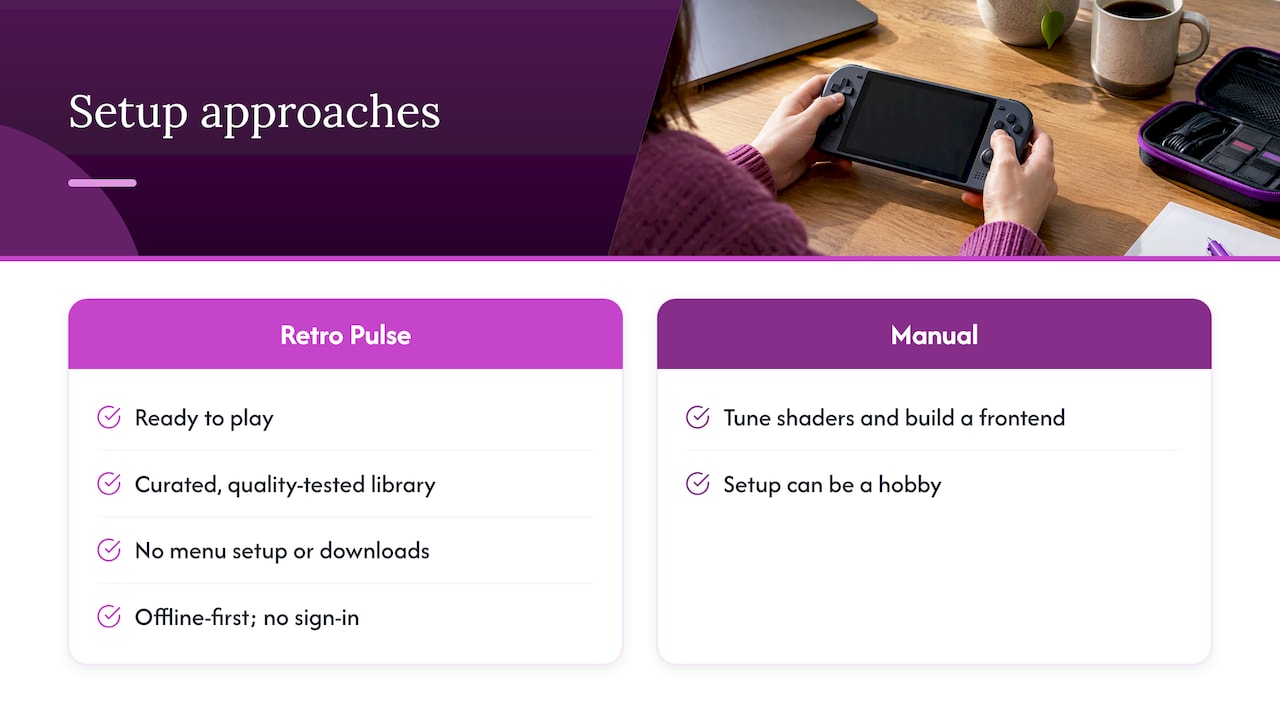
That is why we built the Retro Pulse around being ready to play. The library is curated, tested for quality, and there are no menu setup steps, downloads or subscriptions between you and the first game. It runs offline-first, so there is nothing to sign into. We ship from a U.S. warehouse, which means you avoid the long shipping waits and quality gambles that can come with overseas suppliers, and we back it with a one-year warranty and 30-day returns.
This is not a claim that manual setups are bad. If you love tuning shaders and building a custom frontend, a tinkerer’s device is a good hobby. But if the setup is the obstacle between you and the games, we think removing it is the better design. Android Authority’s reviewer reached a similar conclusion about wanting a pre-configured handheld, and the demand for that is real.
— Sean
Manual setup or ready to play: which suits you
| Manual setup | Pre-loaded handheld | |
|---|---|---|
| Time to first game | Hours, sometimes a weekend | Power on and pick a game |
| Skills needed | Folders, BIOS files, core settings | None |
| Customization | Nearly unlimited | Focused on a curated library |
| Games | You source and organize them | Included |
| Best for | Tinkerers and power users | Casual players, parents, gift buyers, commuters |
If you are still weighing options, our retro handheld comparison for parents lays out the trade-offs without the jargon, and emulation vs original hardware explains why many players skip hunting for old consoles.
What you get with the Retro Pulse
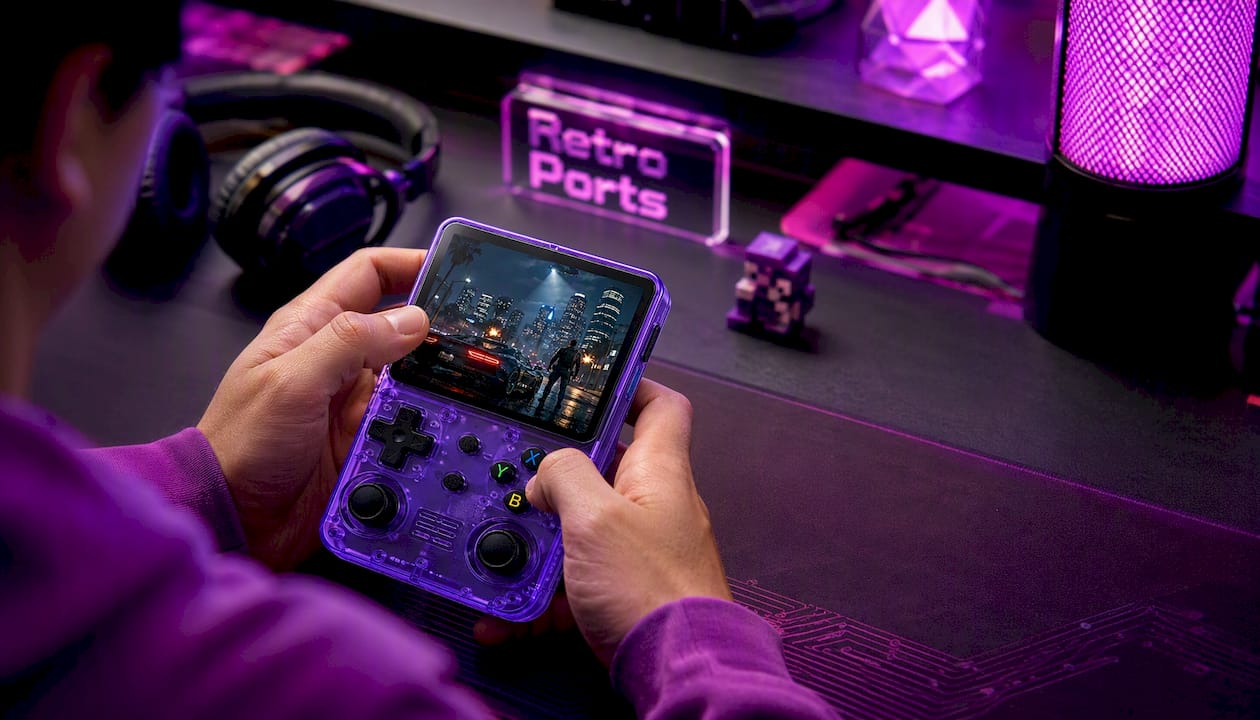
The Retro Pulse comes preloaded with 15,000 classic games from more than 20 systems, including NES, SNES, Genesis, PS1, N64, Game Boy, GBA and arcade. It has a 3.5" IPS display, a real D-pad, twin sticks and L/R triggers, USB-C charging, and a removable battery rated for 6 to 8 hours of play. Two microSD slots let you add more if you want to expand later. If arcade is your main interest, see our arcade handheld guide.
If you still want to tinker
A ready-to-play device doesn’t have to be the end of the hobby. The dual microSD slots mean you can add your own content later, and the knowledge in this guide still applies: folder names, file formats and saves work the way they do anywhere else. Start with the library as shipped, learn what you like, then customize.
If you are comparing against consoles on the TV, our guide to mini console vs handheld covers when each makes sense, and Switch vs a retro handheld looks at per-game costs against a big library.
FAQ
How long does an emulation handheld setup take?
It depends on the device and how many systems you want. Expect an hour or two for a few simple consoles, and longer once you add PS1 BIOS files, artwork and control mapping. A pre-loaded device can be played right out of the box.
Do I need BIOS files for every system?
No. Many early cartridge systems run without one, while others, PS1 among them, usually need one. Each core’s information page lists what it requires and where the file must go, so check it before you start.
Is it legal to use an emulator in the U.S.?
Emulators themselves are legal to develop and use. Downloading ROM files from the internet is a different matter: the Copyright Office says it isn’t authorized by the Copyright Act, even for games you own. For a specific situation, talk to an intellectual property attorney.
Is RetroArch enough, or do I need other emulators?
RetroArch covers a wide range of systems, from early consoles up to PS2. Some people add standalone emulators for demanding systems where they get better compatibility or performance. Begin with RetroArch and add others only when you hit a real limit.
Sources
- U.S. Copyright Office: Copyright and Digital Files FAQ
- Android Authority: I’d give everything for a pre-configured Android gaming handheld
- Android Central
- Android Central: Everything you need to turn your phone into the ultimate gaming handheld
- libretro docs: BIOS files
- EmuDeck cheat sheet
- University of Cincinnati IP and Computer Law Journal: Ready Player One, Video Game Emulation and the Law