The safest routine for retro handheld saves combines three habits: copy your saves folder manually to a PC on a regular schedule, add an automated send-only sync for convenience, and create a full disk image before any major firmware update. Treat your in-game saves, not save states, as the copy you can always trust.
TL;DR:
- Use in game saves as the portable copy: .srm and .sav files survive core changes better, while save states depend on their original emulator version.
- Most complete save folders stay under 500 megabytes, but verify matching file sizes and load a file in an emulator before trusting the copy.
- Set Syncthing to send only on the handheld and retain older file versions; this prevents stale remote copies from replacing newer progress.
- Before major firmware changes, create a full card image with space equal to the card’s capacity, then test booting it from a spare card.
Table of Contents
- Manual microSD and folder copy workflow
- In-game saves vs. save states: which one to trust
- Automated sync options: Syncthing, RetroArch Cloud Sync, and upload-only backups
- Full-disk microSD imaging for full-system disaster recovery
- Safe device-switch checklist and conflict-resolution steps
- How Retro Pulse supports safe save workflows
- Common mistakes and the short routine I use
- Buy Retro Pulse: an offline-first handheld that simplifies backups
- FAQ
- Sources
- Essential links: guides and tool pages for follow-up reading
Manual microSD and folder copy workflow
Most handhelds and Android emulation setups organize saves in predictable folders, typically something like /Games/saves/ or /RetroArch/saves/, sitting next to a /Games/roms/ directory. Using the microSD as a single library for ROMs, saves, states, and configs keeps backups straightforward because copying the card copies everything at once.
Pro Tip: Keep ROMs, saves, states, and configs in the same top-level folder so a single copy operation grabs all of it.
A basic manual backup takes four steps:
- Power off the device completely before removing the card or connecting it over USB or SMB.
- Copy the entire
/Games/folder, or at minimum thesavesandstatessubfolders, to your PC. - Store that copy on a PC, a NAS, or a cloud drive, ideally in more than one location.
- Repeat this before firmware updates, before switching devices, and on a weekly or monthly cadence depending on how often you play.
Most complete saves directories stay under 500 megabytes, so the copy itself finishes in seconds. Verify the backup by checking that file sizes match the originals, then actually load one save file in an emulator to confirm it works rather than assuming the files are intact.
In-game saves vs. save states: which one to trust
Retro emulation gives you two different kinds of saved progress, and confusing them is how people lose hours of play. In-game saves, usually .srm or .sav files, are written by the game itself at a save point and work across different emulator cores and firmware versions. Save states, often named .state or .state0 through .state9, are snapshots of the entire emulator memory at a specific instant and depend heavily on the exact core and version that created them.
- Trigger an in-game save at every save point the game offers, since it is the format most likely to survive an emulator update.
- Use multiple save-state slots instead of overwriting one, so a corrupted state does not erase your only snapshot.
- Keep at least one backup copy of an important save state before risky operations like changing cores or updating firmware.
Save states are convenient but risky as a primary backup because they are version and core dependent, while in-game saves transfer far more reliably. RetroArch defaults to loading the most recent save state automatically on some cores, and NAND-based emulators like Eden or Yuzu store their own internal save data separately from standard .sav files, so check each emulator’s save location individually rather than assuming one folder covers everything.
Automated sync options: Syncthing, RetroArch Cloud Sync, and upload-only backups
Manual copies work, but automated sync removes the step of remembering to do it. Three approaches cover most setups, and each carries a different risk profile.
Syncthing synchronizes folders peer-to-peer across your local network or the internet, and it can run directly on many handhelds. Configuring the handheld’s saves folder as send-only stops a stale backup on another device from overwriting a newer save on the handheld itself, which is the most common way automated sync destroys progress.
- Set Syncthing’s folder type to send-only on the handheld so it only pushes saves out, never pulls them in.
- Restrict sync to Wi-Fi only, and optionally “only while charging,” to avoid draining battery or mobile data.
- Keep a few old file versions enabled in Syncthing so you can roll back if a bad save propagates.
RetroArch’s Cloud Sync feature uses WebDAV backends and lets you choose exactly which assets sync: save files, states, configs, or thumbnails. Turning on non-destructive mode matters here, since it stores any file that gets overwritten in a cloud_backups folder instead of deleting it outright.
Pro Tip: Always enable non-destructive mode in RetroArch Cloud Sync so a bad sync never permanently erases a good save.
Upload-only backups, built with a tool like rclone or a Batocera backup service, clone your save data to a cloud drive such as OneDrive, Google Drive, or Dropbox without any two-way sync risk. This differs from Syncthing in one key way: nothing ever comes back down automatically, which makes it a safer single-machine disaster recovery option even though it cannot merge saves across multiple devices.
When Syncthing does detect a true conflict, it creates a .sync-conflict file rather than silently overwriting anything. Resolving it safely means comparing timestamps on both files and keeping the most recent in-game save as the authoritative copy, deleting the conflict file only after you have confirmed it loads correctly.
Full-disk microSD imaging for full-system disaster recovery
File-level copies protect your saves, but they miss partition tables, boot records, and hidden system data that only a full disk image captures. Sector-level microSD imaging creates a complete .img or .imgcv2 file of the entire card, which is the only backup type that restores a bootable card exactly as it was.
- Free up enough space on your PC to hold the full image, which should be at least the size of your microSD card’s stated capacity.
- Use an imaging tool such as HDD Raw Copy to read the entire card sector by sector into a single image file.
- Store at least two copies of the image, on separate drives or a mix of local and cloud storage.
- Test the restore on a spare microSD card before you actually need it, since an image you have never restored is not a verified backup.
Pro Tip: Restoring an image to a larger card can leave extra space unallocated, so run a partition editor afterward to expand the usable partition.
Destination storage needs to match or exceed the source card’s capacity, and restore testing is what separates a real backup from a file that merely exists. Boot the restored card and load an in-game save before trusting it.
Safe device-switch checklist and conflict-resolution steps
Moving to a new handheld or a different emulator setup is when most people lose saves, usually because they copy files to the wrong path or trust a save state that does not match the new core version.
- Before switching, run a full manual backup, note which emulator core versions you are using, and export any config files you want to keep.
- On the new device, copy saves to the exact matching folder path, then start the game and load the in-game save first, not a save state.
- If conflict files appear from a sync tool, compare timestamps and keep the most recent in-game save as the working copy.
- Hold onto conflict copies until you have verified the restored save loads correctly, then delete them.
- After restoring, launch each game briefly to confirm settings, controller mapping, and thumbnail artwork carried over as expected.
How Retro Pulse supports safe save workflows
We built Retro Pulse around the same principle this guide follows: keep the save workflow simple enough that backups actually happen. The console ships preloaded with 15,000 games across more than 20 systems, so there is no download step that can corrupt a save folder mid-transfer.
- A removable microSD slot lets you pull the card and run the exact manual copy checklist above without special software.
- Offline operation means saves write locally and never depend on a server connection to exist.
- A warranty backs the hardware itself, separate from your save data, which still lives entirely on your card.
Because the SD card holds everything in one place, verification is simple: copy the card, then test-load a save on another device. For a deeper look at what save states actually capture and how to avoid corruption, see our guide on avoiding corrupted saves.
Common mistakes and the short routine I use
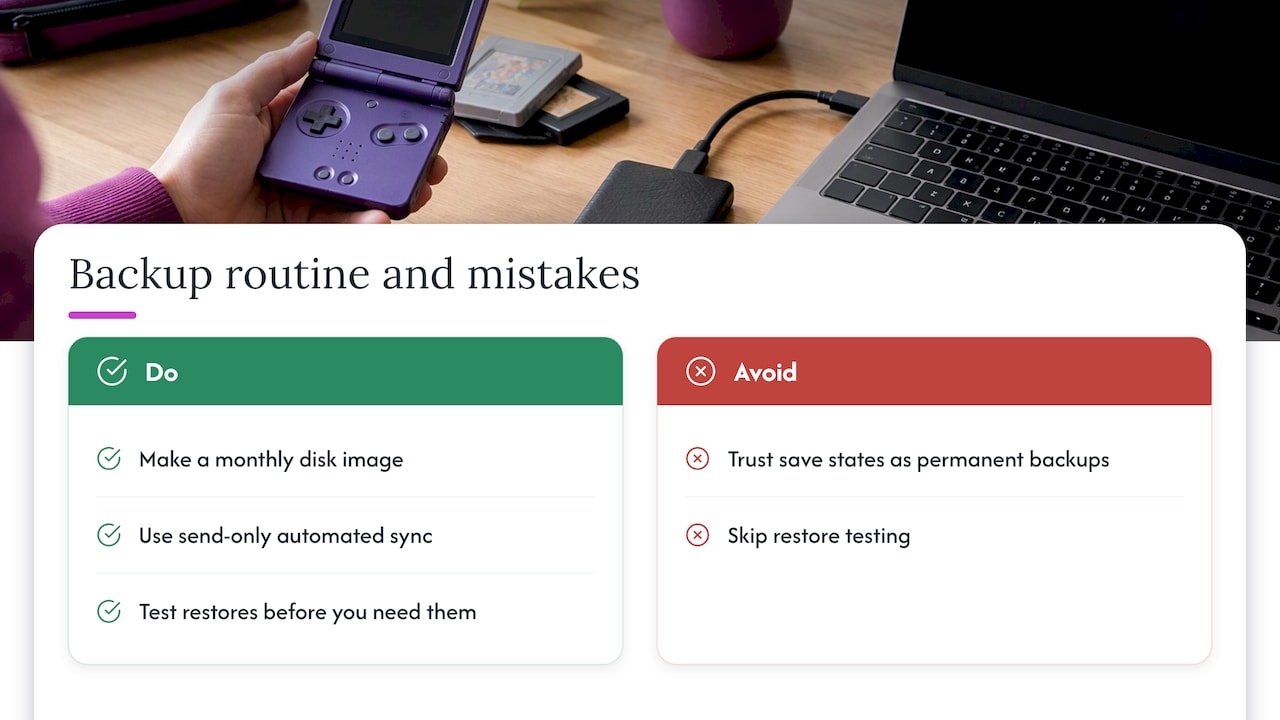
After years of moving saves between handhelds and emulator builds, the mistake I see most often is trusting a save state as a permanent backup. My own routine is simple: a monthly disk image plus send-only automated sync for everything in between.
I once restored a “backup” that turned out to be an empty folder from a failed copy. Test your restores before you need them.
— Sean
Buy Retro Pulse: an offline-first handheld that simplifies backups
We designed Retro Pulse to make this entire backup routine easier: 15,000 games preloaded, offline-first play, a removable microSD card, and shipping straight from our U.S. warehouse with a 1-year warranty.
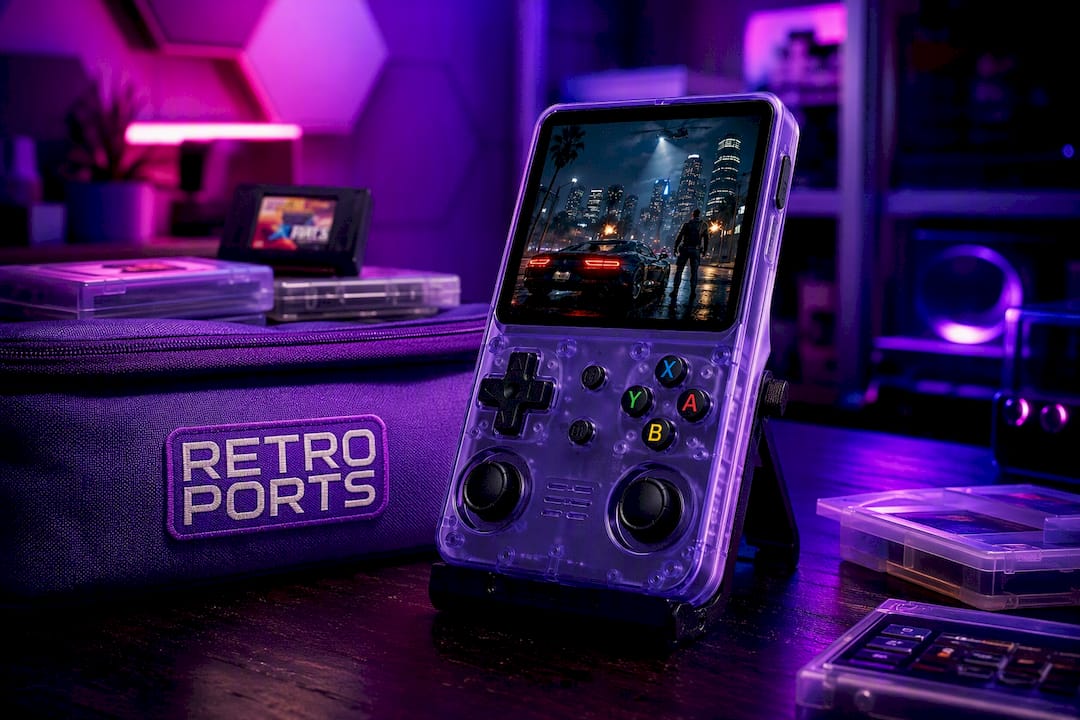
- Pull the card, run a quick copy, and you have a full backup in minutes.
- Back up your card before any firmware update, the same habit this guide recommends for any handheld.
Check out Retro Pulse and build your backup routine around a handheld that was designed for it from the start.
FAQ
What’s the best way to back up retro handheld saves?
Copy the saves folder from your microSD card to a PC or NAS on a regular schedule, and treat in-game saves as your primary backup rather than save states. Add automated send-only sync through a tool like Syncthing for convenience, and create a full disk image before major firmware updates.
Should I back up save states or in-game saves?
In-game saves, the .srm or .sav files written by the game itself, are far more portable across emulator cores and firmware versions than save states. Save states are convenient but risky as a primary backup since they depend on the exact core version that created them.
How do I avoid sync conflicts between devices?
Set your sync tool to send-only on the handheld so it never pulls in an older save and overwrites a newer one. When Syncthing detects a genuine conflict, it creates a separate conflict file instead of overwriting anything, and you resolve it by keeping the save with the most recent timestamp.
Do I need a full disk image or is a file copy enough?
A file copy protects your saves day to day, but a sector-level disk image is the only backup that preserves partition tables and boot records, which matters if the card itself fails or becomes corrupted. Create one periodically and always test the restore on a spare card.
How do I know my backup actually works?
Check that file sizes on the backup match the originals, then load the save in an emulator or on the restored card to confirm it works. Restore testing is what confirms a backup is usable, not just the fact that the files exist.
Sources
- Save State Management: Never Lose Retro Game Progress Again | Held Games
- RetroArch Cloud Sync – Libretro Docs
- Syncthing — Batocera Linux Wiki
- How To Back Up and Restore a Retro Handheld microSD Card – Tech Tactician
- How to Back Up an Android Retro Gaming Device | Jean Galea
Essential links: guides and tool pages for follow-up reading
A few references cover the tools and techniques in this guide in more depth if you want to set up a specific sync method or imaging workflow.
- Save State Management Guide, for a deeper breakdown of in-game saves versus save states.
- RetroArch Cloud Sync docs, for configuring WebDAV backends and non-destructive mode.
- Syncthing on Batocera Linux, for send-only folder setup and conflict file behavior.
- Back up and restore a microSD card, for the full disk imaging process.
- Backing up an Android retro handheld, for organizing ROMs, saves, and configs on one card.