You can add games to most retro handhelds by copying correctly named ROM files into the right folder on the microSD card or over USB, then letting the frontend scan or refresh its list. Only do this with software you legally own: archival copies are limited to your own use, and downloading or sharing unauthorized ROMs is not covered.
TL;DR:
- Check your handheld’s manual for the exact system folder names because codes such as N64 or SFC vary by firmware and incorrect names can hide games.
- Copy two or three test games per system first, then scan or refresh the frontend and confirm each game launches before transferring a full library.
- If games remain missing, rerun the scan and try loose matching when available; strict database checks can reject modified files or unmatched dumps.
- Keep each .cue file beside its matching .bin, and use an .m3u playlist for multi disc games; otherwise, the frontend may not recognize the set.
- Safely eject the card after transfers because removing it mid write can corrupt files or saves; make a card image before reorganizing your library.
Table of Contents
- What do you need before you start?
- How do you reach your handheld’s storage?
- Where do ROMs need to go?
- How do you copy the files from Windows, macOS or Android?
- Why do some copied games not show up?
- What are the most common mistakes?
- Quick habits that save hours
- Skip the setup and still add your own games
- FAQ
- Sources
What do you need before you start?
A little preparation saves most of the frustration. Gather these before you touch a single file:
- A microSD card. A card from a known brand with room to grow is the safest pick. Bigger libraries need more space, and cheap unbranded cards fail more often.
- A card reader or SD adapter. Most laptops have an SD slot; a microSD adapter fits it. A USB-C reader works for desktops and phones.
- A USB-C data cable. Some handhelds mount as a drive over USB. Charge-only cables will not work, so check that yours carries’ data.
- A file manager. File Explorer on Windows and Finder on macOS are enough. On Android, use a file manager that keeps filenames and extensions untouched.
- Your game files in the right format. Common extensions include .sfc or .smc for SNES, .gba for Game Boy Advance, .nes for NES and .z64 for N64. Some systems want extracted files, not .zip archives.
Pro Tip: Start with two or three test ROMs per system. Confirm they show up and launch before you move a whole library.
How do you reach your handheld’s storage?
The goal is to see the game card as a normal drive on your computer. There are two routes, and the first is usually more reliable.
- Power the handheld off completely, not just to sleep.
- Open the card slot and gently eject the microSD card.
- Slide it into an SD adapter or a USB card reader.
- Plug the reader into your PC or Mac and wait for the drive to appear in File Explorer or Finder.
- If you prefer USB, connect the handheld with a data cable and pick the storage or file transfer mode on the device. It may appear as mass storage or as an MTP device, which shows up as a device with folders rather than a lettered drive.
- When you finish copying, use “Eject” or “Safely Remove Hardware” before pulling the card or cable.
If your handheld has two microSD slots, check the manual to learn which slot holds the operating system and which holds games. Usually one card runs the system and the other is for your library, and mixing them up is an easy way to get a blank game list.
That last step matters more than it looks. Pulling a card mid-write can corrupt files, including save data. If you care about your progress, read our guide to backing up saves on a retro handheld before you reorganize anything.
Where do ROMs need to go?
Frontends do not search your whole card. They look in a root folder, usually named Roms, and then in one subfolder per system. The subfolder name has to match what the software expects, character for character.
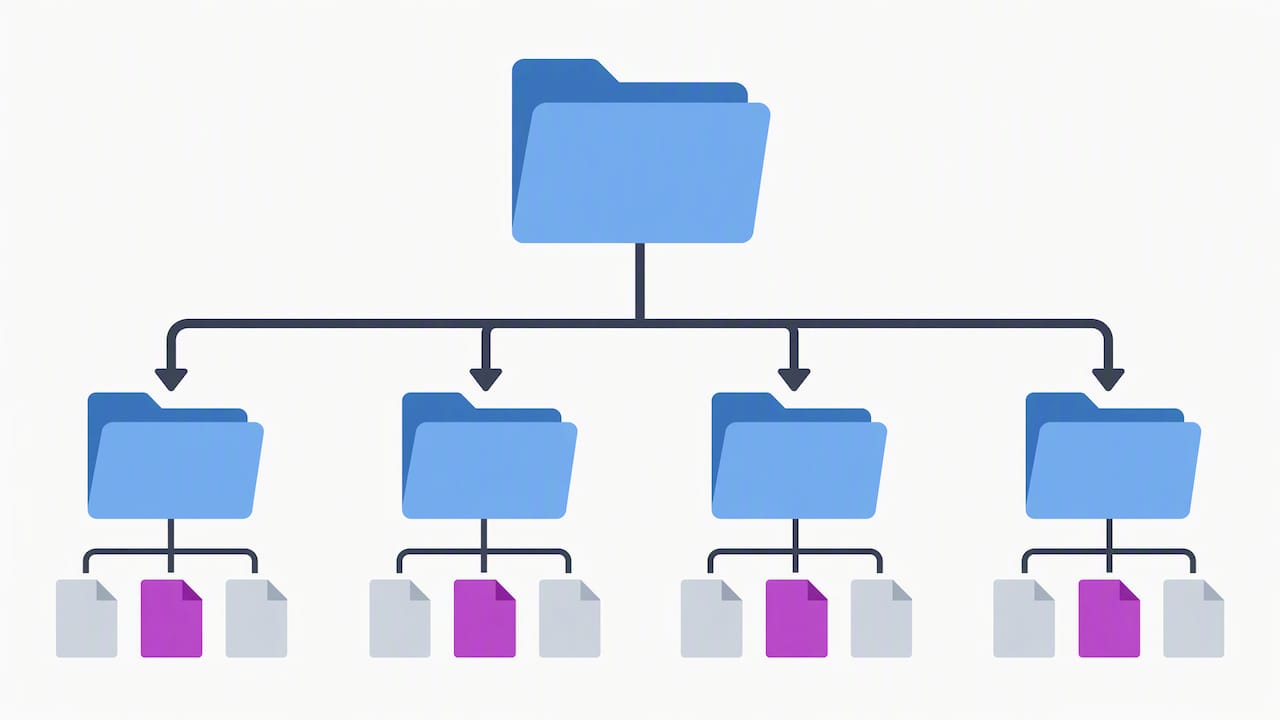
Naming is where beginners trip up. Many handheld interfaces use short codes. The spruceOS wiki shows N64 games going in a folder called N64, while SNES games often belong in SFC. Your device’s manual or wiki is the final word, because codes vary between firmware.
A few habits keep things tidy:
- Keep one system per folder, and never mix SNES and NES files together.
- Leave the folder names exactly as the firmware created them. Renaming “GBA” to “Game Boy Advance” often hides the whole system.
- Keep a small test folder on your PC with two or three games per system.
- Do not bury ROMs in nested subfolders unless the firmware says it supports them.
Some frontends also use playlist and database files. RetroArch, for example, uses .lpl playlists that tie each ROM to a display name and a preferred emulator core, and .rdb files that hold the reference data used to identify games. You rarely edit these by hand, but knowing they exist explains why a perfectly copied file can still look wrong in the menu.
How do you copy the files from Windows, macOS or Android?
The steps are similar everywhere, with small differences in how each system handles archives and extensions.
- Windows: Open File Explorer, open the card, then open the Roms folder. Drag your game files into the matching system folder. Turn on “File name extensions” under the View tab so you can see what you are copying.
- macOS: Open Finder, find the card in the sidebar, and copy files into the matching folder. Finder may auto-extract .zip files you download, so check what actually lands in your folder.
- Android: Insert the card with a USB-C reader, or connect the handheld by cable and choose file transfer mode. Use a file manager that preserves names, and extract archives before copying if your handheld needs loose files.
- Eject the card or device safely, put it back in the handheld, and power on.
Some games need more than one file. A CD-based game may use a .cue file plus one or more .bin files, and the two must stay together with matching names. For multi-disc games, an .m3u playlist lists each disc so you can swap between them. The Genesis Plus GX core documentation notes that some cores need extra files such as .cue or .m3u for multi-disc games.
Before you call a transfer finished, run through this checklist: the file sizes match the originals, extensions are visible and correct, files sit in the right system folder, and at least one test game launches.
Pro Tip: Copy a small batch first, eject, boot the handheld and check the list. A quick test beats recopying a full library.
Why do some copied games not show up?
A file can be on the card and still never appear. Many frontends do not just list files. They scan them and compare what they find against a database.
According to the Libretro database documentation, the scanner computes a CRC checksum or reads an internal serial number, then matches it against entries in local .rdb files. In strict mode, a file with no match is rejected, so the game never reaches the list. Loose mode is more forgiving and accepts files by extension, though titles may show up with plain filenames and no artwork.
If a game is missing, work through these fixes:
- Rerun the import or scan so the frontend rebuilds its list after you copy files.
- Check the database setting and, if your frontend offers it, switch from strict to loose matching.
- Make sure the file is unzipped and uses a supported extension.
- Rebuild the playlist. The Libretro playlist guide explains that .lpl files map ROMs to display names and cores, and that they can be regenerated by the scanner or edited by hand.
- Check that the file is not a modified or damaged dump, since altered files will not match the database.
What are the most common mistakes?
Most failures come from a short list of repeat offenders:
- Wrong folder name. Move the files into the folder the firmware expects for that system.
- Zipped ROMs. Extract them into the system folder unless your device explicitly reads archives.
- Missing or mismatched .cue files. Keep each .cue next to its .bin, and use an .m3u for multi-disc games.
- Corrupted saves. Pulling the card without ejecting is the usual cause. Restore from a backup and always eject first.
- Wrong extension. Some downloads rename files. Check that the extension matches what the system supports.
A short legal reminder: the U.S. Copyright Office FAQ explains that section 117 lets the owner of a computer program make an archival copy for their own use. It does not allow selling or sharing copies, and it does not make downloading unauthorized ROMs legal.
Quick habits that save hours
I keep an “incoming” folder on my PC where every game gets renamed, extracted and sorted before it goes near the card. That one step catches most problems while they are still easy to fix. I also test two or three games per system after any big change, so I know the import settings still work.
Before reorganizing a whole library, I make a full image of the microSD card, which takes minutes and has saved me more than once. And I extract archives rather than leaning on loose import modes, because predictable files behave better in every frontend.
— Sean
Skip the setup and still add your own games
If you would rather start playing tonight, our Retro Pulse ships ready to go with a preloaded library spanning a range of systems, so you are not building a collection from scratch. When you want to add titles you own, the microSD storage gives you room to do it the way this guide describes.
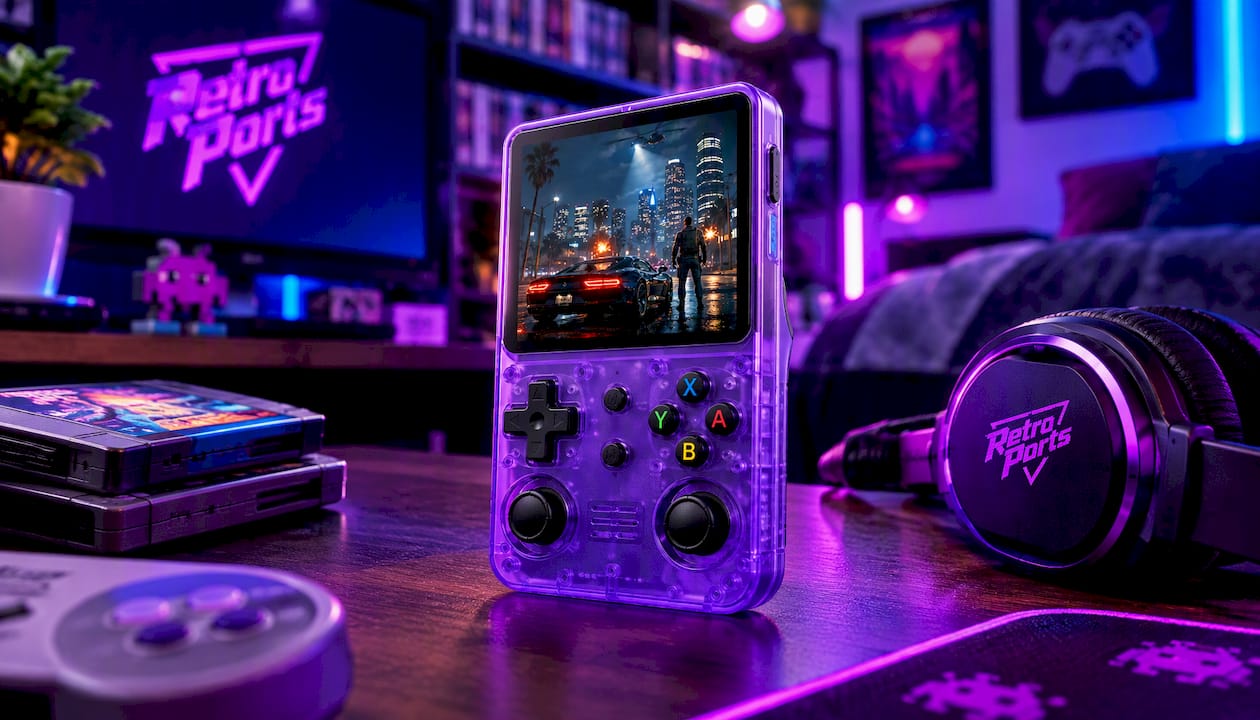
We ship from a U.S. warehouse and offer a warranty and returns. Check the terms for details. See the full specs and storage details on the Retro Pulse product page, or browse Retro Pulse on our site to compare options. If you are weighing it against playing on your phone, our phone emulation versus handheld comparison lays it out.
FAQ
Can I install games onto a USB?
Yes, you can store game files on a USB drive, but whether a handheld reads them from there depends on the device. Most retro handhelds expect games on the microSD card, so check your manual before relying on USB storage for a library.
What games can you play on a handheld?
It depends on the systems the handheld emulates. Popular retro handhelds support NES, SNES, Genesis, Game Boy, GBA and PS1 titles, and some also handle N64 and arcade games. Always check the supported systems list for your model.
How can I play Steam games on a handheld?
Retro handhelds are not built for modern PC games, so Steam titles generally will not run on them. Dedicated PC handhelds are designed for that, while a retro handheld focuses on classic console libraries.
Is it possible to run games on a USB stick?
Some devices can launch games from external storage, but many frontends only scan the internal microSD paths. If your handheld does not detect the USB stick, copy the games to the microSD card instead.