
A save state is a snapshot of an emulator’s entire memory at one moment. It lets you freeze a retro game anywhere, mid-jump or right before a boss, and come back to that exact frame. On most handhelds you create one with a hotkey combo, usually a hold button plus a shoulder button. Treat it as a bookmark, not as your only save, because states can break when software changes.
This guide covers what a save state captures, the hotkeys you will see on common handheld setups, where the files live, and how to use states without losing progress.
TL;DR
- A save state captures the whole emulator memory. An in-game save is the file the game itself writes, like a memory card or cartridge battery save.
- Hotkeys vary by firmware. A common layout is Select + R1 to save and Select + L1 to load, but check your own device.
- States are tied to the emulator version that made them. A core or firmware update can make old ones unreadable.
- Use states for convenience, use in-game saves for long-term progress, and back up both folders.
- Keep your save and state folders separate from config files when you copy or sync anything.
Table of Contents
- What a save state actually is
- Why save states are useful
- Common hotkeys on retro handhelds
- Where save states are stored
- Why states can break
- A simple save routine
- Auto save and auto load
- Our view on save states
- Playing with kids and shared devices
- Legal note on game files
- Ready to play without the setup
- FAQ
- Sources
What a save state actually is
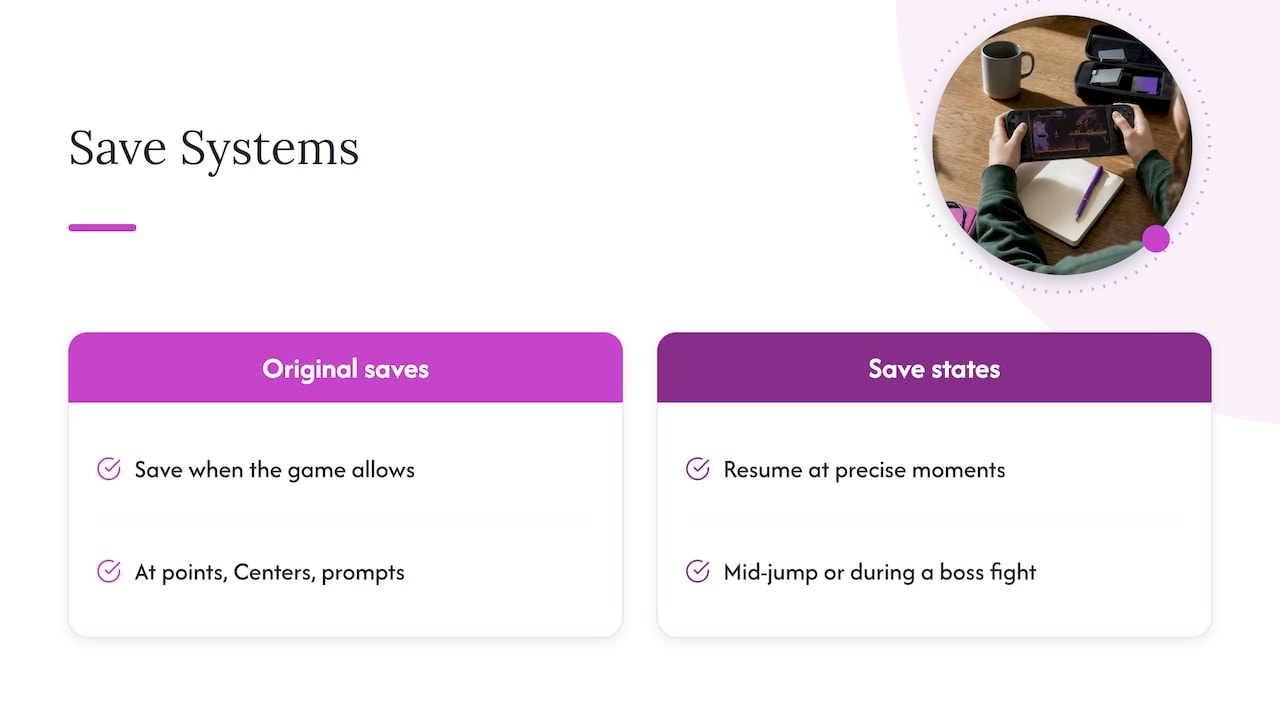
On an original console, you saved when the game let you: at a save point, a Pokémon Center, a memory card prompt. A save state ignores all that. The emulator copies a snapshot of the system’s memory, so you can pause and resume at any precise moment, including mid-jump or in the middle of a hard boss fight.
That is why people call it emulation’s best feature. It is also why it works differently from the save system the game was built with. Our checklist of what save states capture goes deeper on what is inside a state file and what is not.
Save states versus in-game saves
The two systems sit side by side on any handheld that runs emulators.
| In-game save | Save state | |
|---|---|---|
| Who creates it | The game, at its own save points | You, with a hotkey, at any moment |
| What it stores | Progress the way the original hardware stored it | A full snapshot of memory and CPU state |
| Stability | Small, stable, portable between most emulators for the same system | Tied to the emulator core version that made it |
| Best use | Long-term progress | Quick retries, bookmarks, interrupted play |
The UMA Technology RetroArch guide puts the rule plainly: states are not a replacement for in-game saves, which should be the primary, stable method.
Why save states are useful
Three situations make states worth the few seconds they take.
- Short sessions. On a commute you may have eleven minutes. A state lets you stop in the middle of a level without hunting for the next checkpoint.
- Hard moments. A state before a boss or a risky choice turns a punishing stretch into a quick retry. One retro setup guide describes it as a bookmark and retry loop that original hardware never offered.
- Games with no saving at all. Many arcade and early console titles never had a save feature. A state is the only way to pause them.
For the arcade side, see our note on arcade emulation on handhelds.
Common hotkeys on retro handhelds
There is no universal save state button. The combination depends on the firmware and emulator front end your device runs. A hold button, often Select or a function key, is pressed together with another button so the shortcut does not trigger during normal play.
One well-documented example is the ROCKNIX firmware used on some generic handhelds. Its RetroArch hotkey table lists:
| Action | Combo |
|---|---|
| Save state | Select + R1 |
| Load state | Select + L1 |
| Open the RetroArch menu | Select + Y |
| Quit game | Select + Start, pressed twice |
Other firmware uses different holding keys. Do not assume these combos match your device. Look in the manual or the hotkey settings of your own firmware.
Choose a hotkey you will not hit by accident
A common community tip is to make Select the hotkey enabler and put save state on a shoulder button. Select still works as a normal button when you tap it. Whatever you pick, practice it once in a game you do not mind losing progress in. Hitting Load when you meant Save overwrites nothing, but hitting Save when you meant Load can replace a state you wanted.
Use slots
Most setups offer numbered slots. A quick save usually goes to slot 0. If you are about to try something risky, switch to a new slot first, so your last safe state stays untouched. Slot selection is normally handled in the emulator menu or with a second hotkey pair.
Where save states are stored
In RetroArch-based setups, states go to the folder set under Settings > Directories > Savestate Directory, as described in the libretro documentation on changing directories. Some older versions and handheld firmware default to the same folder as the games, which means every ROM can end up with several extra files next to it.
The fix is to set dedicated folders early. One setup guide advises that you set your directories before anything else, because changing them later orphans what you have already built. A tidy layout looks like this:
saves/for in-game savesstates/for save statesconfig/for settings, kept apart from both
If you do not know where your device keeps them, look in the emulator’s directory settings first, then at the storage card’s top-level folders.
Why states can break
States are fragile. Because a state records the emulator’s memory and CPU condition, a core update or emulator version change can make existing state files unreadable. States also do not move cleanly between different emulators, even for the same console. In-game saves usually do.
In practice:
- Before a firmware or core update, finish the current section and make an in-game save.
- After an update, test a state before relying on it.
- Never keep a 40-hour game on states alone.
We wrote a separate piece on why to trust in-game saves, not states, for backups.
A simple save routine
- Save in the game first whenever the game offers it.
- Make a state only as a convenience layer, before a hard part or when you must stop.
- Rotate slots instead of overwriting the same one.
- Back up the saves folder regularly. Back up the states folder too if you care about them.
- Leave config alone. Configuration files hold video drivers, shader presets and controller mappings that are device-specific. Copying one from a PC to a handheld can cause crashes or black screens. Sync only the saves and states folders.
Auto save and auto load
Some front ends can create a state when you close a game and load it when you reopen it. That is handy for commuters. It is not always reliable, though: developers have logged cases where auto save on exit did not work on certain devices and settings, including custom save folders. If you use the feature, still make a normal in-game save at natural stopping points.
Our view on save states
We build the Retro Pulse for people who want to pick up a handheld and play, not tinker. That shapes how we think about saving.
Save states are the feature people notice, because they feel like magic. But the thing that protects a long RPG is the plain in-game save. We would rather you build the habit of using the game’s own save points and treat states as a quick bookmark. It costs you a few seconds and removes the risk of a software change wiping out weeks of play.
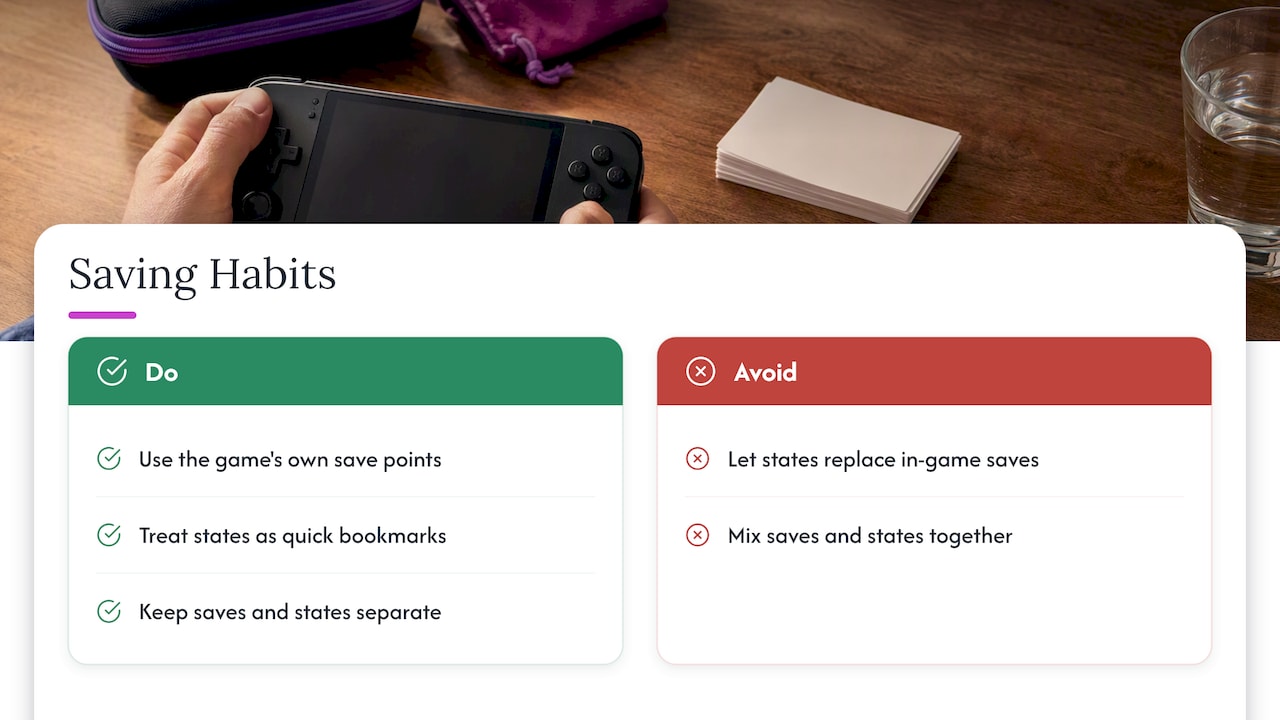
The second habit is keeping your files organized. The Retro Pulse has dual microSD slots, so you can add your own games, and we suggest keeping your saves and states in clear, separate places from the start. If you do add games, our guide to adding games without a blank game list shows the process.
Parents ask us about this most. A child who loses an hour of progress is rarely a fan of retro gaming afterward. Teach in-game saving first, and states second.
— Sean
Playing with kids and shared devices
If several people use one handheld, states get messy quickly. Everyone writes to slot 0, and the last person to save wins. Two simple rules help:
- Give each player a slot range, such as slots 1 to 3 for one and 4 to 6 for another.
- Let kids lean on the game’s own save system, which keeps progress per game file.
Legal note on game files
Emulator software itself is generally treated as legal, but game files are another matter. Community experts say ROMs should come from hardware you legally own, and that so-called abandonware or 24-hour trial rules are myths. If you have a legal question about your own library, talk to an attorney who handles intellectual property.
Ready to play without the setup
If you would rather skip configuring directories and hotkeys from scratch, the Retro Pulse handheld comes preloaded with 15,000 games from over 20 systems, including NES, SNES, Genesis, PS1, N64, Game Boy, GBA and Arcade. It has a 3.5" IPS display, real D-pad, twin sticks and L/R triggers, a removable battery rated at 6 to 8 hours, USB-C charging, a one-year warranty and 30-day returns. It ships from a U.S. warehouse.

FAQ
Do save states replace normal saves?
No. In-game saves are the stable method, written by the game itself in the form the original hardware used. States are snapshots tied to a specific emulator version. Use states as a convenience and keep in-game saves as your real progress.
Where does RetroArch put save states?
In the folder set under Settings > Directories > Savestate Directory. Some older versions and handheld firmware default to the game folder instead. Set a dedicated folder so each game’s state files do not clutter your library.
Why did my save state stop loading after an update?
States record the emulator’s memory and CPU state, so a core or firmware change can make them unreadable. That is the main reason experts advise against relying on them alone. Your in-game saves are usually unaffected.
What is the usual hotkey to save a state?
It depends on your firmware. On ROCKNIX, Select + R1 saves and Select + L1 loads. Other setups use different hold keys, so check your device’s manual or hotkey settings.
Sources
- How to Set Up RetroArch, The Ultimate All-In-One Retro Games Emulator (UMA Technology)
- RetroArch Setup Guide: Cores, Shaders and Controllers Explained (Gaming PC Guru)
- Game Console R35S/R36S, ROCKNIX Wiki
- Change directories, libretro docs
- RetroArch does not auto save on exit, GitHub issue 16080
- Super Nintendo Emulator: The Complete 2026 Guide (Jacobainley)