A hotkey is a button combination that talks to the emulator instead of the game. You hold one “hotkey” button, usually SELECT, and tap a second button to save your progress, fast-forward a slow cutscene, open the menu or quit. Almost every retro handheld works this way, and the combos are remarkably consistent. Learn five of them and you can use nearly any device. A preloaded handheld like our Retro Pulse lets you skip the setup and start playing. This guide shows what the combos do, why they sometimes clash with games, and how to change them if you want to.
TL;DR
- Hold SELECT (the usual hotkey button) and tap a shoulder button: R1 saves a state, L1 loads it, R2 fast-forwards. START quits.
- Hotkeys are handled by the emulator, so a combo that does nothing usually means a conflict with the game’s own controls or a wrong hotkey button.
- Remapping is done once, in the emulator’s input settings, and can be applied to a whole system at a time.
- Update firmware only with a charged battery and the official instructions for your device. Thumbnails are just image files in the right folder.
- Preloaded handhelds trade some tinkering for instant play. DIY builds trade setup time for total control.
Table of Contents
- What hotkeys actually do
- The standard combos you will meet
- How to set or remap hotkeys
- When hotkeys conflict or stop working
- Hotkeys and your saves
- Updating firmware without breaking anything
- Refreshing game thumbnails
- Preloaded or DIY: what each costs you
- Retro Pulse, if you want to skip the setup
- FAQ
- Sources
What hotkeys actually do
A handheld has a limited number of buttons. A SNES game needs a D-pad, A, B, X, Y, two shoulder buttons, START and SELECT. That leaves nothing for “save my game” or “go back to the list”. Emulators solve this by reserving one button as a modifier. While you hold it, the other buttons stop going to the game and go to the emulator.
The usual jobs are:
- Save state and load state: a snapshot of the exact moment you are in, which you can return to later. We explain how these differ from normal in-game saves in our save states guide.
- Fast-forward: speeds the game up to skip dialogue, grinding or long intros.
- Rewind: steps back a few seconds after a mistake. Some firmware turns this off by default because it can slow games down.
- Menu: opens the emulator’s own settings, where you can change controls, shaders and cheats.
- Quit: closes the game and returns you to the game list.
The standard combos you will meet
The layout most handhelds follow comes from RetroArch, the emulator framework behind a large share of them. The AmberELEC guide lists the defaults for Anbernic-style devices: SELECT plus R1 saves a state, SELECT plus L1 loads it, SELECT plus R2 fast-forwards, SELECT plus L2 rewinds, SELECT plus X opens the RetroArch menu, and pressing SELECT plus START twice quits. The same guide notes that rewind is disabled by default because it can cause significant slowdown.
The RetroPie documentation recommends SELECT as the hotkey button and gives a near-identical set: hotkey plus START exits, hotkey plus right shoulder saves, hotkey plus left shoulder loads, hotkey plus X opens the menu and hotkey plus B resets.
Here is the pattern in one table:
| Action | Typical combo | Seen in |
|---|---|---|
| Save state | SELECT + R1 | AmberELEC, RetroPie, Retro Game Corps setup |
| Load state | SELECT + L1 | AmberELEC, RetroPie, Retro Game Corps setup |
| Fast-forward | SELECT + R2 | AmberELEC, Retro Game Corps setup |
| Open menu | SELECT + X | AmberELEC, RetroPie |
| Quit game | SELECT + START | AmberELEC, RetroPie |
Not every device follows this. The ArkOS-R3XS wiki, for example, documents a dedicated FN button for the same jobs: FN alone fast-forwards, FN plus R1 saves, FN plus L1 loads and FN plus START exits. MinUI uses a MENU button instead, and its starter guide shows Save & Quit on MENU plus START as one example.
If you play on a PC with a keyboard, RetroArch’s defaults are different: according to the Emulation General Wiki, F2 saves, F4 loads, F1 opens the menu, Escape quits and Spacebar fast-forwards.
How to set or remap hotkeys
You only need this if the defaults do not suit you, for instance if a game uses SELECT heavily, or you want fast-forward on a trigger you can reach comfortably. The steps below are for RetroArch-based systems, the most common case.
1. Choose your hotkey button
Open the menu (usually SELECT plus X), then go to Settings, Input, Hotkeys. The Retro Game Corps RetroArch guide sets Hotkey Enable to SELECT. SELECT is a good choice because few games need it mid-action. START is the second-best option, and it is already the quit button in most setups, so using it as the modifier is confusing.
2. Assign the actions
The same guide maps Fast-Forward (Toggle) to R2, Rewind to L2, Load State to L1, Save State to R1, Menu (Toggle) to X, Show FPS to Y, Reset to B and Close Content to START. Copy that layout if you have no strong preference. It matches what most other handhelds ship with, so your muscle memory transfers.
3. Save the change for the right scope
This is the step people miss. A remap made inside a game may apply only to that game. In MinUI, choosing Save for console applies the shortcuts to every game on that system. RetroArch has equivalent options to save a core override or a global config. Decide whether you want one layout everywhere or a special one for a single game, then save at that level.
4. Test in a real game
Load a game you know, save a state, move a few steps, load the state and confirm you return to the saved spot. Then try fast-forward and quit. Doing this takes a minute and tells you whether the layout is comfortable before you rely on it in a long RPG.
If you want a more comfortable physical layout as well, replacement parts and gaming accessories can make a handheld easier to hold for long sessions.
When hotkeys conflict or stop working
Most hotkey problems come down to one of four causes.
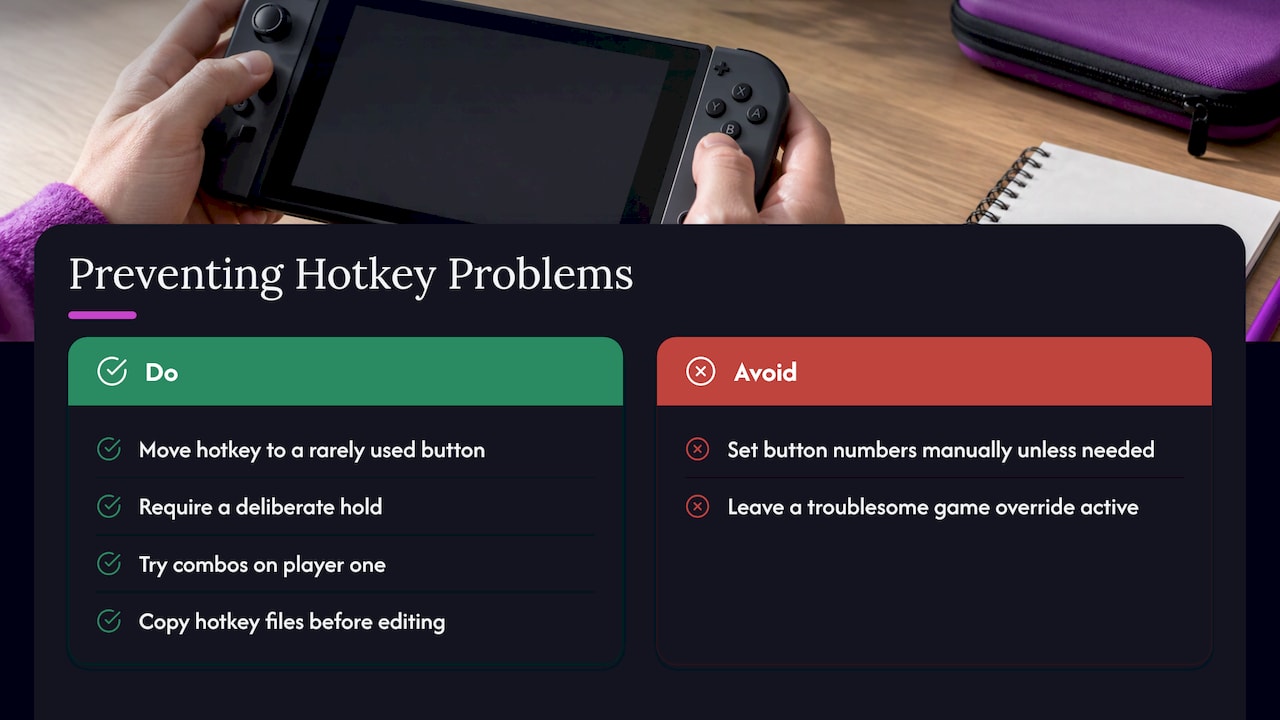
The game also uses your hotkey button. If SELECT is a hotkey and a game needs SELECT for an in-game map, you will sometimes trigger a save or menu by accident. Fixes: move the hotkey button to a rarely used one, or require a deliberate hold. The Emulation General Wiki notes that cores which use the keyboard for input need an Enable Hotkeys key held down, and the same idea applies to controllers.
The hotkey button is bound to the wrong number. Controllers report buttons as numbers, and the numbers differ between devices. A long-running RetroArch forum thread on a stuck hotkey button shows a fix that came down to the button number and its formatting in the config file. On a handheld the system normally writes this for you, so avoid setting the hotkey button by hand unless you must.
Only the first player works. RetroPie’s documentation states that hotkey combos work only for the first connected controller. If you plug in a second pad and a combo seems dead, try it on player one.
An update reset your changes. Some front-ends overwrite default files when they update. The RetroBat wiki advises copying the hotkey files to your user folder before editing, because the originals are replaced at each update. Keep your edited copies, and jot down your layout so you can re-enter it.
If a combo is unreliable only in one game, suspect a per-game override. Remove the override and the system-wide layout takes over again.
Hotkeys and your saves
Save states are convenient, but they are a snapshot of the emulator, not the game’s own memory. If you mostly rely on SELECT plus R1, read our notes on what save states capture and why you should back up the normal in-game saves. A good habit: use the in-game save at natural stopping points, and use save states for quick pauses, like a bus stop or a school pickup.
The Retro Game Corps guide also describes turning on Auto Save State and Load State Automatically so a game reopens where you left it. Paired with a Reset hotkey, you get a pick-up-and-play feel without remembering to save.
Updating firmware without breaking anything
Firmware is the operating system on your handheld. Updates can add emulator versions and fix bugs, and they are also why defaults sometimes change. The process differs by system, so follow the instructions for yours.
Two examples show the range:
- AmberELEC: download the latest .tar file, put it in the update folder on the games partition (create it if it is missing), put the SD card back and power on. The official guide says the device reboots when the update completes.
- KNULLI: per its wiki, switch to the Stable channel, press Start Update and follow the screen. It warns against updating on low battery, and says the Alpha and Development channels are for developers and testers.
A safe routine for any device:
- Charge the battery first. A power cut mid-update is the main way to cause trouble.
- Copy your saves off the card, and note your hotkey layout.
- Use only the maker’s or project’s official files and steps.
- After the update, check the controls, then do the quick save, load and quit test.
Refreshing game thumbnails
Thumbnails are the box art, title screens and screenshots you see in the game list. They are ordinary image files matched to game names. The libretro-thumbnails repository hosts boxart, title screens and in-game screenshots for the game lists RetroArch uses, organized by system folder.
Three things cause blank or wrong thumbnails:
- File names do not match the game name. Thumbnails are matched by name, so a renamed ROM file loses its art.
- Images are in the wrong folder. Each system has its own media folder, and the image type (box art, title, snapshot) has its own subfolder.
- The list needs a refresh. After adding images, reload the game list from the front-end menu or restart it.
On a preloaded library, this work is done before you open the box, which is much of the point.
Preloaded or DIY: what each costs you
A DIY handheld means choosing hardware, installing firmware, copying game files, matching thumbnails and building your hotkey layout. You get complete control, and you also own every problem: the conflicts above, the update risks and the folder structure. If that sounds like a hobby you would enjoy, it can be.
Most people who ask about hotkeys are not looking for a hobby. They want to play Super Mario World on the train, or hand a child a console that works. Our emulation handheld setup guide walks through what setup involves in plain English, and our comparison of phone emulation and a dedicated handheld covers why physical controls matter.
| Preloaded handheld | DIY build | |
|---|---|---|
| Setup time | Charge it and play | Hours: firmware, files, art, controls |
| Hotkeys | Ready to use | You design and test them |
| Updates | Follow the maker’s instructions | You pick channels and files yourself |
| Best for | Gifts, kids, commuters, casual play | Tinkerers who enjoy configuring |
Hotkeys are the one part of emulation you touch every session, so they should be boring. Hold one button, tap another, done.
We built Retro Pulse around that idea. It comes with 15,000 classic games from more than 20 systems, including NES, SNES, Genesis, PS1, N64, Game Boy, GBA and arcade, ready to play without menu setup, downloads or subscriptions. The real D-pad, twin sticks and L/R triggers give a hotkey combo something comfortable to sit on, and the removable battery runs 6 to 8 hours between USB-C charges.
It ships from a U.S. warehouse, so you are not waiting weeks on a package from overseas. A parent handing a console to a child, or a gift buyer who does not want to explain firmware, should be able to open it and play. That is the standard we hold ourselves to.
Sean
Retro Pulse, if you want to skip the setup
Retro Pulse is a handheld with 15,000 preloaded retro games from over 20 systems, a 3.5" IPS display, offline-first play and dual microSD slots if you later want to add your own games. It comes with a one-year warranty and 30-day returns. You can see it on the Retro Pulse product page.
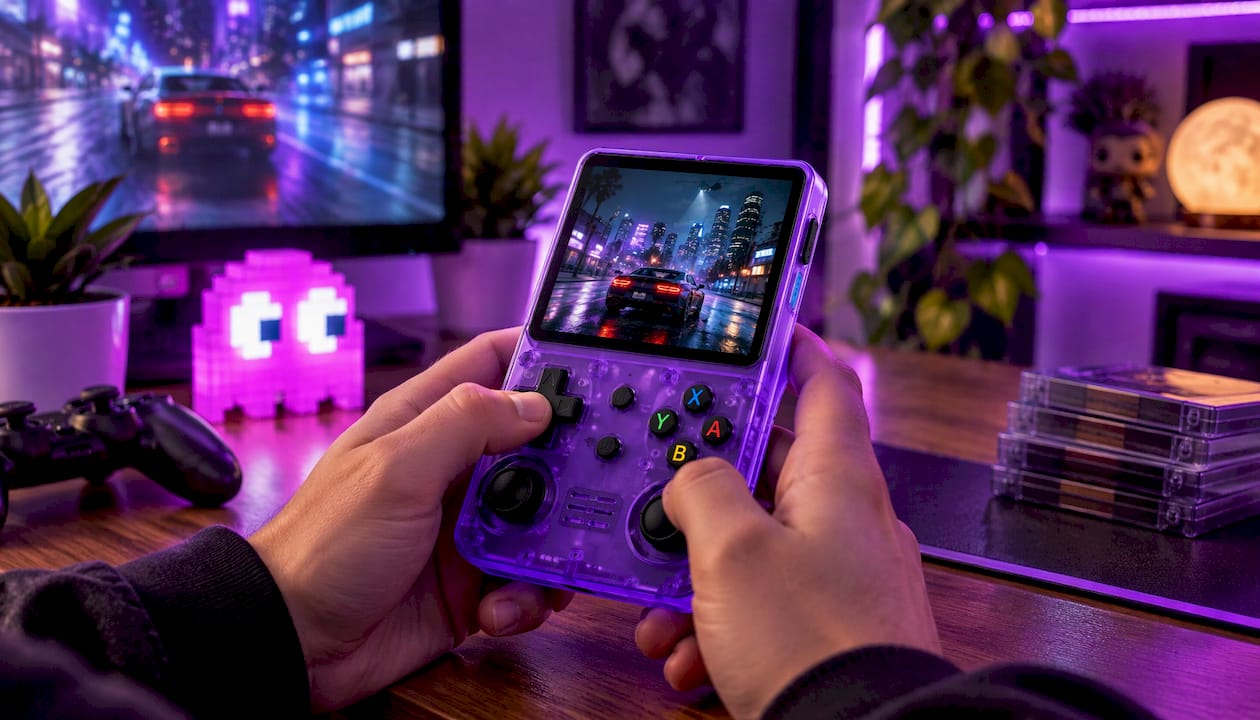
If comfort is your main concern, our guides to shoulder button layout and D-pad versus analog stick explain what to look for in the controls your hotkeys depend on.
FAQ
What is the most common hotkey button on retro handhelds?
SELECT. RetroPie recommends it, and AmberELEC and the Retro Game Corps RetroArch setup both use it. Some devices use a dedicated FN or MENU button instead, which works the same way.
Why does my hotkey combo do nothing?
Check that you are holding the hotkey button first, then tapping the second one. Next, make sure you are using player one’s controller, since combos work only for the first pad in RetroArch-style emulators. If it still fails, look for a per-game override or a recent update that reset your settings.
Can I change hotkeys for just one game?
Yes. RetroArch-style setups let you save a remap for a single game, a whole system or everything. Pick the scope when you save, and remove the override if you want the system-wide layout back.
Is it safe to update the firmware on a handheld?
It is when you use the official files and instructions, and start with a charged battery. Back up your saves first, and run a quick test of your controls afterward.
Sources
- Getting to Know AmberELEC
- Controller Configuration, RetroPie docs
- MinUI Starter Guide, Retro Game Corps
- RetroArch Starter Guide, Retro Game Corps
- Dummies Guide: RetroArch, Emulation General Wiki
- Hotkeys, RetroBat Wiki
- Hotkey button stuck in RetroArch, forum thread
- Update, KNULLI Wiki
- libretro-thumbnails on GitHub