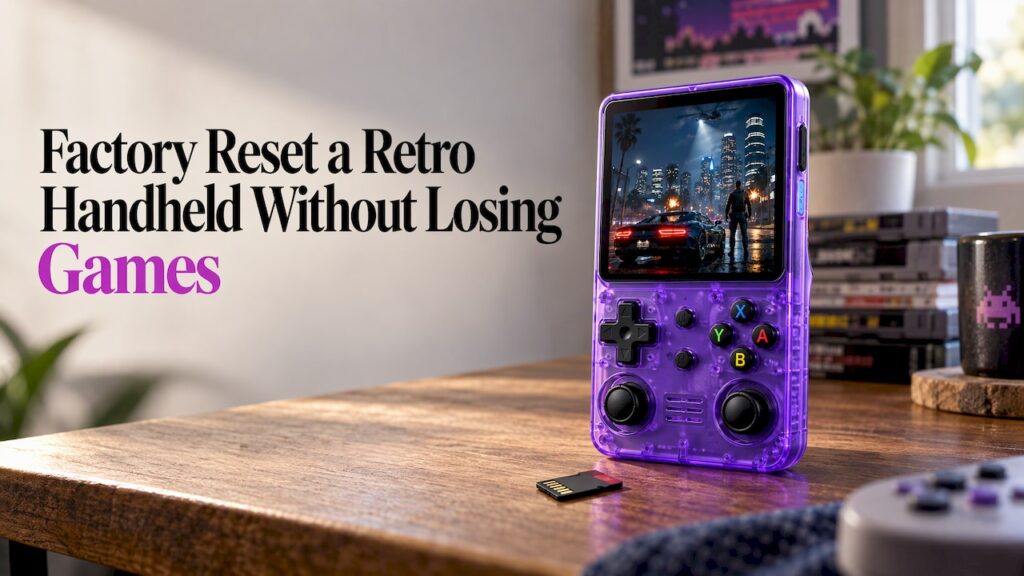
The safest way to factory reset a retro handheld is to start with the smallest reset that fixes your problem, back up your saves first, and keep your games on a separate microSD card from the operating system. Most “I need a factory reset” moments are really a scrambled emulator setting, a button map that got changed, or a menu stuck in the wrong place. Each of those has a fix that leaves your library alone.
This guide is for people who just want to play: nostalgia gamers, parents setting up a device for the kids, commuters, students and gift buyers. It uses the popular R36S-style handhelds and their common firmware (ArkOS and KNULLI) as the examples, because that is where most reset questions come from. Menu names differ between devices, so match the idea, not the exact wording.
TL;DR
- Try the small fixes first: reset the controller map, reset one emulator’s settings, or reset RetroArch’s shared config. None of these erase your games.
- If the screen is stuck in RetroArch, reboot and hold B right after power-on to reach the recovery menu, then choose EmulationStation.
- Before any real reset or OS reinstall, copy the whole SD card to a computer. Stock cards fail more often than you would expect.
- Keep games and saves on a second microSD card so a reset of the system card can never touch them.
- Shut down from the menu instead of holding the power button. Unsafe shutdowns are a common cause of settings that will not stick.
Table of Contents
- What “factory reset” actually means on a retro handheld
- Step 1: Identify what is actually wrong
- Step 2: Back up before you touch anything
- Step 3: Reset only what is broken
- Step 4: Stuck in RetroArch or no menu at all
- Step 5: Settings keep reverting
- Step 6: When a full reinstall is the answer
- The two-card habit that makes resets painless
- A short checklist for parents and gift givers
- Retro Pulse: a handheld meant to be played, not fixed
- FAQ
- Sources
What “factory reset” actually means on a retro handheld
On a phone, a factory reset is one button. On an emulation handheld it is several different things that share a name:
- Resetting a setting: a button layout, one emulator, or the shared RetroArch configuration. Games and saves stay.
- Restoring the frontend or system files: putting the menu, kernel and hotkey tools back to a known state. Games usually stay if they live on a separate card or partition.
- Reflashing the operating system: writing a fresh system image to the SD card. This wipes that card, so everything on it must be copied off first.
The third is the only one that deserves the word “factory”, and it is the one you almost never need. Work through the list in order and stop as soon as the problem is gone.
Step 1: Identify what is actually wrong
Match the symptom to the smallest fix:
| Symptom | Likely cause | Start with |
|---|---|---|
| Buttons do the wrong thing in every game | Changed controller mapping | Reset controller settings |
| One system looks or plays strangely | Changed emulator or shader settings | Reset that emulator’s settings |
| Every game looks odd after a menu change | Shared RetroArch config altered | Reset the RetroArch config |
| Device opens straight into RetroArch with no menu | RetroArch set as the main frontend | Recovery menu, boot EmulationStation |
| Settings revert after every restart | Config not saved, bad card, unsafe shutdown | Save config or use overrides, check card |
| Will not boot at all | Corrupted system card | Back up, then reinstall the OS |
Step 2: Back up before you touch anything
A reset that is fine 99 times can be the one that costs you a 40-hour save. Backing up takes minutes and is the step most people skip.
What to copy to a computer:
- The games folder (often called roms).
- Save files, which are your in-game saves.
- Save states, which are snapshots of the exact moment you pressed the button. They are separate files from in-game saves, and a state can stop loading if you switch to a different emulator core, as the RetroArch manual notes. For that reason, treat in-game saves as the ones to rely on. We cover the difference in our guide to save backups and in how save states work.
- RetroArch overrides and settings, so you can put your preferred setup back afterward. Where states and settings live varies by firmware, so copy the whole card if you are unsure.
The simplest method is to power off, put the card in a computer’s reader and copy everything it holds into a folder. This also covers a hazard worth knowing about: one hands-on tester of R36S and R36H units reported that three of eight stock cards had already corrupted and one had died completely, which is why he makes a full copy the first step of any system work. That is one tester’s sample, not a statistic for every card, but it explains why a full copy is cheap insurance.
On ArkOS-based firmware there is also a built-in option. According to a 2026 R36S setup guide, the Advanced menu’s Backup ArkOS Settings saves your current configuration to the SD card under an EasyROMs backup folder. Use it, and still copy the card to your computer.
Step 3: Reset only what is broken
Reset the controller layout
If buttons are swapped or a stick does nothing sensible, the ArkOS Advanced menu has a Reset Controller Settings option that restores button mapping to defaults, per the same setup guide. It does not touch games.
If the real problem is a stick that moves on its own, a software reset will not fix it, because that is a hardware wear issue. Here is how to confirm and fix controller drift before you reset anything else.
Reset one emulator
The same Advanced menu has per-emulator resets, such as Reset PPSSPP Settings for PSP. If only PSP games look wrong, this is the right size of fix: one emulator returns to defaults and everything else stays as you set it.
Reset the RetroArch configuration
Many handhelds use RetroArch, a popular emulator front end, under the hood. Its shared configuration file holds things like shaders, rewind and overlays. Some firmware has a Reset RetroArch Config command; Leaf’s guide explains it replaces the shared configuration with defaults, which erases the settings stored there, including the active shader, rewind and overlays. Your games and saves are not part of that file.
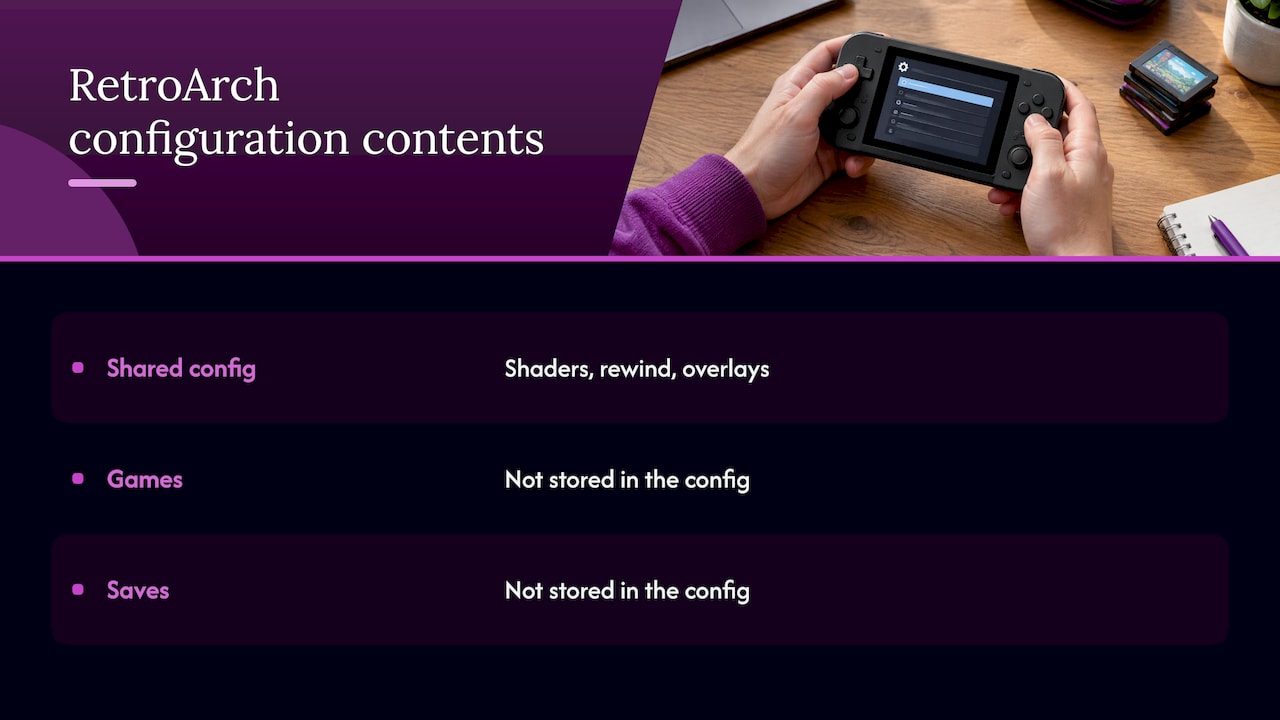
One catch on certain firmware: on KNULLI, RetroArch’s configuration is rebuilt from EmulationStation’s settings every time a game launches, so changes made directly in RetroArch get overwritten, except for overrides and remap files. If a RetroArch-only reset seems to do nothing, change the setting in the main menu instead, or save it as an override.
Step 4: Stuck in RetroArch or no menu at all
This is the single most common “I broke it” moment, and it feels like a dead device. It usually happens when RetroArch gets set as the main frontend by accident.
The fix, per the Handheld Database troubleshooting page: reboot and hold the B button to enter the Boot and Recovery Tools menu (BaRT), then choose Emulationstation. Hold B right after you power on. The dArkOS source code lists what that menu offers: boot EmulationStation or RetroArch, Wi-Fi, remote services, a file browser, Backup and Restore ArkOS Settings, Reboot and Power Off.
That means the recovery menu is also your second backup route. If you have changed things and are about to experiment, run Backup ArkOS Settings from here.
Step 5: Settings keep reverting
If your changes vanish after every restart, resetting more will not help. The Handheld Database lists the usual suspects: the RetroArch config was never saved, or the problem is a bad SD card, bad ROMs or an unsafe shutdown. The remedies are to save the configuration after changes or use overrides, swap the card or ROM files, and shut down through the menu, not the power key.
A practical routine:
- Change the setting.
- Save the configuration or create an override for that system or game.
- Exit the game from the menu.
- Choose the shutdown command, then wait for the screen to go dark.
A card that is slow or failing causes hangs and odd behavior that look like software problems. Our guide to what microSD speed actually matters explains how to choose a card that holds up.
Step 6: When a full reinstall is the answer
Reflash the OS only when the device will not boot, even into recovery, or when the system files are damaged. XNL’s install guide describes the same order: if the recovery menu itself fails, reinstall the OS onto the card after backing up ROMs and savegames.
Before you do:
- Finish the full-card copy from Step 2 and check it opened properly on your computer.
- Download the firmware image from the project’s own release page, not a random mirror.
- Expect the card’s system partition to be erased. The setup guide notes the firmware partition needs FAT32 and that writing the image with a flashing tool takes roughly 3 to 4 minutes.
Some community firmware also ships lighter repairs. The dArkOSen release notes describe a Restore dArkOSen option that restores the kernel, hotkey tools and EmulationStation, plus an SD Card Scan and Repair tool. Try those before a full wipe if your firmware has them.
After reflashing, put your games back, restore your saves, and re-apply your overrides. If your game list comes up blank, this guide to adding games walks through why and how to fix it.
The two-card habit that makes resets painless
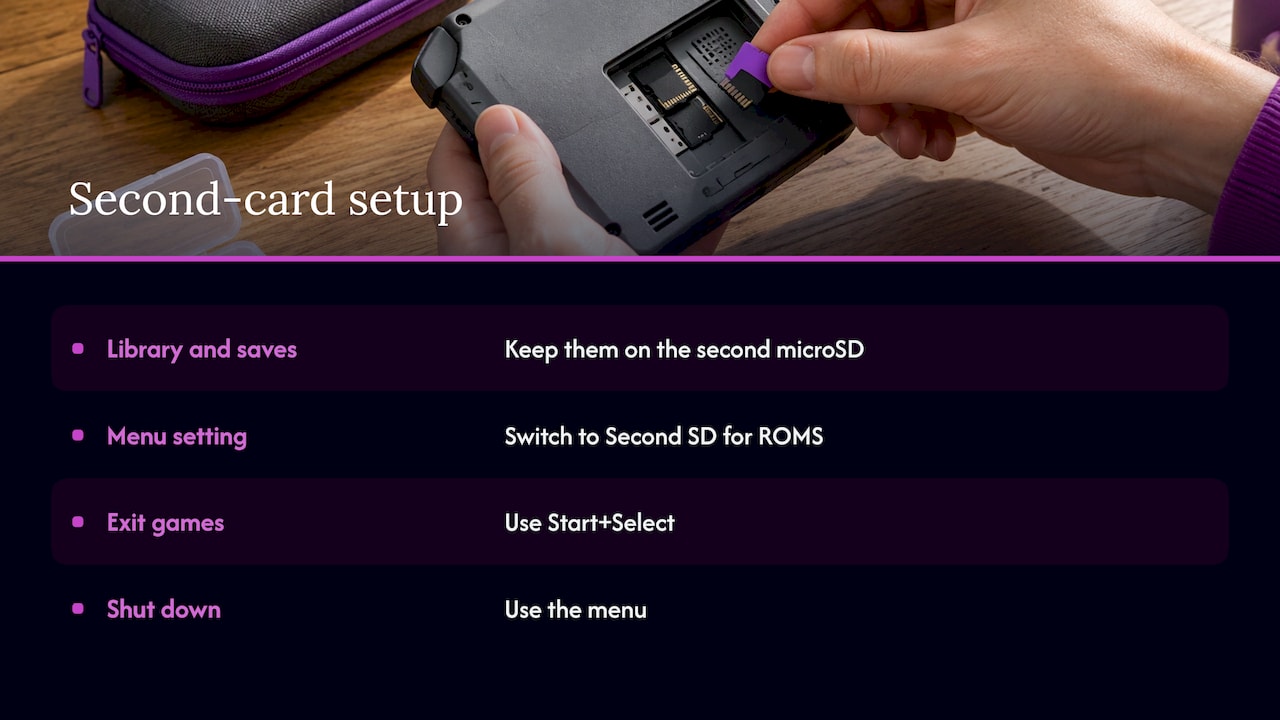
The real answer to “what if a reset wipes my games?” is to make sure the games are never on the card being reset. Many handhelds have two microSD slots. Putting your library and saves on the second card keeps them safe if the system card is corrupted or reflashed. One widely read starter guide recommends the same layout, enabled on that device through Options, Advanced, Switch to Second SD for ROMS, and pairs it with exiting games using Start+Select and shutting down from the menu so settings are saved and the card is unmounted cleanly.
If you are choosing a device with this in mind, look for dual microSD slots and a seller who ships a card that has been checked. Our overview of emulation handheld setup covers the whole picture, and the three risks to check on preloaded consoles is worth reading before you buy any ready-loaded device.
A short checklist for parents and gift givers
If you are setting up a device for a child or giving one as a gift, three habits prevent nearly every reset panic:
- Show them how to exit a game and shut down from the menu, not by holding the power button.
- Keep a copy of the card on a computer after the first week, once their saves exist.
- Teach one recovery trick: reboot and hold B for the recovery menu if the screen ever opens in the wrong place.
Our view on resets
We think a handheld should never make you choose between fixing a problem and keeping your games. Resets feel scary because the library, the saves and the system often share one card. Separate them and the fear goes away.
That is why we build around ready-to-play use. Retro Pulse comes preloaded with 15,000 games from over 20 systems, runs offline with no downloads or subscriptions, and has dual microSD slots, so you can add your own games on a separate card. Its removable battery, USB-C charging and 3.5" IPS display are meant to make the device something you pick up and play, not something you tinker with.
If something does go wrong, a calm order of operations beats a panic wipe: smallest reset first, backup before anything bigger, and a clean shutdown every time.
Sean
Retro Pulse: a handheld meant to be played, not fixed
Retro Pulse is our handheld with 15,000 classic games from over 20 systems, including NES, SNES, Genesis, PS1, N64, Game Boy, GBA and Arcade. It is curated and ready to play instantly, with no menu setup, downloads or subscriptions. It ships from a U.S. warehouse and comes with a one-year warranty and 30-day returns.
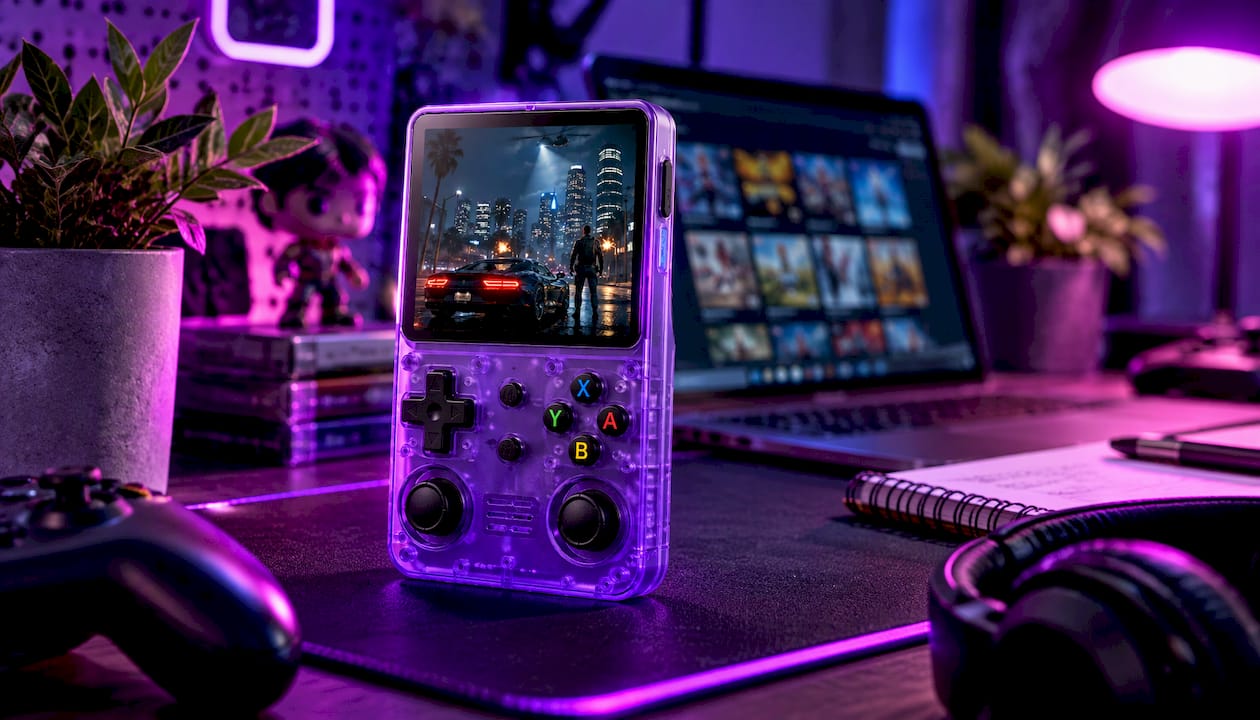
If you want a handheld with real D-pad, twin sticks and L/R triggers, a removable battery rated for 6 to 8 hours and dual microSD slots for your own games, see Retro Pulse.
FAQ
Will a factory reset delete my games?
It depends on the kind of reset. Resetting a controller layout, one emulator or the RetroArch config leaves games and saves alone. Reflashing the operating system wipes the card it is written to, so any games on that card go too unless you copied them first. Keeping games on a second card avoids the problem.
What is the difference between save states and in-game saves?
An in-game save is the game’s own save file, the same as on the original console. A save state is the emulator’s snapshot of the exact moment, and it can fail to load if the emulator core changes. Back up both, but rely on in-game saves for anything you cannot lose.
My handheld opens straight into RetroArch. Is it broken?
Usually not. RetroArch has most likely been set as the main frontend. Reboot, hold B right after power-on to enter the recovery menu, and choose EmulationStation. You can then set things back through the normal menu.
Why do my settings go back to default every time I restart?
The usual causes are a configuration that was never saved, a failing SD card, bad game files or shutting down with the power button. Save the config or use overrides, replace the card if it is suspect, and always shut down from the menu.
How often should I back up my card?
Copy it once after setup, then again after you have built up saves or changed settings you like. A full copy takes minutes and means any reset, reflash or card failure is a minor inconvenience.
Sources
- Troubleshooting, KNULLI Wiki
- RetroArch settings, Leaf
- Ultimate R36S Starter Guide, Junub Games
- Installing or Updating ArkOS/dArkOS (R36S and R36H), XNL
- RetroArch manual page
- R36S Problems and Troubleshooting, Handheld Database
- dArkOS source, EmulationStation script
- dArkOSen-R36S releases
- R36S Starter Guide, Retro Handheld Guides