For retro emulation, a microSD card’s random read performance (the A1 or A2 rating) matters more than its headline megabytes-per-second, and anything beyond a solid UHS-I card rarely changes how a game plays. Old consoles are light on storage. Once a game is loaded, your handheld’s processor and memory do the work, not the card. A better card helps with menus, save-state loading, first launches and copying files. This guide explains which markings to look at, which to ignore, and how much capacity you need.
TL;DR
- For emulation, look at the Application Performance Class (A1 or A2) first. It measures small random reads and writes, which is how emulators and front-end menus use a card.
- A2 beats A1 on paper, but the SD Association says A2 performance needs both an A2 card and an A2-supported host. Check that your device supports it before paying extra.
- Past UHS-I speeds, most retro handhelds see little or no gain. Reliability and the right capacity are better uses of your budget.
- Capacity depends on the systems you play. Cartridge-era systems are tiny; PlayStation 1 disc images run around 700MB each.
- Back up your saves regardless of card speed. A cheap or failing card is a bigger risk than a slow one.
Table of Contents
- Why card speed is confusing for emulation
- What each marking tells you
- A1 vs A2 microSD for emulation
- What card speed does and doesn’t change
- Why reliability beats raw speed
- How much capacity you need
- A note from us
- A simple way to choose a card
- If you want to skip the card question
- FAQ
- Sources
Why card speed is confusing for emulation
SD cards carry a pile of markings: Class 10, U1, U3, V30, A1, A2, plus “up to 200MB/s” on the front. Most of these were designed for cameras and video recording, where a long, steady stream of data being written matters. Emulation looks different. The device reads a modest ROM or disc image, jumps around the file system to draw a game list, loads box art, and writes a small save file or save state.
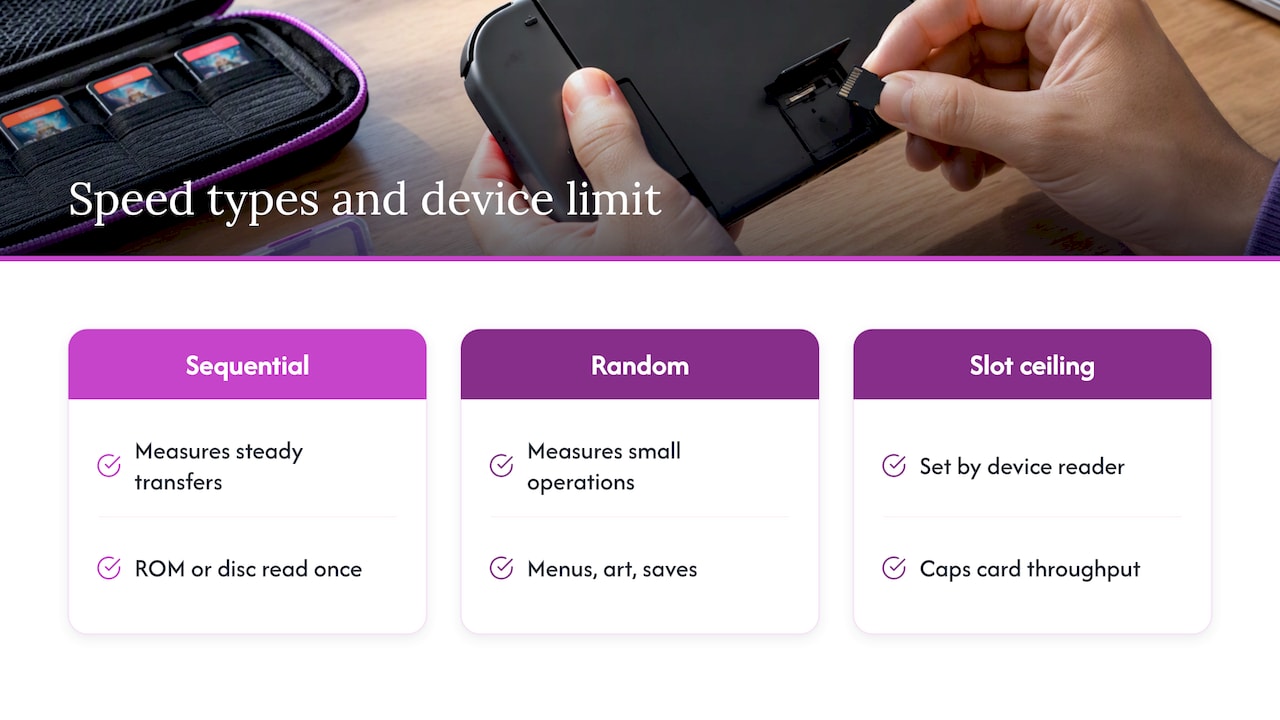
So the question is not “what is the fastest card?” but “which speed number describes what my handheld actually does?” The answer sorts into three groups: sequential speed (big, steady transfers), random speed (many small operations), and the ceiling set by your device.
What each marking tells you
Speed class, U and V ratings
Class, UHS Speed Class (U1, U3) and Video Speed Class (V30 and so on) all describe a minimum sustained write speed. They are useful if you are filming 4K video. For emulation they mostly tell you how quickly you can copy a big folder of games onto the card, not how the games run afterward.
UHS-I, UHS-II and the “up to” number
The headline read speed on the packaging is a best-case sequential figure measured in a fast reader. Your handheld’s card slot may be slower than that reader. Nintendo, for example, specifies minimum read speeds of 60 to 95 MB/s for UHS-I cards on its console, and faster cards should not load games faster than the console’s maximum read speed. The same logic applies to retro handhelds: the slot and controller set a cap, and a card that exceeds it gains you nothing.
A1 and A2: the ones that matter
A1 and A2 are Application Performance Classes, introduced for comfortable use of apps and data stored on the card. They rate random read and write operations per second (IOPS), which is much closer to how an emulator front end behaves than a sequential figure is.
The SD Association says A2 specifies at least 4,000 random-read IOPS, 2,000 write IOPS and 10 MB/s sustained sequential performance, more than doubling what A1 guarantees for random reads and writes. A2 achieves this with command queuing and caching.
A1 vs A2 microSD for emulation
Here is the practical comparison.
| A1 | A2 | |
|---|---|---|
| What it measures | Random read/write operations per second | Random read/write operations per second, at a higher minimum |
| Needs host support | Standard | Yes: an A2-supported host and card are required for A2 performance |
| Where you may notice it | Menus, first launches, save-state loading | Same tasks, if the device supports A2 |
| In-game frame rate | No change | No change |
The catch is the host. If your handheld’s card reader and firmware do not support A2 features, an A2 card typically behaves as a decent card, but you do not get the A2 advantage. Manufacturers rarely advertise A2 support for budget handhelds, so do not assume it. A reasonable approach: buy a reputable A1 or A2 card in the size you need, and treat A2 as a small bonus rather than a requirement.
How-To Geek recommends an A2 card for Nintendo Switch games stored on a microSD card, but that is a console running modern games that stream textures and assets from storage. In its testing, an older card loaded a save file in The Outer Worlds 67% slower than internal storage. A 16-bit game is a few megabytes. The pressure on the card is nowhere near the same.
What card speed does and doesn’t change
Separate the jobs a card does.
Where speed helps:
- Menu scrolling and game lists. Front ends read many small files, such as thumbnails and metadata. Random performance is what counts.
- Save-state loading and resuming. A state is a snapshot of the emulated system’s memory, so bigger systems write and read bigger files. Our guide to how save states work on a handheld covers when to trust them.
- First launch of a game. The device reads the ROM or disc image once, then holds it in memory.
- Copying your library. Moving hundreds of gigabytes onto a card is where a faster sustained write speed pays off. Plan on an overnight job with a slow card.
Where it doesn’t:
- Frame rate and audio. For retro systems, in-game performance is bound by the handheld’s processor and RAM, not the card. A faster card won’t fix a game that runs slowly.
- Visual quality. That comes from the screen and scaling settings. See what actually matters in retro handheld screen quality.
Tests on other retro hardware point the same way. Atari Gamer’s test of an Atari Lynx SD cartridge found Class 10 cards loaded a typical 256KB ROM in about 17 seconds, against more than 40 seconds for an old 128MB card. Going beyond Class 10 gave only marginal improvement because the cartridge capped throughput. The lesson: after you clear a baseline, the device is the bottleneck.
Why reliability beats raw speed
The fastest-looking card is not always the best performer in real use. Tom’s Hardware’s 2025 Raspberry Pi microSD testing found that four cards failed its diagnostic because of very slow 4K random writes, and that results varied by card and by Pi model, with some UHS-I cards outperforming UHS-III ones. Marketing numbers and real behavior can diverge.
A retro-focused guide from AmigaVision makes a related point: because ROM and disc-image files are generally small and typical device readers don’t gain much beyond UHS-I, it suggests prioritizing reliability over maximum speed. That matches what we see: the card that matters is the one that doesn’t corrupt your saves.
Practical habits that protect you:
- Buy from a reputable retailer. Counterfeit cards report a size they don’t have and fail when they fill up.
- Format the card in the device or with the method the manufacturer recommends.
- Eject properly before pulling the card.
- Keep a copy of your save files somewhere else. Our guide on backing up saves rather than relying on save states shows how.
How much capacity you need
Capacity is where most emulation buyers should spend their money. The question is which systems you play.
| System family | Typical game size | What it means for the card |
|---|---|---|
| NES, Game Boy, Master System | Tens to hundreds of kilobytes | A full library is a rounding error |
| SNES, Genesis, GBA | Up to a few megabytes (some GBA and larger SNES titles reach tens of megabytes) | Still small; thousands of games fit in a few gigabytes |
| PlayStation 1 | Around 700MB per CD-ROM image | The first system where capacity becomes a real decision |
| PS2, GameCube and up | Considerably more space per game | Need large cards and a device powerful enough to run them |
Tom’s Hardware says 32GB should be the bare minimum when emulation is the goal. A little arithmetic helps from there. A 128GB card holds roughly 180 PS1 images at 700MB each if you filled it with nothing else (128,000MB divided by 700MB), and many PS1 games can be compressed to smaller files in formats your emulator supports. If you stick to cartridge-era systems, a card that size will feel bottomless.
That answers the question people often ask: is 128GB enough for emulation? For 8-bit and 16-bit systems, handheld libraries and a good number of PS1 games, yes. If you plan to keep large collections of disc-based games, consider 256GB, and always check the largest card size your device supports before buying.
A note from us
We sell a handheld, so we get this question from people deciding between cards. Our honest view is that most buyers overthink speed and underthink everything else.
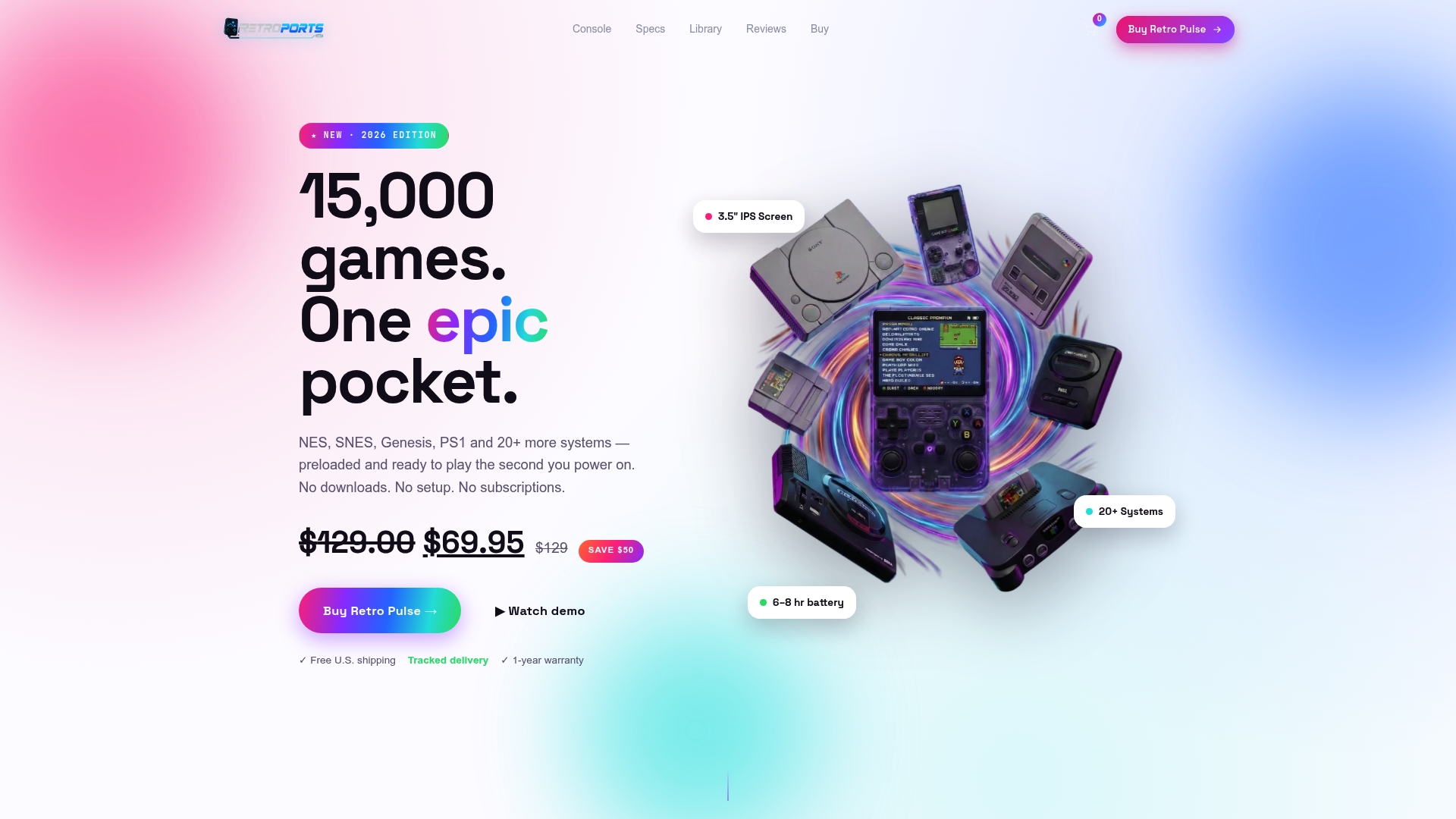
The Retro Pulse ships with a library already on it: 15,000 classic games from more than 20 systems, including NES, SNES, Genesis, PS1, N64, Game Boy, GBA and arcade. That is deliberate. The common frustration with retro gaming is not a slow card, it’s an evening spent sourcing files, formatting cards and configuring menus before anyone plays anything. We would rather you spend that evening playing.
The two microSD slots are there for adding your own games or extra content, not because you need them to start. If you add a card, our advice is the same as above: choose a reputable one from a trusted seller, pick the capacity for the systems you actually play, and don’t pay a premium for sequential speed numbers that your handheld’s reader won’t use. The things that shape daily experience are the screen, the controls and the battery. Ours is a 3.5" IPS display, real D-pad and sticks with L/R triggers, and a removable battery rated for 6 to 8 hours.
And whatever card you use, back up the saves you care about. Cards are small, they get lost, and a childhood save file is worth the two minutes.
— Sean
A simple way to choose a card
Use this order of decisions.
- Check your device’s limits. Find the maximum supported card size and the card format it expects.
- Pick capacity from the systems you play. Cartridge-era only: a small card is plenty. Adding PS1 and other disc systems: step up to a larger one.
- Choose A1 or A2 from a known brand. If your device supports A2, you may feel snappier menus and state loads. If not, you lose nothing.
- Skip chasing the biggest MB/s figure. It helps when copying files and almost nowhere else on a retro handheld.
- Buy where counterfeits are unlikely, then test the card by copying a full load of files and reading them back before you trust it.
If you want the broader picture of getting a handheld ready to play, our plain-English emulation handheld setup guide walks through it, and what save states capture explains why a state is not a substitute for a regular save.
If you want to skip the card question
If you’d rather not manage files at all, the Retro Pulse handheld arrives ready to play with 15,000 games already loaded, ships from a U.S. warehouse, and comes with a one-year warranty and 30-day returns. You can still add a microSD card later for your own games.
Parents handing a console to a kid and gift buyers in particular tend to value that: charge it, turn it on, play. You can see the full range on our handhelds page.
FAQ
Does microSD speed affect emulation performance?
Mostly not while a game is running. For retro systems, in-game performance depends on the handheld’s processor and RAM. Card speed shows up in menu scrolling, first launches, save-state loading and file copying, where random read performance is the number to look at.
Is A2 worth it over A1 for a retro handheld?
Only if your device supports it. The SD Association states that A2 performance requires an A2-supported host and card. If you don’t know whether your handheld does, a reputable A1 card in the right capacity is a sensible choice, and an A2 card costs you nothing but a little extra if it turns out to run as A1.
Is a 128GB microSD card enough for emulation?
For most people, yes. Cartridge-era libraries take a small fraction of it, and by simple arithmetic it holds around 180 PS1 images of roughly 700MB each. Choose 256GB if you plan to collect many disc-based games, and check your device’s maximum supported size first.
Do I need a UHS-II or V90 card?
No. Those ratings serve cameras and video work. Most handheld card readers cap out well before they can use them, so you would pay more for speed the device can’t deliver.
Can a bad card lose my saves?
Yes. Counterfeit or failing cards can corrupt data, which is why reliability matters more than a speed claim. Keep a backup of your save files outside the card.
Sources
- Application Performance Class, SD Association
- SD Association A2 specification overview (PDF)
- Best microSD Cards for Raspberry Pi 2025, Tom’s Hardware
- Will an Expensive SD Card Improve Nintendo Switch Performance?, How-To Geek
- Your SD Card Might Slow Down Your Nintendo Switch, How-To Geek
- Do faster SD cards affect Lynx SD cartridge loading times?, Atari Gamer
- The best SD cards for MiSTer, Raspberry Pi and handhelds, AmigaVision