
Input lag on a retro handheld is the time between pressing a button and seeing the screen react. It is not one setting. It is a chain of small delays: the controls, the emulator, the video pipeline and the panel. On a handheld with built-in controls, the biggest wins are usually a clean video setup, a good screen and, where the emulator supports it, run-ahead. A wireless pad is the usual culprit when you play docked.
Below, we break down each link in that chain with real numbers. We also show you how to measure your own device with nothing but a phone, and what to ignore.
TL;DR
- Input lag is cumulative: controller, emulator, video buffering and screen all add up, so fixing one link may not be enough.
- A 60Hz screen can wait up to 16.7ms for its next refresh. Higher refresh rates shrink that wait, but they do not remove lag from the emulator or the game itself.
- Built-in controls avoid the wireless link entirely. If you plug into a TV, switch on Game Mode first.
- You can measure total lag yourself by filming a button press with a phone camera at 240 FPS or higher and counting frames.
Table of Contents
- What input lag actually is
- The chain: where each millisecond comes from
- A quick reference table
- If you play on a TV, start there
- How to measure your own lag
- What counts as too much lag?
- Our perspective: why we built around the full chain
- Where the Retro Pulse fits
- Practical fixes, in order of effort
- FAQ
- Sources
What input lag actually is
Input lag is the total delay from your thumb moving to a pixel changing. At 60 frames per second, one frame lasts about 16.7ms, and that is the unit most retro discussions use. A game that reacts on the very next frame feels crisp. A game that takes three frames feels mushy, even when it runs at a perfect 60 FPS.
That last point trips people up. Smooth video and responsive controls are different things. As one guide on emulation latency puts it, a game can run flawlessly and still feel off, because the problem is delay, not performance.
There is also a surprise for anyone who blames emulation itself. Some original games had lag built in: some react on the next displayed frame, while others take two, three or more frames before a press reaches the screen, as the RetroArch run-ahead documentation explains. Your memory of how a game “should” feel may include that delay, or it may come from a CRT, which added almost none.
The chain: where each millisecond comes from
Think of lag as four links. You can improve each one, and the order below is roughly the order in which a press travels.
1. The controls
On a handheld, the buttons, D-pad and sticks are wired straight to the board. That is a real advantage over playing with a wireless pad, because wireless adds a link you cannot fully control.
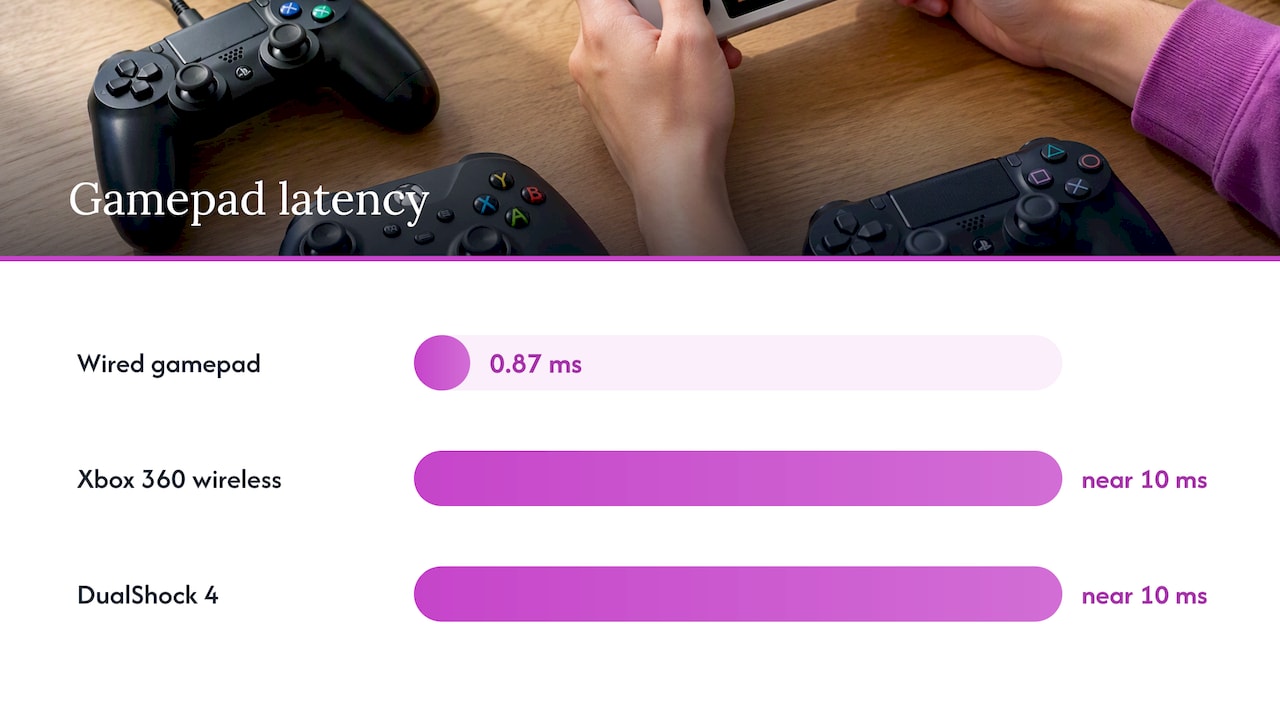
The numbers back this up. Wired USB connections typically give the lowest and most consistent input, with polling intervals as short as 1ms, while Bluetooth often adds variable lag because of how packets are scheduled. Lab measurements from a university research group show the gap: a wired gamepad with 1ms polling averaged 0.87ms, while a wireless Xbox 360 pad and a DualShock 4 both landed near 10ms.
Ten milliseconds is less than a full frame at 60Hz, so it is not catastrophic. But it stacks on top of everything else, and it varies. If you dock your handheld and use a Bluetooth pad, this is the first link to suspect. Switching to a wired pad, or to the handheld’s own controls, is the easiest fix there is.
Control feel matters too, though it is a different thing from latency. If you are choosing between a D-pad and a stick for a given game, our D-pad versus analog stick test covers which suits which systems.
2. The emulator
Emulation has a reputation for lag that it does not entirely deserve. The Libretro team, who build RetroArch, say the software is capable of next-frame response, with almost no perceivable difference from real hardware, FPGA clones or originals. Treat that as an optimization problem, not a law of nature.
Three settings do most of the work:
- Run-ahead. The emulator calculates upcoming frames in the background so the delay a game had built in is cancelled out. According to the run-ahead guide, this can sometimes get you below the original system’s latency. It costs processing power, so it works best on lighter systems like NES, SNES, Genesis and Game Boy, and is harder to use on heavier ones.
- Frame delay. This holds back the emulator’s work until just before the screen refreshes, so your input is read as late as possible.
- Video sync and buffering. Turning off extra buffering shaves frames. Heavy sync options can add one or two.
Not every handheld exposes these options, and not every core supports run-ahead. Check what your device offers before you chase a setting that is not there.
3. The video pipeline
Between the emulator and the panel sits the video driver. If it buffers frames to keep the picture tear-free, each buffered frame adds roughly 16.7ms at 60Hz. Wireless controllers and video buffering are usually the two biggest contributors, and both can be fixed. Scaling matters here as well: a clean integer or 4:3 scale costs less than aggressive filtering, and it looks better on old games. See our piece on why 4:3 scaling beats diagonal size for the display side of that story.
4. The screen
The panel is the last link, and it is the one you cannot change with a menu. A 60Hz display waits up to 16.7ms for its next refresh. At 120Hz that window drops to 8.3ms, and at 240Hz to 4.2ms, as the Libretro latency guide lays out.
Two caveats keep this in perspective:
- Higher refresh does not fix lag that comes from the emulator, rendering or the game’s own logic. The same guide stresses that those must be optimized too.
- Retro games were designed for 60 frames per second. A 120Hz panel helps with the refresh wait, but you will not see 120 FPS from a 16-bit game. Research published by LG Display found that higher refresh rates improve performance and the feeling of control in modern gaming, which is a different situation from a 60 FPS retro library.
So a 60Hz IPS panel is a perfectly reasonable choice for retro play. What matters more is the rest of the chain.
A quick reference table
| Link in the chain | Typical contribution | Your best fix |
|---|---|---|
| Wireless pad (Bluetooth) | Variable, often several ms | Use built-in controls or a wired pad |
| Wired USB or built-in buttons | About 1ms polling | Nothing to fix |
| Emulator | 0 to 3+ frames, depending on the game | Run-ahead, frame delay where available |
| Video buffering | About 16.7ms per buffered frame at 60Hz | Turn off extra buffering and heavy sync |
| 60Hz panel | Up to 16.7ms wait | Accept it, or choose a higher-refresh screen |
| TV picture processing | 40 to 70ms in some cases | Turn on Game Mode |
The frame figures come from the 60Hz math in the sources above. The TV figure comes from the Libretro TV guide discussion. Your own numbers will differ by device and game.
If you play on a TV, start there
Docking a handheld to a television is where lag most often balloons. Most TVs ship in picture modes like “Standard” or “Eco” that are not intended for gaming and add screen latency. Those modes run heavy image processing and upscaling, and the delay can be far larger than anything in the emulator’s own settings.
The fix takes two minutes:
- Open your TV’s picture settings.
- Select Game Mode, or the game-specific picture preset your TV offers.
- Turn off extra features such as motion smoothing and noise reduction if they are still enabled.
- Use a wired pad, or the handheld’s own controls if it is in reach.
If a game feels fine on the handheld screen and sluggish on the TV, the TV is almost certainly the cause.
How to measure your own lag
Guessing is how people end up chasing the wrong setting. A smartphone with slow-motion video gives you a real number.
- Set your phone to film at 240 FPS or higher.
- Frame the shot so you can see both your thumb on the button and the screen.
- Press a button that triggers an obvious on-screen change, like a jump.
- Step through the video frame by frame. Count the frames from the first sign of the button press to the first sign of the reaction.
- Divide by the filming rate. As an example from TestMyGamePad, 12 frames at 240 FPS equals 50ms of total system latency.
That figure includes the controller, emulator and display together, which is exactly what you feel. Repeat it five or six times and average the results, because single presses vary. Then change one setting at a time and film again. The slow-motion phone method is popular precisely because it measures from outside the system.
One warning: a browser-based gamepad tester can only measure the controller’s share, not the physical press or the display, as this controller latency guide points out. It is useful for polling rate, not for the full picture.
What counts as too much lag?
There is no universal cutoff. Perception is subjective, and it depends on the game. A turn-based RPG forgives 100ms. A tight platformer or a run-and-gun arcade game does not. A useful rule: the faster the game demands reactions, the more each frame matters. Aim to remove frames you can remove for free, such as buffering and TV processing, before you worry about the last few milliseconds.
Our perspective: why we built around the full chain
We see input lag the way a repair tech sees a noisy engine: you have to find which part is the problem, not replace everything. When we put the Retro Pulse together, we looked at the pieces a player actually touches. It has a real D-pad, twin sticks and L/R triggers wired to the device, so there is no wireless link between your thumb and the game. It has a 3.5" IPS display, and it plays offline, so nothing is streaming or buffering over a connection while you play.
We also think the honest answer is that no handheld is lag-free, and we will not tell you otherwise. What we can say is that you should not have to spend an evening in menus to get a game that feels right. The library is curated and ready to play, and with 15,000 games across more than 20 systems, you can spend your time playing, not tuning. If you want to check lag yourself, the phone test above works on any device, ours included. We would rather you measure than take our word for it.
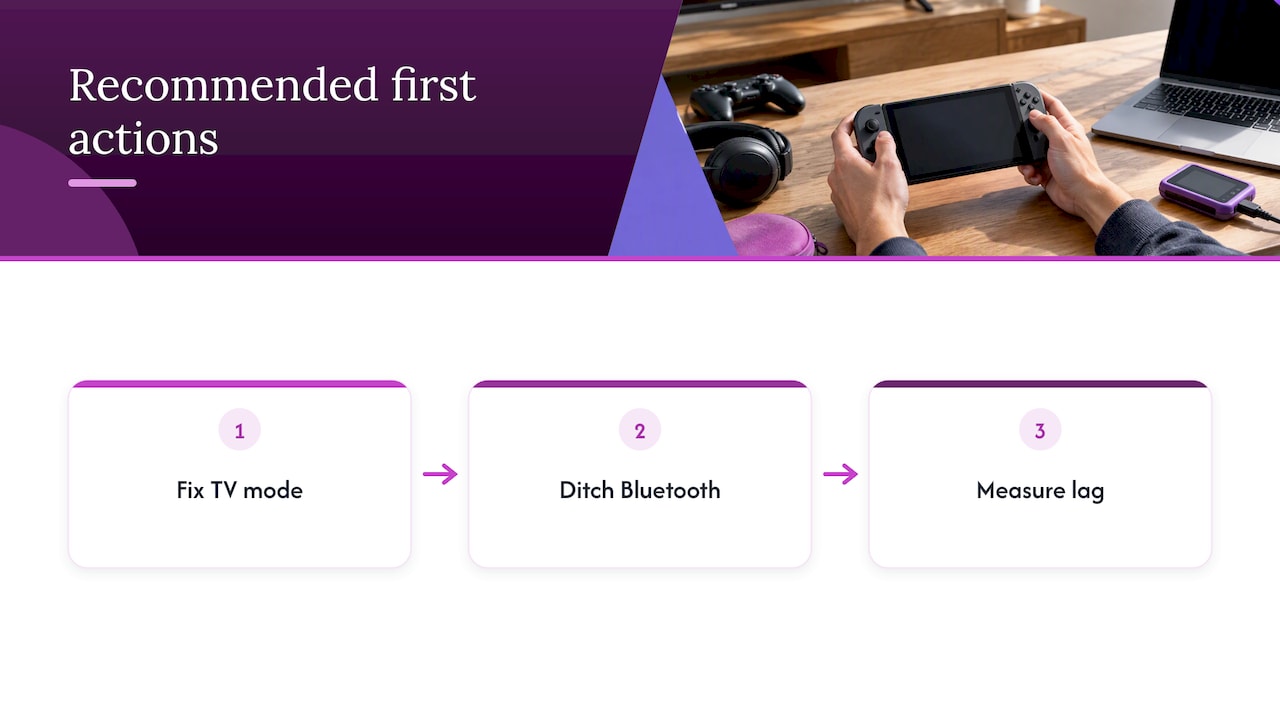
The single biggest piece of advice we give friends: before you buy a faster screen or a new pad, fix the TV mode, ditch the Bluetooth link, and then measure.
— Sean
Where the Retro Pulse fits
If you want a retro handheld that is ready out of the box, the Retro Pulse comes preloaded with 15,000 games from over 20 systems, including NES, SNES, Genesis, PS1, N64, Game Boy, GBA and Arcade. It has a removable battery rated for 6 to 8 hours, USB-C charging and dual microSD slots for adding games. It ships from a U.S. warehouse, with a one-year warranty and 30-day returns.
If you are weighing it against playing on a phone, our comparison of phone emulation versus a dedicated handheld goes into touch controls and the lag they bring. Screen too dim in daylight? The brightness fix guide walks through it.
Practical fixes, in order of effort
Start at the top. Each step costs less than the one below it and usually pays back more.
- Drop the wireless link. Use the handheld’s own controls or a wired pad.
- Set the TV to Game Mode if you play docked.
- Turn off video buffering and heavy sync in the emulator settings, if your device exposes them.
- Try run-ahead on lighter systems, one frame at a time. Raise it only until the game’s built-in lag is gone. Too many frames can cause visual glitches.
- Match the game to the system. Heavier systems may not have the headroom for run-ahead. Accept a frame or two there.
- Measure again with your phone and keep what actually helped.
For arcade games, where timing is everything, see our note on arcade emulation on handhelds. If you are choosing between emulation and the original hardware, our comparison of the two is a good place to continue.
FAQ
Do emulators have input delay?
Any emulator adds some processing time, but it is not necessarily more than the original console. The Libretro team says RetroArch can respond on the next frame, close to real hardware. Many original games also had built-in lag that run-ahead can remove.
Does a higher refresh rate reduce input lag?
It reduces the display’s wait: up to 16.7ms at 60Hz, 8.3ms at 120Hz and 4.2ms at 240Hz, according to the Libretro latency guide. It does not remove lag from the emulator or the game’s own logic. Retro games also run at 60 FPS, so the gain is smaller than in modern titles.
Is 100ms input delay bad?
For fast games, yes, you will likely feel it. Perception is subjective, but 100ms is roughly six frames at 60 FPS, far more than a well-tuned setup should need. Slower games like turn-based RPGs tolerate it far better.
How can I reduce input lag in RetroArch?
Turn on run-ahead, use frame delay, and disable unnecessary video buffering and VSync, which the Libretro run-ahead guide lists among the most effective tools. Then switch to a wired controller or built-in controls. Measure with a 240 FPS phone video before and after, so you know what helped.
Sources
- Latency, Libretro Docs
- Run Ahead, Libretro Docs
- TV, Libretro Docs
- How to Fix Input Lag in Emulation on Retro Handhelds, Held Games
- Controller Input Lag: How to Test It and Cut the Latency, JoyCheck
- Latency Measurements, Physical-Digital Affordances Group, University of Regensburg
- TestMyGamePad
- Quick hack for measuring latency, Philip Rosedale
- LG Display on refresh rate and real gaming performance