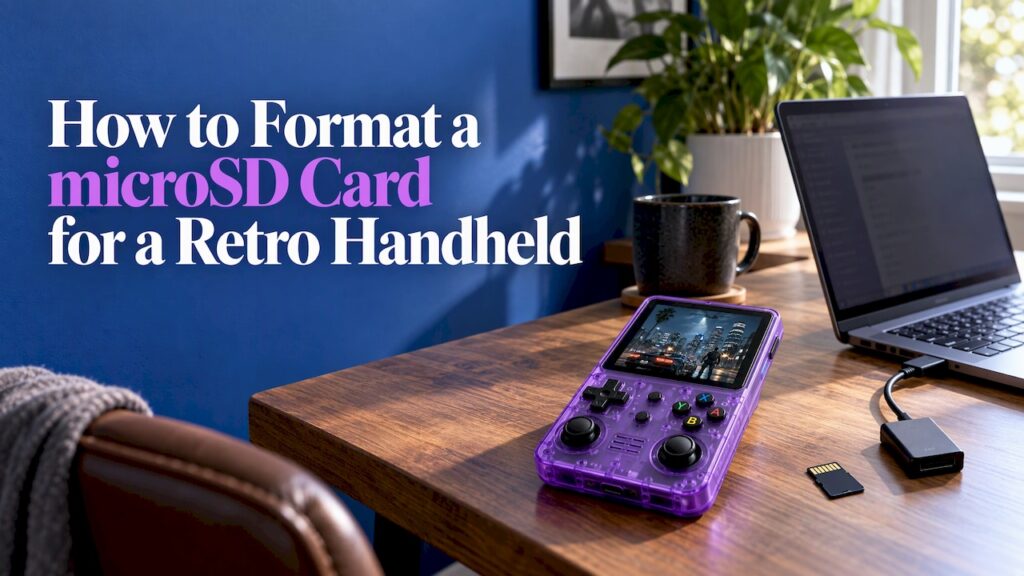
To format a microSD card for a retro handheld, back up anything on it, then format it as FAT32 with the SD Association’s free formatter or in the handheld itself, whichever the manual names. FAT32 is the format most retro handhelds read. The one card you should not format is the one that shipped inside the device with its games already on it. Leave that card alone and put your own cards in the extra slot. The Retro Pulse has dual microSD slots for adding games, and it arrives preloaded with 15,000 games across more than 20 systems, so you can play before you touch a card.
TL;DR
- A card you want to add games to needs formatting only if it is new and unrecognized, was used in another device, or throws errors. Many new cards already come formatted.
- FAT32 is the safe default for retro handhelds. exFAT is fine only if the manual says the device reads it.
- Formatting erases everything. Copy off anything you want to keep first.
- Use the SD Association’s formatter rather than the Windows dialog, and pick Overwrite if the card has been misbehaving.
- Never format the card that came inside your handheld with its games on it.
Table of Contents
- Do you need to format a microSD card at all?
- The card that came in the box: leave it alone
- Which file system: FAT32 or exFAT?
- Step by step: format the card on a computer
- Formatting inside the handheld
- Check the card before you trust it
- When the format fails
- What we would tell a friend
- Ready to play without the setup
- FAQ
- Sources
Do you need to format a microSD card at all?
Not always. Patriot Memory’s support team says new cards ship pre-formatted with FAT32 or exFAT and can often be used right away. The same page recommends formatting a card in the device it will live in before first use, because that sets up the file system for that hardware and can cut compatibility errors.
In practice, format when one of these is true:
- The handheld says the card is unreadable or asks you to format it.
- The card came from a phone, camera, or another console and holds files you no longer need.
- The card is over 32 GB and formatted as exFAT, and your handheld’s manual calls for FAT32.
- Games load slowly or freeze, files corrupt after copying, or the card has behaved oddly and you have already backed up what matters.
If the card works, shows the right capacity, and your handheld reads it, there is nothing to fix. A card that works is a card you can load with games and go.
The card that came in the box: leave it alone
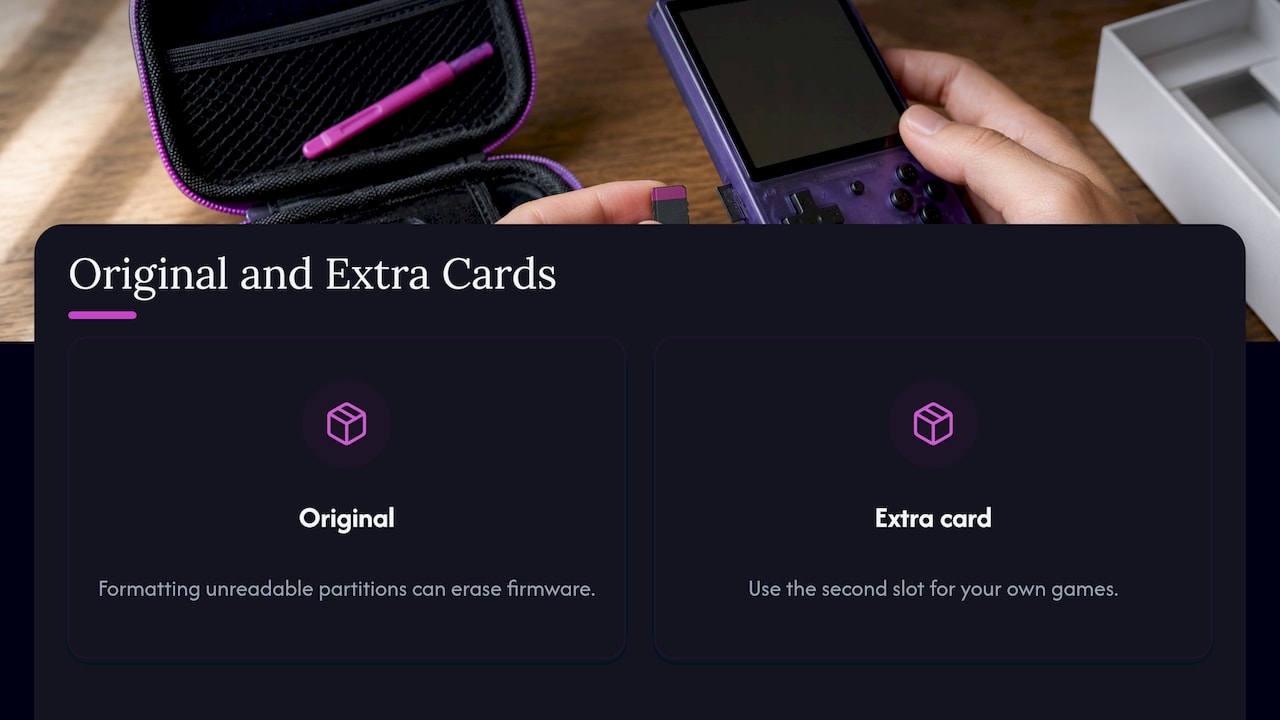
If your handheld shipped with games preloaded, those games live on a card or on internal storage that was set up at the factory. Retro handhelds often use cards with partitions that Windows and macOS cannot read. BootPixel’s setup guide warns that if your computer offers to format a partition it does not recognize, you should decline, because doing so can erase the firmware.
That is the idea behind the Retro Pulse approach: the library is ready to play with no menu setup, downloads, or subscriptions. You do not need to touch the original card for any reason. Put your own extra games on a second card in the second microSD slot. Our guide to adding games without a blank game list walks through how the folders should look once the card is formatted.
This is also why parents and gift buyers can relax. Opening the box and turning it on is the whole job. Formatting is an optional project for later, for people who want to add their own collection.
Which file system: FAT32 or exFAT?
A file system is the way a card organizes files so the device can find them. Two matter here.
| FAT32 | exFAT | |
|---|---|---|
| Single file limit | 4 GB | Far larger |
| Compatibility with retro handhelds | The widely expected choice | Only if the manual says so |
| Windows offers it for cards over 32 GB? | No, needs another tool | Yes |
HandheldWiki’s card setup guide calls FAT32 the safest default for dedicated retro handhelds, because some retro firmwares do not read exFAT. Retro game files are small. Even a PlayStation disc image fits well under the 4 GB limit, so FAT32’s file cap rarely matters for the systems this kind of handheld plays.
The SD Association’s FAQ adds a caution: reformatting a card with a FAT variant outside the SD standard is not recommended, because it can break reliable data transfer between cards and devices. The practical reading is simple. Do not hunt for exotic formats or custom cluster sizes. Use the standard format for the card’s size, and where your handheld’s manual states a different requirement, follow the manual.
What about big cards?
A 64 GB, 128 GB, or 256 GB card is common, and bigger cards hold more games. Here is the catch. Windows’ built-in tool hides the FAT32 option for cards over 32 GB, which is why many people end up with exFAT without meaning to. The SD Association’s formatter picks the format by capacity: FAT12/16, FAT32, or exFAT. Under the SD standard, cards above 32 GB go to exFAT. If your handheld needs FAT32 on a large card, a third-party tool built for large FAT32 volumes does the job.
If you would rather skip that, a 32 GB card or smaller is the simplest match. Since the Retro Pulse already carries 15,000 games, extra cards are for your own additions, and a modest card holds a lot of retro titles. For how speed ratings affect real play, see our microSD speed guide.
Step by step: format the card on a computer
These steps are for Windows. The same SD Association tool is available for Mac.
1. Back up what you want to keep
Formatting wipes the card. Nintendo’s own support page says that once formatted, the data cannot be recovered. Drag the contents of the card to a folder on your computer. If the card holds saves from a handheld, read our note on backing up game saves first, because save files are the one thing you cannot re-download.
2. Check the lock switch
If you use a full-size adapter, slide its lock switch to the unlocked position. The SD Association’s FAQ says the write-protect switch has to be in NOT PROTECTED mode for formatting to work. A locked adapter is behind many “cannot format” errors.
3. Download the SD Memory Card Formatter
Get it from the SD Association’s formatter page. The Association strongly recommends it over the tools built into operating systems, which may not be optimized for SD cards and can lead to lower performance. Run it as administrator.
4. Pick the right drive
Remove other cards and drives you do not need, then confirm the drive letter and size match the card in your hand. This is the step where the wrong disk gets erased. Take ten seconds to check.
5. Choose Quick or Overwrite
The formatter has two modes. Fast (Quick) formatting does not overwrite file data. Overwrite formatting rewrites the whole user-data area. For a healthy card you are repurposing, Quick is enough. Nintendo’s page recommends Overwrite for cards used with its consoles, and it is the better pick for a card that has been acting up. Overwrite takes longer, so keep the computer plugged in and awake until it finishes, as the FAQ advises.
6. Label and test
Give the card a name you will recognize, such as the handheld’s name. Eject it properly from the computer, put it in the handheld with the power off, and turn it on. If the system reads the card and your games show up, you are done.
Formatting inside the handheld
Some devices format cards from their own settings menu. Nintendo’s Switch, for example, has a Format microSD Card option in System Settings. This matches Patriot’s advice that formatting in the device the card will be used in gets the best fit.
Be careful about carrying one device’s habits to another. Sekin’s guide to handheld PCs shows how different they are: the Steam Deck formats its card as ext4 through its own settings, while the ROG Ally uses NTFS. A retro handheld is a different category again. Read your handheld’s manual for the format it expects, and treat it as the last word.
Check the card before you trust it
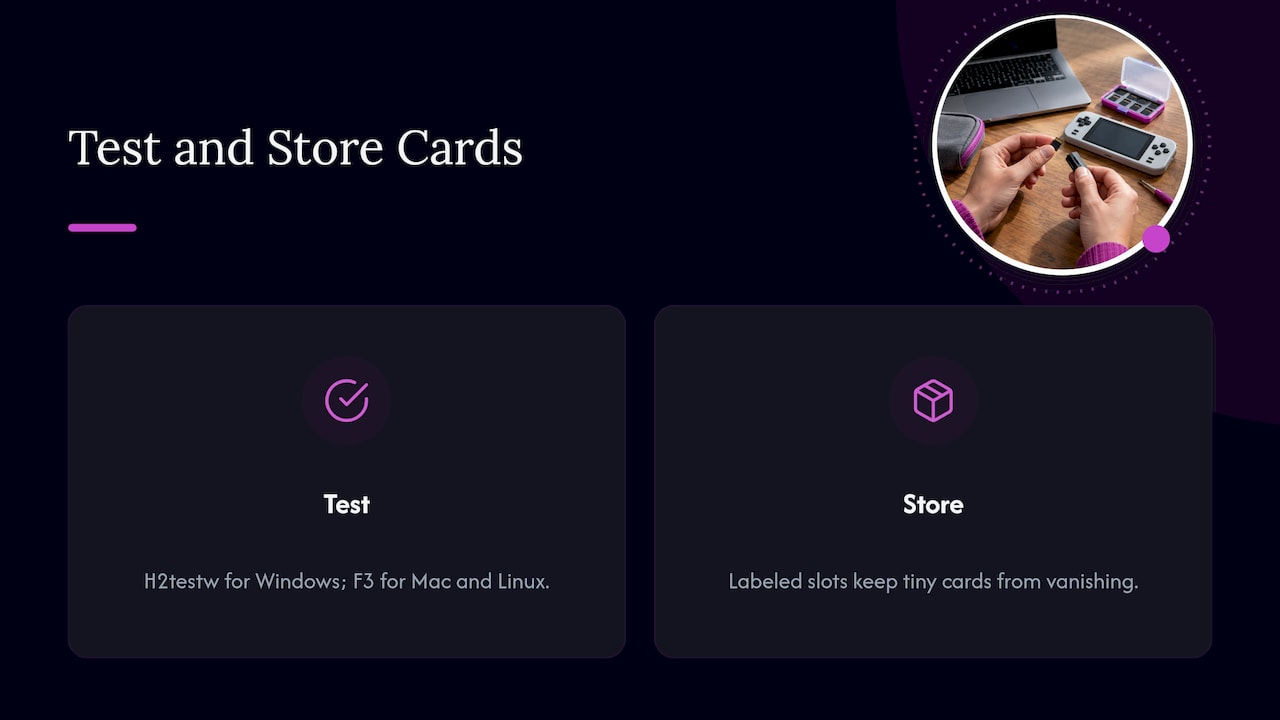
Fake or failing cards are the real source of a lot of “my handheld is broken” problems. Tech Pulse Gaming’s guide suggests running a capacity check, H2testw on Windows or F3 on Mac and Linux, before you load a card. It writes test data across the whole card and confirms the size on the label is real. Do this once on any card you bought from a marketplace seller, before you spend an evening copying games onto it.
When you have several cards, keep them organized. A small case with labeled slots, the same idea behind storing cards safely, keeps a tiny microSD from vanishing into a couch cushion.
When the format fails
The most common message is that Windows was unable to complete the format. Work down this list, easiest first.
- Check the lock. Slide the adapter’s switch to unlocked, or try another adapter or reader. Transcend’s support FAQ puts a different reader or adapter first for a write-protected card.
- Use the SD Association formatter with Overwrite selected, run as administrator, with the computer kept awake.
- Try Disk Management and DiskPart. MakeUseOf’s walkthrough covers clearing a read-only attribute with the DiskPart command
attributes disk clear readonly, scanning the drive for errors, and scanning for malware. - Replace the card. Flash cards wear out. If the card turns read-only on its own after its blocks are exhausted, no setting will change that. Transcend suggests taking the card and receipt back to the retailer, which is worth doing if the card is under warranty.
A card that repeatedly asks to be formatted is telling you something. Retire it from anything you care about rather than gambling on it for your saves.
Problems after formatting
If the card formats fine but the handheld misbehaves, Tech Pulse Gaming lists the usual suspects: a card that is not detected (reseat it with the power off and check the file system), games missing from the list (wrong folder name or file extension, then refresh the list), games that close on launch (missing BIOS file or a damaged copy), and files that corrupt during copying (eject properly or try another reader or cable). If the device overheats while you troubleshoot, see our overheating guide.
What we would tell a friend
Most people who ask us about formatting a card are about to do something they do not need to do. The games are already on the device. A card is for adding your own favorites, and it should be the easy part.
Our advice is the short version. Leave the original card untouched. Put a clean, small-to-medium FAT32 card in the extra slot. Keep a backup of your saves. If something goes wrong, you can pull the extra card and the console still plays its 15,000 games, because that library does not depend on your card.
That is the reason we built the Retro Pulse around being ready to play: no menu setup, no downloads, no subscriptions. Your own card is a bonus, not a requirement.
Sean
Ready to play without the setup
The Retro Pulse is a handheld console preloaded with 15,000 classic games from more than 20 systems, including NES, SNES, Genesis, PS1, N64, Game Boy, GBA, and arcade. It has a 3.5-inch IPS display, a real D-pad, twin sticks, and L/R triggers, a removable battery rated for 6 to 8 hours, and USB-C charging. Dual microSD slots let you add your own games when you want to. It ships from a U.S. warehouse and comes with a one-year warranty and 30-day returns.
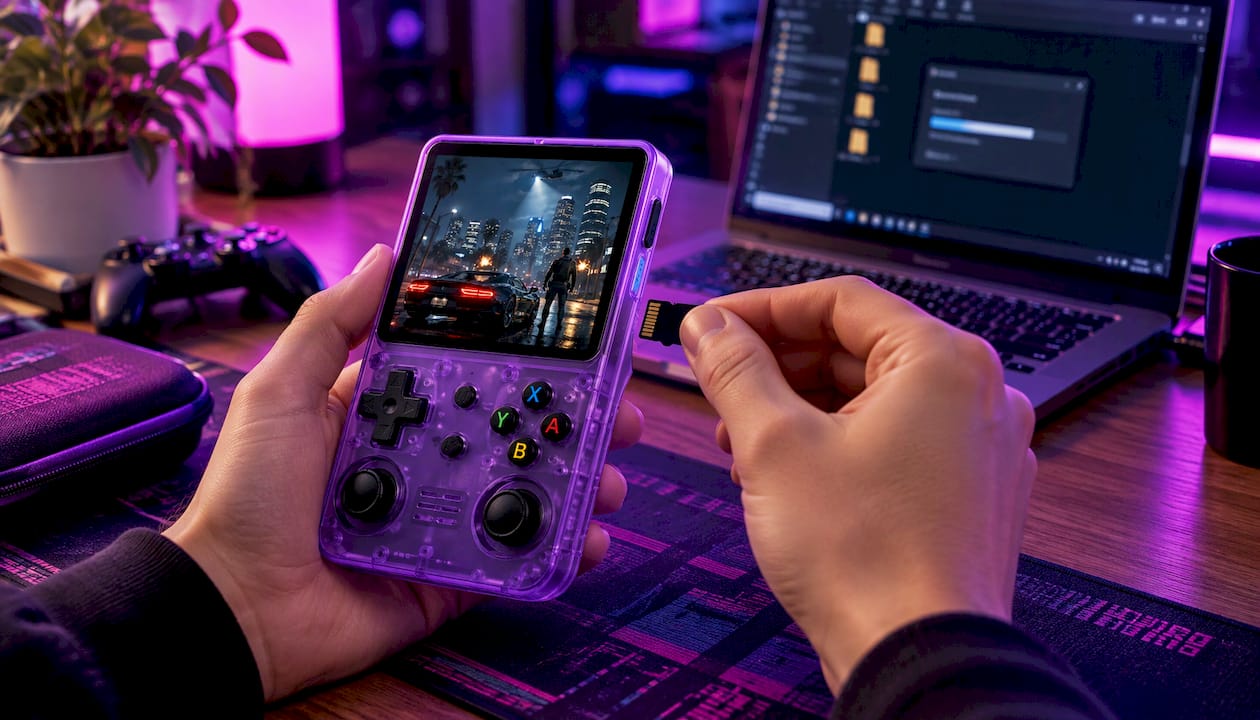
See the Retro Pulse handheld for the current details, or read our retro handheld buying guide if you are choosing between options for yourself, a kid, or a gift.
FAQ
Do I need to format a new microSD card before using it in a retro handheld?
Often you do not. New cards usually arrive formatted as FAT32 or exFAT. If your handheld reads it and shows the full capacity, you can start loading games. Format it only if the device cannot read it or it came from another device with files you do not need.
Is FAT32 or exFAT better for a retro handheld?
FAT32 is the safer default, since many retro firmwares expect it and some cannot read exFAT. Its 4 GB per-file limit rarely matters for retro games. Use exFAT only if your handheld’s manual says it supports it.
Why will Windows not give me the FAT32 option?
Windows’ standard dialog does not offer FAT32 for volumes over 32 GB. Use a 32 GB or smaller card, or a tool designed to create FAT32 on large cards. The SD Association formatter follows the SD standard and will choose exFAT for cards above 32 GB.
Can I format the card that came with my handheld?
We advise against it. Cards that ship inside a retro handheld can contain partitions your computer cannot read, and formatting them can erase the system. Leave the original card in place and add your games on a separate card.
Sources
- Patriot Memory: Do I need to format a new SD/MicroSD card before use
- BootPixel: How to Set Up a Retro Handheld for the First Time
- HandheldWiki: Retro Handheld SD Card Setup
- SD Association: Formatter FAQ
- Kingspec Tech: How to Format a Micro SD Card on Any Device
- SD Association: The SD Memory Card Formatter
- SD Association: SD Memory Card Formatter for Windows/Mac
- Nintendo Support: How to Format a microSD Card on console
- Nintendo Support: How to Format an SD Card or microSD Card
- Tech Pulse Gaming: How to Set Up a Retro Handheld SD Card
- PokeCardStudio: Trading Card Storage
- Transcend Support: What should I do if I cannot delete or format my card
- MakeUseOf: 7 Fixes for Windows Was Unable to Complete the Format