Parental controls on a handheld come down to four decisions: which games your child can play, for how long, whether they can talk to strangers or spend money, and who holds the PIN. Every handheld handles these differently, so the safest setup starts with the device itself. A handheld that runs its games offline, with no store, no subscriptions and no downloads, removes most of those decisions before you begin. That is the idea behind the Retro Pulse, which is built offline-first and ready to play out of the box.
This guide walks you through the setup in order, explains where controls stop working, and shows what to check before you buy a retro handheld for a child.
TL;DR
- Nearly every device that plays video games has built-in parental controls for age ratings, play time, spending and online communication, according to the ESRB.
- Set controls before the child unwraps the device, and enter the correct age in the child’s account. That one step also adds data-collection protections for kids under 13.
- Use a PIN only you know, and be present at first setup so your child can’t set their own.
- Controls only work on the device or network where they are installed, so agree on house rules for play away from home.
- An offline-first handheld with a library you choose keeps the decisions simple: no store, no subscriptions, no chat to manage.
Table of Contents
- What parental controls on a handheld actually cover
- Set up in the right order
- Handhelds that run Android
- Where controls stop working
- Choosing a kid-safe retro handheld
- Preparing the handheld for your child
- Our perspective
- Retro Pulse for family play
- FAQ
- Sources
What parental controls on a handheld actually cover
The ESRB, the US video game ratings board, says every video game device has built-in controls that let parents manage what kids play by ESRB age rating, when and how long they play, who they play with, and whether they can make in-game purchases or downloads. Its Tools for Parents page adds that a device can shut off or lock once the allotted time is up.
That gives you four levers:
- Content: block games above a chosen age rating.
- Time: daily limits and set downtime windows.
- Spending: restrict or require approval for purchases and downloads.
- Communication: limit chat and online play.
How many of these you need to configure depends on the device. A phone-style or tablet-style handheld has all four and a lot of menus. A device that plays a fixed library offline has fewer moving parts, so there is less to configure and less to forget.
Set up in the right order
1. Do it before the gift is opened
The ESRB advises setting controls before the child unwraps the console. If the device is a gift, finish the setup the night before. The ESRB and PTA’s parent’s guide adds that you should be present at first setup, so your child doesn’t activate controls with their own settings and a PIN only they know.
2. Create a child account with the correct birthdate
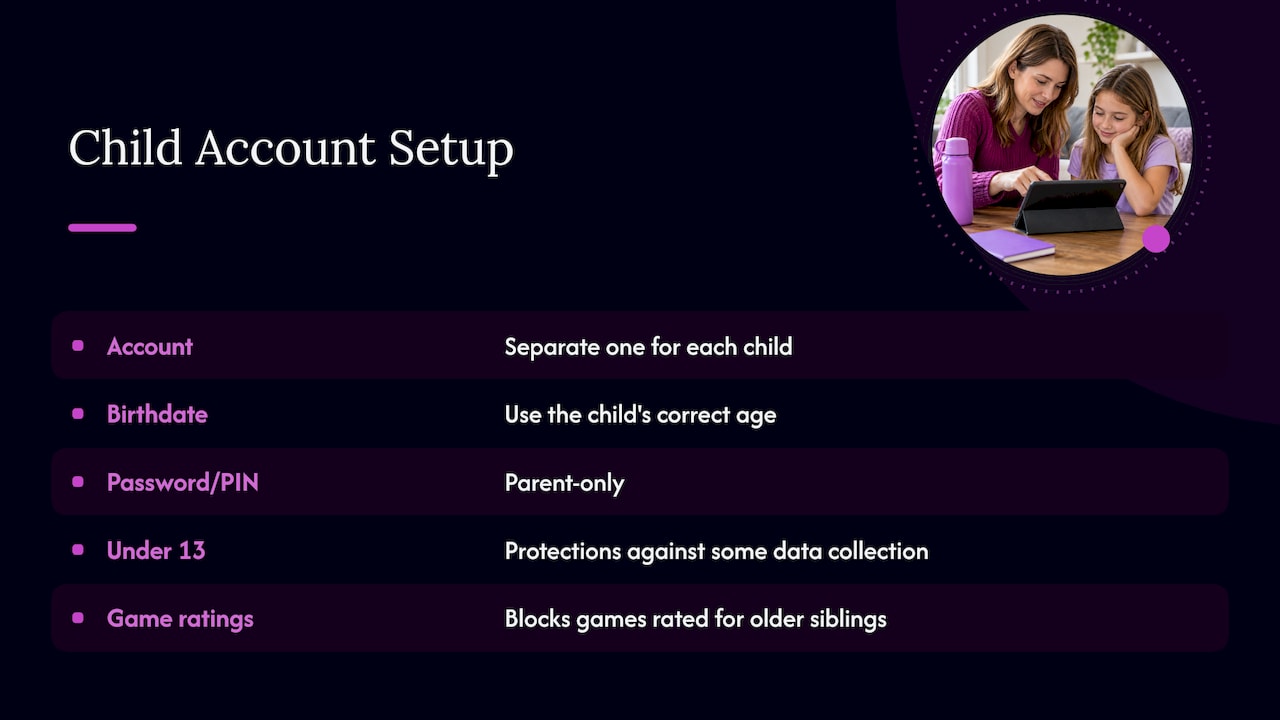
The ESRB recommends a separate account for each child, with the right birthdate and a parent-only password or PIN. Child accounts automatically provide guardrails against some data collection and stop a younger child from reaching games rated for an older sibling. ESRB President Orit Michiel calls the correct age the most important setup step, because it both blocks games by rating and switches on protections for children under 13. Parents often focus on content filters and overlook this.
If you have two kids of different ages, give each their own profile rather than sharing one at the younger child’s level.
3. Choose a PIN you won’t forget and they won’t guess
Avoid birthdays, 1234 or anything a child could see you type. If the device offers a recovery account, add it so a forgotten PIN doesn’t lock you out.
4. Set the age rating limit
Pick the highest rating you are comfortable with. The ESRB rating has two parts, according to the parent’s guide: an age symbol on the front of the box, and content descriptors on the back covering violence, sexual or suggestive material, strong language, drugs, alcohol, tobacco and gambling. Read the descriptors, not just the letter. Two games with the same rating can differ in what earns it.
5. Set time limits and downtime
Pick a daily limit and a downtime window, for example no play at school hours or after bedtime. On devices that support it, the device locks when time runs out. Tell your child the limit before you enforce it. A lock screen with no warning is the fastest route to a meltdown.
6. Lock down spending and online features
Turn off purchases or require your approval. For online play, the ESRB guide notes that games with online features carry the notice “Online Interactions Not Rated by the ESRB”, because chat and user-created content aren’t rated. If your child is young, switch those features off or restrict them to approved friends.
7. Write down the house rules
Settings handle the device. Rules handle everything else: where the handheld lives overnight, whether it comes to the dinner table, who charges it. Settle these in the same sitting.
Handhelds that run Android
Many retro handhelds on the market run Android underneath. If yours does, Google’s Android Help page documents the on-device controls for Android 17 or later. You can set a PIN of at least four digits with an optional recovery account, a daily limit that locks the device when reached, downtime windows, time limits for individual apps, blocked apps, web content filters and app store filters. Bonus time can be unlocked with your PIN, which is useful for a rainy Saturday or a long car trip.
The path is short: open Settings, tap Parental controls, then App limits, pick the app and set a time limit. Menu names can differ slightly between versions and manufacturers, so check the settings on your own device.
Another detail matters on retro handhelds in particular. Many use a front end, a menu that launches games through emulators, and some boot straight into it. As one explainer describes, Android handhelds can be set to open directly into a front end via the Default Home App setting. If your child lands straight in a game menu, make sure that setting is chosen deliberately and that your PIN covers settings and app changes.
Where controls stop working
Parental controls apply only to the devices, networks or services where they are installed. A Kaspersky family-safety guide notes they don’t carry over when a child uses someone else’s device or connects over cellular or Wi-Fi away from home. For a portable handheld, that means a friend’s console or a public network sits outside what you configured.
Three habits close most of the gap:
- Keep your child’s account tied to their own device, and talk about what is and isn’t okay on a friend’s.
- Choose a handheld whose games run on the device, so play doesn’t depend on a network at all.
- Check in on what they are playing. No setting replaces a two-minute conversation.
The offline approach is the strongest of these. When games live on the handheld, there is no online chat to supervise and no home network to protect, and play on the school bus or in the back seat works the same as at home. If you want to see how that plays out on the road, our guide to offline travel games for kids covers it.
Choosing a kid-safe retro handheld
If you haven’t bought yet, use this checklist. It is the same logic as the setup above, applied before you spend anything.
| What to check | Why it matters |
|---|---|
| How games arrive | A fixed library or a card you fill yourself means no store, no surprise purchases. |
| Online features | Fewer online features means less to restrict. |
| Subscriptions | None means no recurring charge for a child to trigger. |
| Who controls the library | Look for a way to add or manage games yourself, such as a microSD slot. |
| Setup effort | If setup takes an hour of menus, you won’t finish it. Ready-to-play beats complicated. |
| Controls and size | Real buttons and a D-pad suit small hands better than touch controls. |
| Battery and charging | A battery that lasts a school day or a trip keeps the device from becoming a charger fight. |
| Warranty and returns | Kids drop things. A clear warranty and return window matter. |
Our own page on preloaded consoles goes through the points to look at on any preloaded device, and our emulation handheld setup guide explains the terms in plain English.
Preparing the handheld for your child
A little preparation makes the controls stick. Play the handheld yourself for a few minutes first, so you know what your child will see. Decide which games belong on the first day. Our guide to sharing retro games with kids suggests skipping the long setup and letting kids lead, which works well when the library is already organized for play.
If your child also plays online elsewhere, such as on a computer or tablet, the same principles apply there. This overview of online safety for young players explains how age rules like COPPA, the US law protecting children under 13 online, shape what platforms may collect from them. It is a useful frame for any account you create for a child.
Finally, think about the physical side. Handhelds get warm in small hands and backpacks, so our tips to protect a handheld from heat are worth a read. And if the household includes someone who wants a very simple start, such as a grandparent, the one-page setup works for them too.
Our perspective
Most parents don’t want a dashboard. They want to hand over a device and know it will behave. That is why we built the Retro Pulse around an offline-first approach: no subscriptions, no downloads to manage, and games that are ready to play the moment it turns on.
When we talk about kid-friendly, we mean less to configure, not more. The Retro Pulse ships with a curated library of 15,000 classic games from over 20 systems, so there is no storefront to browse and nothing to buy inside a game. If you want to add something of your own, the dual microSD slots let you decide what goes on the card.
Retro games also share well. A parent can hand over the same NES or Game Boy classic they grew up with, on real buttons with a real D-pad, and sit next to their child while they play. That shared time does more than any setting can.
Pair the device with the steps above: a PIN you hold, clear time rules and a conversation about what is okay. That combination is what keeps play fun for everyone.
Sean
Retro Pulse for family play
The Retro Pulse is a handheld with 15,000 preloaded classic games from over 20 systems, including NES, SNES, Genesis, PS1, N64, Game Boy, GBA and arcade. It has a 3.5-inch IPS display, a real D-pad, twin sticks and L/R triggers, and a removable battery rated for 6 to 8 hours of play, charged over USB-C. It plays offline, with no downloads or subscriptions.

It ships from a U.S. warehouse and comes with a one-year warranty and 30-day returns. You can see the full details on the Retro Pulse page.
FAQ
Do retro handhelds have parental controls?
It depends on the device. The ESRB says virtually every device that plays video games includes parental controls, but how detailed they are varies. Android-based handhelds can use the on-device controls Google documents, while simpler offline devices rely on you choosing the games and setting house rules for time.
What is the most important parental control to set first?
The correct age in your child’s account. According to the ESRB, it blocks games above the child’s rating and also activates data-collection protections for children under 13. Add a PIN only you know right after.
Can I limit how long my child plays on a handheld?
Yes, where the device supports it. Android’s built-in controls, for example, include a daily limit that locks the device when reached, downtime windows and per-app limits. On any handheld, you can also agree on a play window together and use the battery and charging routine as a natural stopping point.
What makes a handheld kid-safe?
Built-in controls over ratings, play time, communication and spending, according to the ESRB, plus a simple setup you will actually finish. Fewer online features and no subscriptions also mean fewer things to supervise.
Sources
- ESRB: Holiday Video Game Console Guide for Parents (2026)
- ESRB: Parental Controls, Tools for Parents
- ESRB and PTA: A Parent’s Guide to Video Games, Parental Controls and Online Safety
- Android Help: Set up parental controls on an Android device
- Kaspersky: How to Set up Parental Controls on iPhone and other Devices
- Average TechNerds: Retro Handheld Front Ends