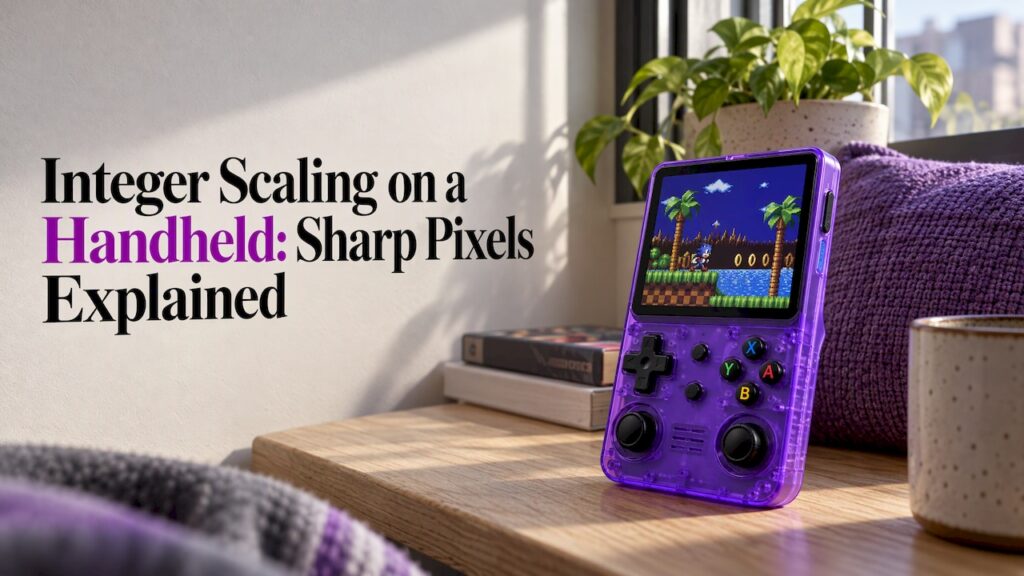
Integer scaling multiplies every pixel of an old game by a whole number (2x, 3x, 5x) so each one becomes a clean, even block on your screen. It is the reason a Game Boy Advance game can look crisp on a small handheld instead of soft or wavy. The trade-off is a slightly smaller picture with black borders when the screen is not an exact multiple. If you want to play retro games without fiddling with menus, our Retro Pulse is built around that idea: 15,000 preloaded games from over 20 systems, ready to play out of the box. This guide explains what is happening on the screen so you know what you are looking at.
TL;DR
- Integer scaling enlarges a game’s original pixels by whole numbers only, which keeps every pixel the same size and the image sharp.
- When the screen is not an exact multiple of the game’s resolution, you get black bars. That is the price of a perfectly even image, not a defect.
- Filling the whole screen needs fractional scaling, which makes some pixels wider than others unless a smoothing filter softens them.
- Most old consoles were built for 4:3 TVs, so side bars on a wider handheld screen are normal and keep shapes correct.
- Try both modes on a game you know well and keep the one you prefer, system by system.
Table of Contents
- What integer scaling actually does
- Why black bars appear
- Aspect ratio: why the sides go black
- Which systems scale cleanly on a small screen
- Integer scaling or fill the screen?
- How to turn integer scaling on
- Where the Retro Pulse fits
- Our view on pixels
- FAQ
- Sources
What integer scaling actually does
Every retro game is drawn on a tiny grid of pixels. A Game Boy Advance game is 240×160. A Super Nintendo game is usually 256×224. Your handheld’s screen has far more pixels than that, so the game has to be enlarged.
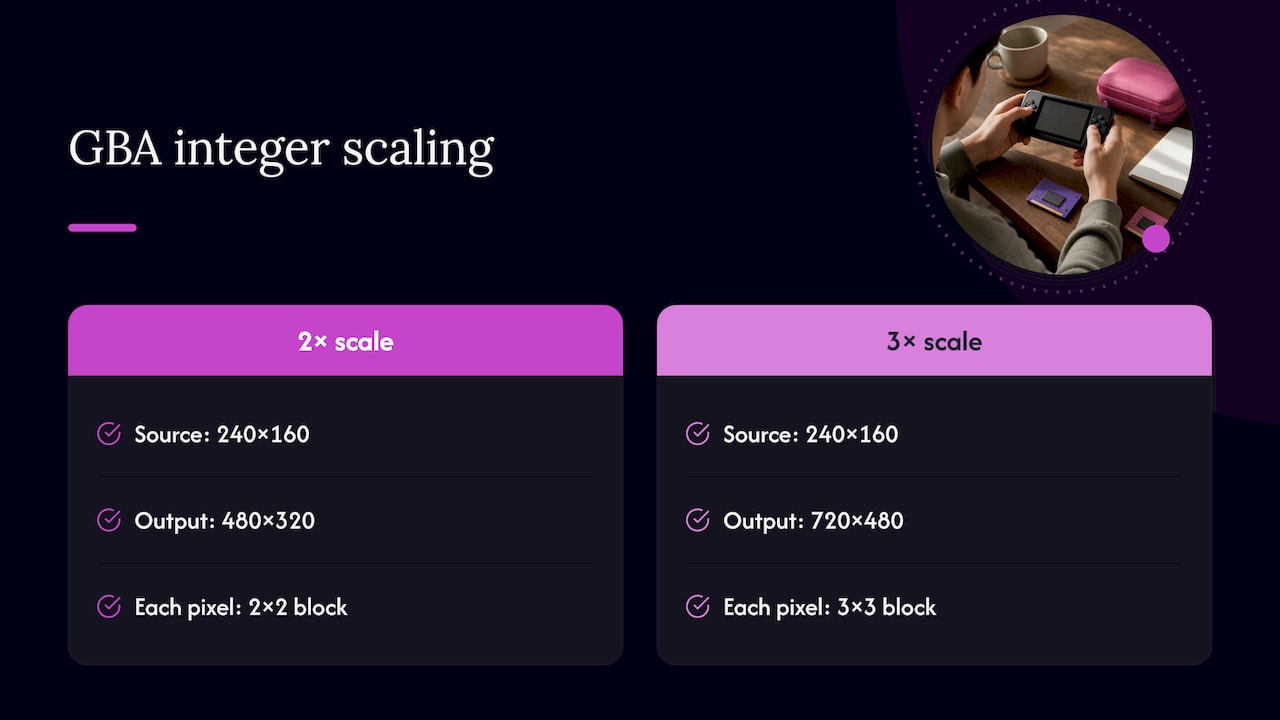
Integer scaling does it by simple multiplication. Retro Game Corps describes it as scaling the original image to the closest whole-number multiple the screen supports: a GBA image of 240×160 becomes 480×320 at 2x, or 720×480 at 3x. Each original pixel turns into an identical 2×2 or 3×3 block.
Technically, this is nearest-neighbor upscaling. Intel’s developer documentation explains that it multiplies existing pixels by a whole number, which preserves the clarity of pixel art, while bilinear or bicubic interpolation blurs the picture by smoothing the transitions between pixels.
So, is integer scaling “pixel perfect”? In the sense most players mean it, yes: every pixel is the same size, so lines stay straight, text stays readable and sprites keep their intended shape. The catch is that the picture may not fill the screen.
Why black bars appear
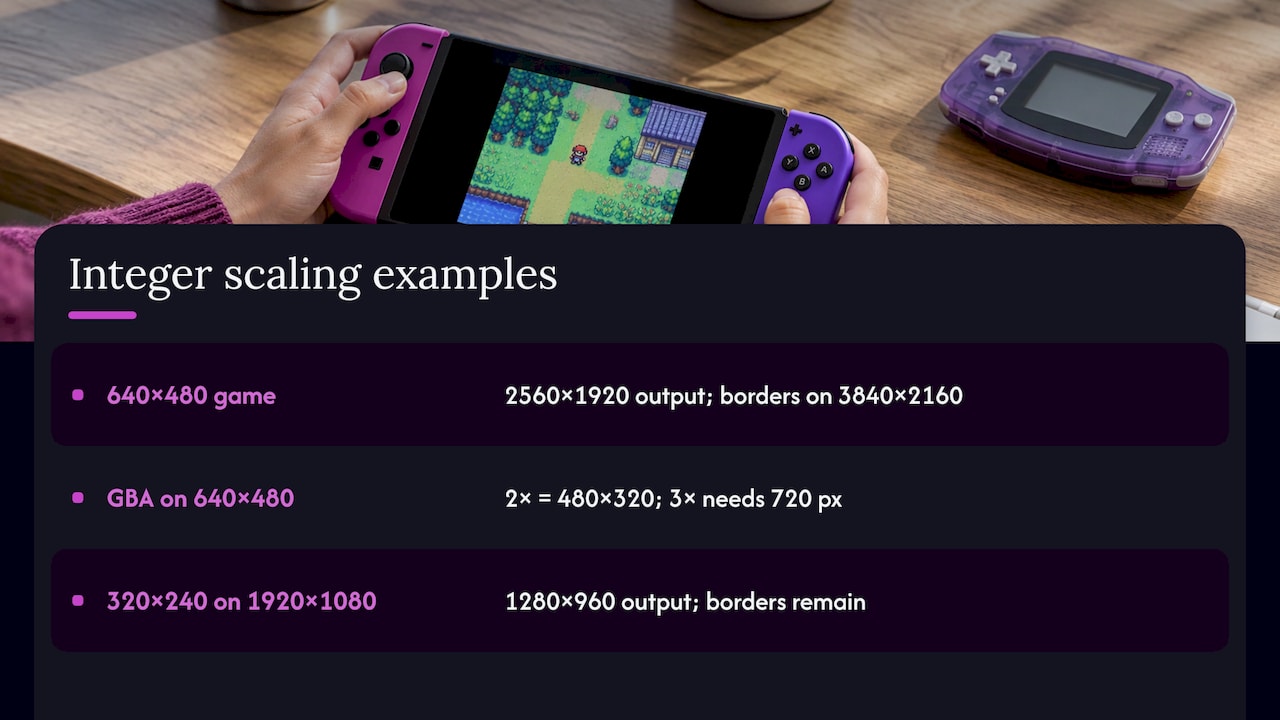
A whole-number multiple only fills the screen when the screen’s dimensions happen to line up. Intel’s documentation notes that full-screen integer scaling happens only when the panel is an exact multiple of the source image. Otherwise you get borders. Its example: a 640×480 game on a 3840×2160 panel gets forced to 2560×1920, with space left around it.
A handheld example makes this concrete. On a 640×480 panel, a GBA game can use 2x (480×320) but not 3x, because 3x would need 720 horizontal pixels. Retro Game Corps measures the 2x image at about 2.5 inches wide on a 3.5-inch display. Stretching it to fill the screen gives roughly 2.7x, about 3.4 inches wide with bars top and bottom.
That larger image has a cost. A fractional scale means some pixels are drawn wider than their neighbors. The same guide shows a Mega Man X example where 2.1x scaling leaves small gaps in the life bar, where evenly spaced pellets should be. The integer version is a little smaller but balanced.
The Emulation General Wiki gives the rule from the RetroArch side: integer scaling uses the largest whole multiple that fits. A 320×240 image on a 1920×1080 screen only reaches 1280×960, leaving borders on all sides.
A quick worked example
Take a 1280×800 screen and a 240×160 GBA game, using the RetroDECK display guide:
| Scale | Resulting image | Fits? |
|---|---|---|
| 4x | 960×640 | Yes, with borders |
| 5x | 1200×800 | Yes, fills the height exactly |
| 6x | 1440×960 | No, exceeds the screen |
The answer is 5x, the largest multiple that fits. The same guide shows that filling the screen without integer scaling would need 5.333x across and 5x down, so pixels come out uneven.
Aspect ratio: why the sides go black
Resolution decides how sharp the image can be. Aspect ratio decides its shape. Most retro consoles were designed for 4:3 televisions, so on a wider handheld screen the correct picture leaves bars at the sides. Those bars are not wasted: they keep circles round and characters properly proportioned instead of stretched.
A few systems break the pattern. Game Boy is closer to 10:9, the PSP and PS Vita are 16:9, and the 3DS uses a different ratio on each screen. This is why the same screen setting cannot be right for every system.
The NES 8:7 puzzle
One of the most common questions is whether the NES is 8:7 or 4:3. Both numbers are real, and they describe different things. The NES draws a 256×240 image, and the NESdev Wiki explains that its pixels on a 4:3 TV work out to an exact 8:7 shape, about 1.143:1, so each pixel was slightly wider than tall. The whole picture on a TV was close to, but not exactly, 4:3.
Because TVs of that era also cropped the top and bottom lines, Retro Game Corps notes that NTSC sets showed roughly 256×224, while most emulators show the NES at a slightly different 16:15 pixel shape. In practice, an emulator’s integer mode uses square pixels, which looks a touch narrower than a real TV did. Mesen’s documentation warns that non-default ratios can make pixel sizes irregular, and its integer-scale option avoids fractional values like 4.5x at 1080p that produce irregularly shaped pixels.
The takeaway: for NES, square pixels with whole-number scaling give the cleanest image. If you prefer the TV-like proportions, accept a little softness or unevenness.
Which systems scale cleanly on a small screen
Small handheld panels are generous to some systems and stingy with others. On a 480p panel, Retro Game Corps lists several that land neatly:
- Neo Geo and Sega Genesis (320×224) scale to 2x with small bars top and bottom.
- PlayStation and N64 (320×240) scale to 2x.
- Dreamcast (640×480) runs at 1x.
On a smaller 480×320 screen, the same author found that Game Boy (160×144) hits a crisp 2x, and GBA (240×160) hits a perfect 2x. He suggested not using integer scaling for home consoles there, because their resolutions cannot reach 2x on that panel. The lesson is that the benefit depends on the exact screen resolution, so it makes sense to judge it by how the games look to you.
There is also a reference chart of whole-number targets for common screens. For example, a Game Boy at 160×144 reaches 5x on 720p, and a GBA at 240×160 reaches 5x on 1280×800. If your screen falls between two multiples, the guidance in that chart is to pick the higher one and let the display scale down, which tends to look better than a fractional scale up.
Integer scaling or fill the screen?
There is no single right answer. The honest comparison looks like this:
| Integer scaling | Fractional scaling | |
|---|---|---|
| Pixel shape | Even and square | Some wider than others |
| Sharpness | Crisp | Crisp but uneven, or smooth but soft |
| Screen fill | Often bars on all sides | Fills more of the screen |
| Best for | Pixel art, text, side-scrollers | Games where size matters more than detail |
If you want a fractional scale to look good, a smoothing filter helps. Hunterk, a developer on the Libretro forums, explains that shimmering should not occur with integer scaling, while non-integer scales need bilinear filtering or anti-aliasing shaders to hide the uneven pixels. That is the trade: bars and sharpness, or a bigger image and some softness.
If you want to see how this choice plays out in detail, our guide on nearest versus bilinear scaling shows the difference at 2x to 4x. Our write-up on what really matters in retro handheld screen quality covers the rest of the picture, and CRT filters explain the scanline look some players add on top.
How to turn integer scaling on
In RetroArch, the path is Settings → Video → Scaling → Integer Scaling, per the RetroDECK guide. Switch it on and the picture snaps to the largest whole multiple that fits. Switch it off and the image fills the screen using fractional scaling.
A few practical notes:
- Test it on a familiar game. Pick one with clean text or a health bar and look for uneven line widths or shimmer when the screen scrolls.
- Set it per system. NES and SNES often look best with integer scaling, while a system whose resolution cannot reach 2x on your screen may look better filled.
- Check the aspect ratio too. Different emulator cores can report different ratios for the same system. Retro Game Corps points out that one Genesis core reports 4:3 while another reports 10:7, so a picture can look different from core to core.
- On a PC, run fullscreen. Scaling modes work on the whole screen, so fullscreen versus windowed mode can change what you see.
On PC graphics, Intel’s Retro Scaling feature offers two modes: Fixed Width, true integer scaling with the sharpest results, and Scaled Width, which fills more of the display but can distort the picture through fractional scaling.
For N64, a 2026 emulation guide recommends native resolution with integer scaling as the preferred approach because it preserves the original pixel grid, and calls slight letterboxing on mismatched displays normal.
Where the Retro Pulse fits
A lot of the work above is the reason many people give up on retro gaming: hunting for settings, downloading files, and wondering why a game looks off. We built Retro Pulse so you can skip that.
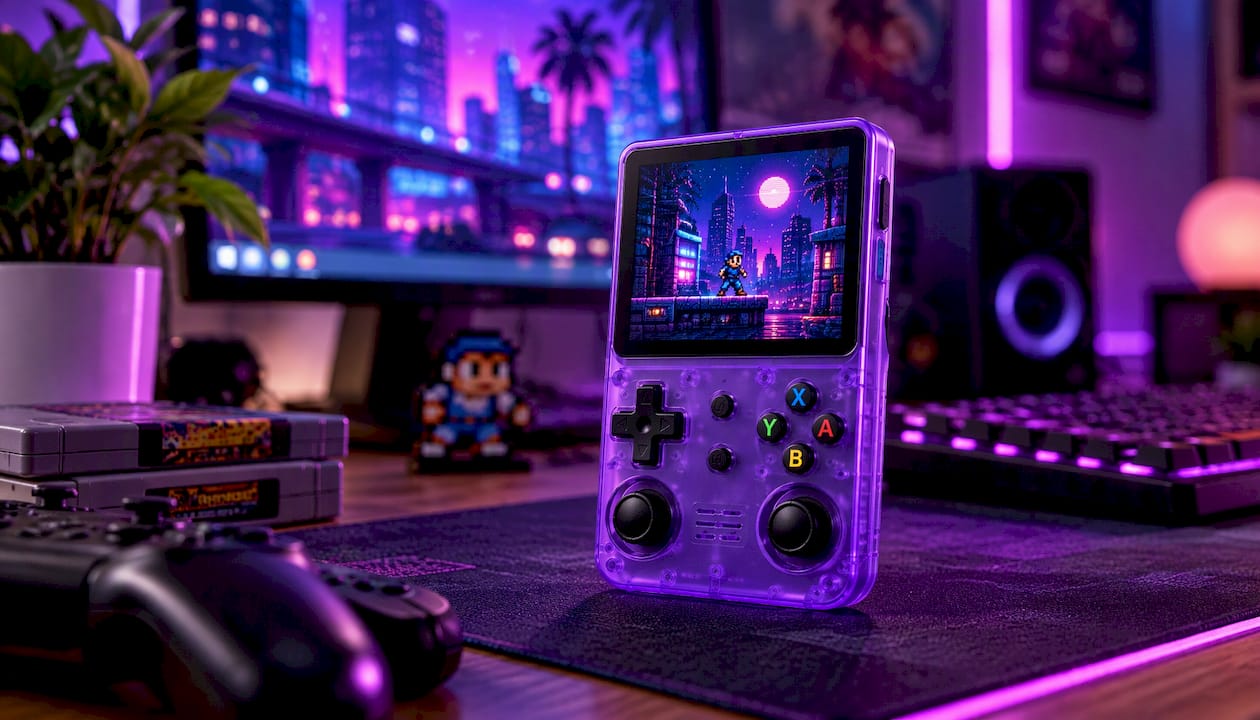
It is a handheld with a 3.5" IPS display, a real D-pad, twin sticks and L/R triggers, preloaded with 15,000 classic games from over 20 systems including NES, SNES, Genesis, PS1, N64, Game Boy, GBA and arcade. Our approach is offline-first and ready to play instantly, with no menu setup, downloads or subscriptions. That means you spend your time playing, and when you want to explore how a game is displayed, the ideas in this guide tell you what to look for.
For parents, that matters twice. You can hand a child the games you grew up with, and the screen is a compact, portable one that works on a commute or a car ride. The removable battery gives 6 to 8 hours of play, charging is by USB-C, and dual microSD slots let you add more games. It ships from a U.S. warehouse, comes with a one-year warranty and has 30-day returns.
See the Retro Pulse product page for details.
If you are comparing options for a child or a gift, our retro handheld comparison for parents and our buying guide walk through what to look at, and our setup guide explains the basics in plain English. For a closer look at screen proportions, see why 4:3 scaling matters more than diagonal size.
Our view on pixels
We think most people do not want to become display engineers. They want the game they remember, looking the way they remember it, in about ten seconds.
Integer scaling is the best idea in retro display for one reason: it respects the artist. Every pixel in an old sprite was placed by hand, and whole-number scaling keeps each one the same size. Black bars at the sides are the old 4:3 television showing through, and they are a sign the picture is correct rather than stretched.
That is why we build around a small, sharp 3.5" IPS screen, real controls and a library that is already loaded. A handheld should be something you pick up and play, whether you are a longtime collector, a parent sharing a childhood favorite, or someone filling a commute. Knowing why the picture looks the way it does is a bonus, and now you do.
Sean
FAQ
Is integer scaling pixel perfect?
For practical purposes, yes. Every source pixel becomes an identical block of pixels, so lines and text stay even and sharp. The picture may be smaller than the screen, with black borders, because it only grows by whole numbers.
Does integer scaling make games look smaller?
Sometimes. It uses the biggest whole multiple that fits, so the image can sit slightly short of the screen edges. In the 640×480 GBA example, the integer image is about 2.5 inches wide against 3.4 inches filled, in exchange for even pixels.
Is the NES 8:7 or 4:3?
Both appear in discussions. The NES pixel shape on a 4:3 TV works out to 8:7, and the TV picture itself is near 4:3. Emulators often use square pixels with integer scaling, which gives the most even look on a handheld.
Should I use integer scaling for every system?
Not necessarily. It tends to suit NES, SNES, Game Boy and GBA best. Systems whose resolution cannot reach 2x on your screen may look better filled, so try both and keep what you prefer per system.
Why are there black bars on the sides of my handheld?
Most retro systems were made for 4:3 screens, and many handhelds are wider. The bars keep the picture in its original proportions instead of stretching it.
Sources
- Guide: Shaders and Overlays on Retro Handhelds, Retro Game Corps
- RG351P Screen Configuration Guide, Retro Game Corps
- Integer Scaling Support on Intel Graphics
- What is Intel Retro Scaling?
- RetroArch display, filters, scaling, shaders and overlays, RetroDECK docs
- Scaling, Emulation General Wiki
- Overscan, NESdev Wiki
- Video Options, Mesen Documentation
- Scaled resolution for NES, Libretro Forums
- The Ultimate Guide to N64 Emulation on RetroArch, MacMyths
- Fullscreen vs Windowed diagnostic