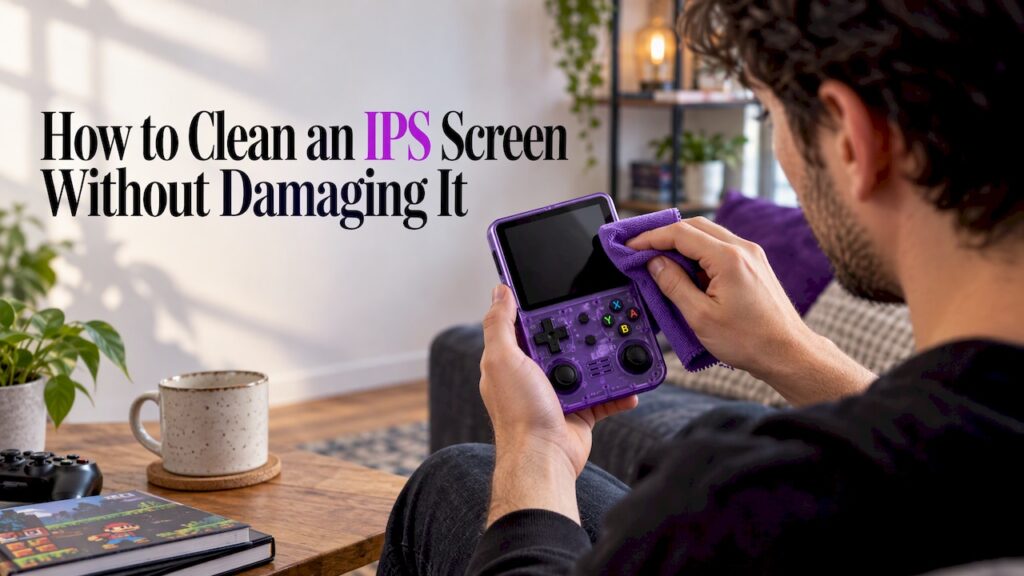
The safest way to clean an IPS screen is to power it off, unplug it, wipe it with a dry microfiber cloth, and then, only if smudges remain, use a cloth lightly dampened with distilled water. Never spray liquid directly on the panel, never press hard, and skip Windex, paper towels and ammonia. That routine works on an IPS monitor, a laptop, a tablet or the 3.5" IPS display on a retro handheld.
The rest of this guide explains why each step matters, what to use for fingerprints, grease and sticky spots, how often to clean, and where the common advice (alcohol, vinegar, steam) helps or hurts.
TL;DR
- Power off and unplug first, then wipe with a clean, dry microfiber cloth using light pressure.
- For smudges, lightly dampen a corner of the cloth with distilled water. Apply liquid to the cloth, never to the screen.
- Avoid Windex, ammonia, acetone, paper towels, tissues and heavy pressure. They can damage coatings or leave scratches and pressure marks.
- Alcohol and vinegar mixes are occasional tools, not daily cleaners. Check your manufacturer’s guidance first.
- Clean every week or two, and wipe fresh smudges quickly so they don’t set.
Table of Contents
- What makes an IPS screen different to clean
- What you need
- Step-by-step: the safe routine
- Fingerprints, grease and stubborn spots
- Alcohol, vinegar, Windex and screen cleaners: what is safe
- What to keep away from your screen
- How often to clean
- Cleaning a handheld console screen
- Our perspective
- Keeping your Retro Pulse looking sharp
- Quick reference: do and don’t
- FAQ
- Sources
What makes an IPS screen different to clean
An IPS (in-plane switching) panel is a type of LCD known for wide viewing angles and steady color. Cleaning it is not a special ritual: the same rules apply to most LCD and LED displays. What matters is the surface. Most screens carry a thin coating, whether anti-glare, anti-reflective or an oil-repelling layer that makes fingerprints easier to wipe. Harsh chemicals and abrasive materials wear that coating down.
Pressure matters too. BenQ’s support team explains that excessive pressure when wiping can cause dead pixels, uniformity problems, dirty-screen effects and even light bleed, which is why the cloth should glide over the surface instead of scrubbing it. The same page notes that the transistors controlling each pixel are sensitive to pressure while the display is on, so the screen should be completely powered down first.
So the goal is simple: remove dust without grinding it in, lift oils with as little liquid as possible, and let the screen dry fully.
What you need
You don’t need a kit. Dell’s guide lists the basics: soft microfiber cloths, distilled water, canned air and a soft duster brush, with a 50/50 mix of distilled water and white vinegar held in reserve for tough stains.
- Two clean microfiber cloths. One for dry dusting and one for damp wiping. Wash them without fabric softener and keep them free of grit.
- Distilled water. It contains no minerals, so it dries without spots. One manufacturer blog notes that tap water’s mineral content can leave visible streaks, while distilled water evaporates cleanly.
- A small spray bottle or a dropper if you want control over how much water reaches the cloth. You spray the cloth, not the screen.
- Canned air (optional). Useful for dust in bezels and corners. Hold the can upright and at least six inches away from the screen, as Dell advises.
- A soft brush (optional) for dust around the edges.
A note on microfiber
One display maker suggests very fine fibers and a dense weave, but you don’t need to measure anything. Pick a soft, lint-free cloth sold for glasses, cameras or screens, and replace it when it feels stiff or looks dirty. A gritty cloth is the fastest way to scratch a coating.
Step-by-step: the safe routine
- Turn the device off and unplug it. HP’s guidance for IPS monitors is to turn off and unplug the monitor before wiping. A dark screen also shows dust and smudges far better, so you can see what you’re cleaning. For a handheld, power it down and disconnect the USB-C cable.
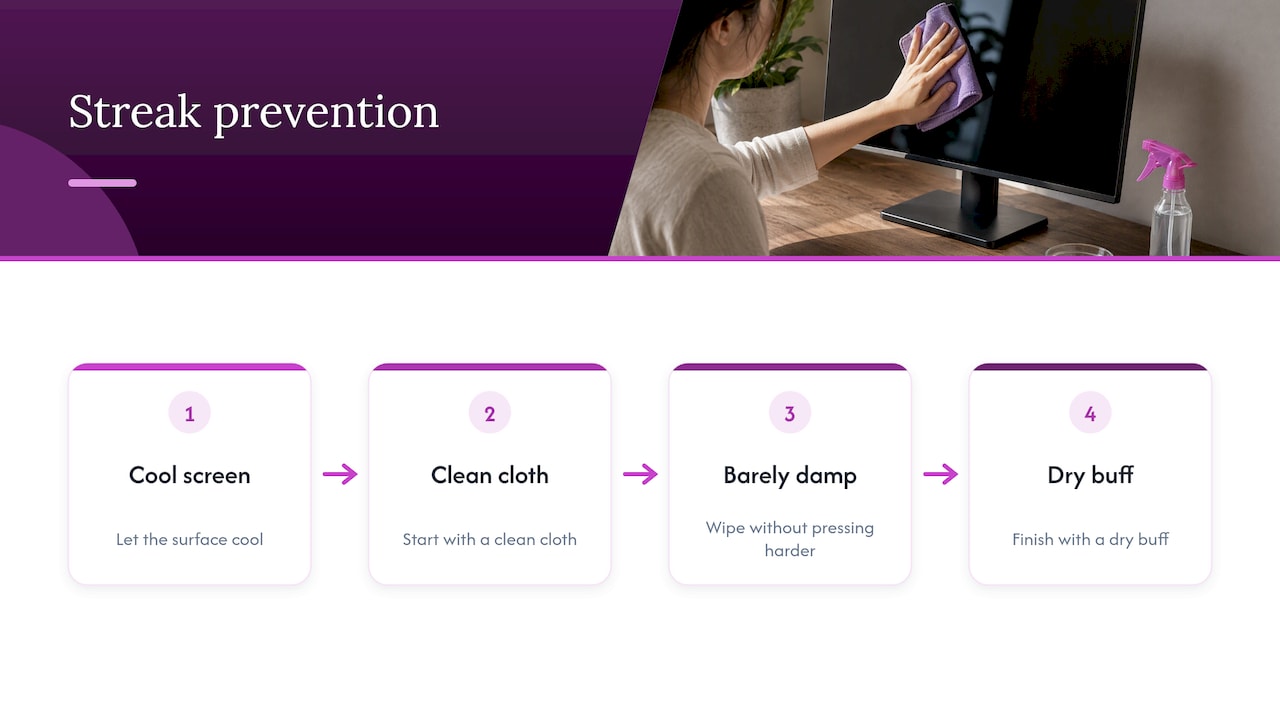
- Let the screen cool. CTL’s support guide explains that working on a warm screen makes solution evaporate too fast, which causes streaks and can spread dirt as a paste.
- Dust it dry. Use a dry microfiber cloth with very light pressure. Dell recommends broad, gentle strokes. CDTech, a display manufacturer, suggests that on coated panels straight strokes can be better than circles because circles may drag particles around. Either way, keep the pressure feather-light and use one consistent motion.
- Dampen only if needed. If smudges remain, lightly dampen a corner of the cloth with distilled water. ASUS’s support page says to spray a small amount of purified water onto the cloth, not the screen. The cloth should be barely damp, never wet.
- Wipe gently, then buff dry. Use the dry part of the cloth or a second dry cloth right after. ASUS suggests repeating the damp-then-dry pass two or three times if necessary.
- Let it air dry fully. Wait until no moisture remains before powering the device back on or plugging it in.
Fingerprints, grease and stubborn spots
Different marks need slightly different treatment. Escalate only as far as you must.
| Problem | Start with | If it persists |
|---|---|---|
| Dust and lint | Dry microfiber, light pressure; canned air for edges | Repeat with a fresh cloth |
| Fingerprints | Cloth lightly dampened with distilled water | Breath of steam, then wipe |
| Grease or spills | Slightly damp cloth with 50/50 distilled water and white vinegar | Check your manufacturer’s page before using alcohol |
| Sticky residue on the frame | Damp cloth on the plastic exterior only | Use a product made for electronics, never on the display |
For fingerprints, Dell recommends a damp microfiber cloth with distilled water, and LG’s support page adds a low-tech trick: if there are many prints, blow a breath of steam onto them and wipe. LG also warns against spraying water on the screen or wiping with a wet cloth, because it may cause stains.
For grease, HP says a 50/50 mixture of distilled water and white vinegar can be used sparingly on tougher jobs, though it isn’t the first thing to try. Apply it to the cloth, wipe lightly, and finish with a cloth dampened with plain distilled water, then a dry one.
Why streaks happen
Streaks usually mean too little solution or a warm surface. CTL’s author explains that when there isn’t enough liquid, the dirt isn’t suspended in it, so the cloth spreads a paste across the surface. If you see streaks, don’t press harder. Start again with a clean cloth, a cooled screen and a barely damp wipe, followed by a dry buff.
Alcohol, vinegar, Windex and screen cleaners: what is safe
This is where advice online contradicts itself, so it’s worth being precise.
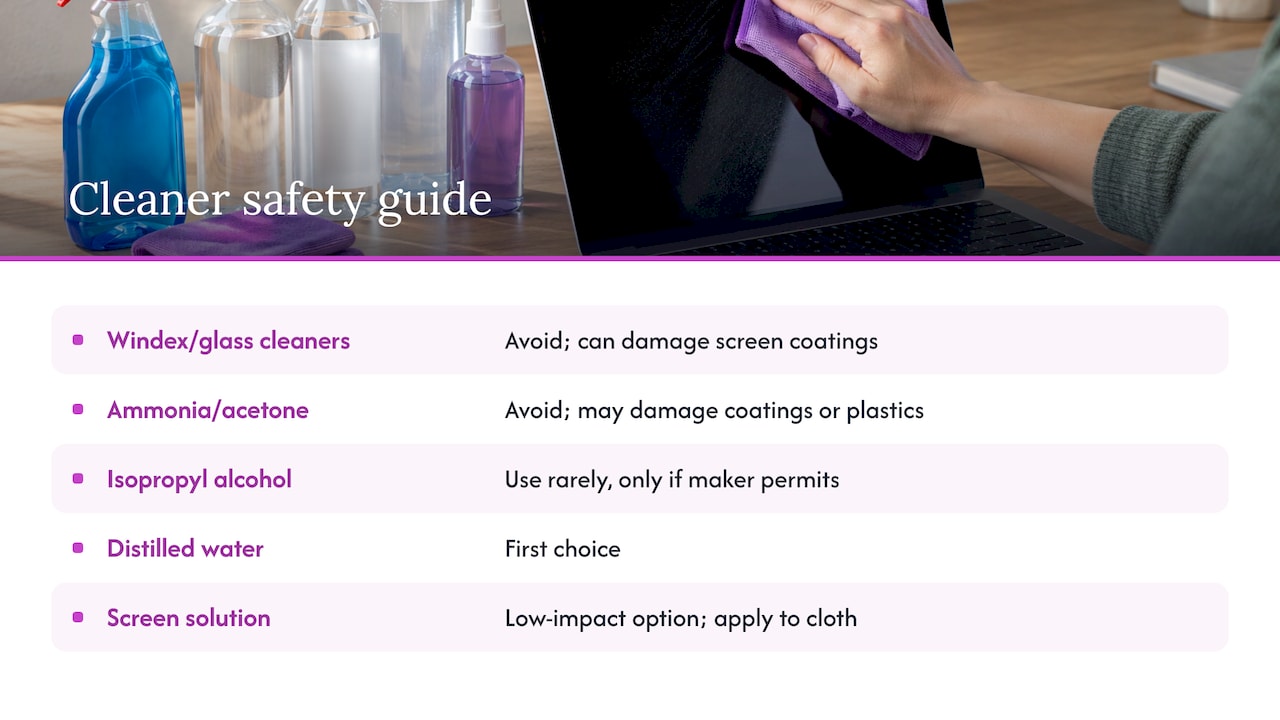
Windex and glass cleaners: avoid. HP says to avoid Windex because it can damage the screen coating. One accessories company explains that household glass cleaners contain ammonia, which wears down anti-reflective, anti-glare and oil-repelling coatings with repeated use, leaving cloudy or uneven patches that can’t be reversed.
Ammonia and acetone: avoid. ASUS warns that alcohol or ammonia-based cleaners may damage the coating. CTL adds that cleaners containing ketones such as acetone destroy plastics and anti-glare coatings.
Isopropyl alcohol: manufacturers disagree, so read yours. Some brands, such as LG, tell you never to use alcohol on the screen. BenQ’s page allows a soft cloth with IPA or water but warns against ethanol, rubbing alcohol and bleach. A university IT help page describes a deep-clean using 70% isopropyl alcohol sprayed onto the cloth, wiped gently, then about ten minutes for it to evaporate before power-on. And one accessories blog notes that regular alcohol use can strip the oil-repelling coating, so fingerprints cling harder over time.
The practical takeaway: distilled water first, always. Keep alcohol for rare disinfecting, and only if your device’s maker permits it.
Eyeglass wipes and “screen cleaner” sprays. CTL mentions that a specially formulated, low-impact screen solution is an option. Whatever you choose, apply it to the cloth, check that it is free of ammonia and acetone, and use as little as possible.
What to keep away from your screen
Dell’s list of things to avoid is a good checklist: paper towels, tissues, cotton shirts, window cleaners, household disinfectants, ammonia-based solutions, and spraying liquid directly on the screen.
A few of these deserve a reason:
- Paper products. Wood fibers can act like very fine sandpaper under pressure, and one accessories maker says they leave micro-scratches that make a screen look dull over time.
- Direct spraying. Liquid can run into the frame and the gap around the panel. CTL notes that applying solutions to the cloth avoids excess moisture running into the frame.
- Pressure. One accessories maker notes that on LCD, IPS and OLED panels pressure can leave temporary or permanent pressure marks. Let the damp cloth do the work, not your hand.
- Abrasives, wax and gloss enhancers. LG’s list includes detergents, automotive or industrial gloss enhancers, abrasives, wax and benzene.
How often to clean
A tech outlet suggests cleaning a monitor every week or two, and removing splatters or smudges right away so they don’t set. For a handheld or phone that you touch constantly, a quick dry wipe after each session is easier than a monthly scrub, and it keeps oils from building up.
For a deeper clean of a shared or heavily used device, use the damp method above rather than reaching for stronger chemicals. If you want to disinfect a device with an official recommendation, follow the maker’s page. Microsoft, for example, says its Surface devices can be cleaned every three to six months or whenever needed with a soft lint-free cloth dampened with mild soap and water, or with screen wipes. That is one brand’s rule for one product line, not a universal one.
Cleaning a handheld console screen
A handheld’s screen faces more than a desk monitor does: thumbs, pocket lint, backpack grit and the occasional snack. The same rules hold, with a few extras.
- Power down and disconnect. Turn the console off and unplug the USB-C cable. If your handheld has a removable battery, as the Retro Pulse does, you can also take it out while you clean the body.
- Shake out grit first. Brush or blow dust from the bezel and button gaps before touching the screen, so you don’t drag particles across it.
- Keep moisture away from openings. Dampen the cloth, then wipe. Avoid the D-pad, sticks, triggers, charging port and microSD slots, where liquid can seep in.
- Clean the buttons separately. Use a different, slightly damp cloth for the plastic around the controls so oils don’t transfer back to the display.
- Store it protected. A soft pouch or case keeps the screen from touching keys or coins.
A clean panel also shows you what a display can really do. If you’re curious what to look for in a small retro screen, our guide to retro handheld screen quality covers the details, and if the image looks dim even when the glass is spotless, the six-step brightness fix walks through menus and hardware. Our look at why 4:3 scaling matters explains how a 3.5" screen fits classic games.
Our perspective
Most screen damage we hear about doesn’t come from age. It comes from a well-meant wipe with the wrong thing: a paper towel, a glass cleaner, a hard press on a stubborn spot.
We built the Retro Pulse around a 3.5" IPS display because retro games deserve a bright, sharp picture, and a handheld you carry everywhere will get fingerprints. Our approach to care is the same as our approach to the product: keep it simple. A dry microfiber cloth, a drop of distilled water, light pressure, and a screen that dries completely before you power on.
The Retro Pulse is designed to be ready to play out of the box, with 15,000 games from over 20 systems preloaded, so the last thing you should have to think about is maintenance. Give the screen a quick dry wipe when you’re done playing, and a damp wipe when it needs it. That habit is enough.
Sean
Keeping your Retro Pulse looking sharp
The Retro Pulse is a handheld with a 3.5" IPS display, real D-pad, twin sticks and L/R triggers, a removable battery rated for 6 to 8 hours of play, USB-C charging and dual microSD slots for adding games. It ships from a U.S. warehouse with a one-year warranty and 30-day returns. If you’re looking for a console that’s ready to play without downloads or subscriptions, see the Retro Pulse handheld.

Buying it as a gift or for a child? Our retro gaming gift ideas show how to match a gift to the person, and the buying guide covers what else to compare.
Quick reference: do and don’t
| Do | Don’t |
|---|---|
| Power off and unplug first | Clean a live, warm screen |
| Use clean microfiber cloths | Use paper towels, tissues or old T-shirts |
| Dampen the cloth with distilled water | Spray liquid on the screen |
| Use light, steady strokes | Press on stubborn spots |
| Let the screen air dry fully | Power on while damp |
| Follow your maker’s guidance on alcohol | Use ammonia, acetone or Windex |
FAQ
Can I use Windex on an IPS screen?
No. HP says to avoid Windex because it can damage the screen coating. Glass cleaners often contain ammonia, which can cloud coatings with repeated use. Use a dry microfiber cloth and, if needed, one lightly dampened with distilled water.
Is distilled water better than tap water?
Yes, for screens. Distilled water has no minerals, so it dries without leaving spots or streaks. Tap water can leave residue as it evaporates. Dampen the cloth lightly, wipe, and buff dry with a second cloth.
Can I clean my screen with isopropyl alcohol?
Only if your manufacturer allows it. Some, like BenQ, permit a cloth with IPA but warn against rubbing alcohol and ethanol, while others, like LG, say not to use alcohol at all. Never apply it directly to the screen, and use it rarely.
How do I get fingerprints off without streaks?
Start with a cloth lightly dampened with distilled water, wipe gently with steady strokes, and buff right away with a dry cloth. A breath of steam also helps loosen oils, as LG’s guidance suggests. Streaks usually mean the screen was warm or the cloth was too dry or dirty.
Is it safe to use compressed air on a screen?
Yes, for dust, if you’re careful. Dell says to hold the can upright and at least six inches from the screen. Use short bursts, and don’t use it to blast liquid or grit around the ports.
Sources
- HP: How to clean your monitor screen
- HP: Expert tips for cleaning a monitor screen
- Dell: How to clean a computer screen safely
- ASUS: How to clean an LCD or OLED panel
- LG USA: How to clean the monitor screen
- BenQ US: Cleaning, disinfecting and sanitizing a monitor
- CTL: LCD screen cleaning
- CDTech: Cleaning an AF-coated screen
- DisplayModule: How to clean an IPS screen safely
- WHOOSH: How to clean a computer screen safely
- Deakin University IT Help: Display screen cleaning
- Yahoo Tech: Eyeglass cleaner on a monitor screen
- Microsoft: Clean and care for your Surface